by JetBrains - 상품타입: 어프리케이션
주의 : 이 제품정보에는 한글안내가 포함되어 있지 않습니다.
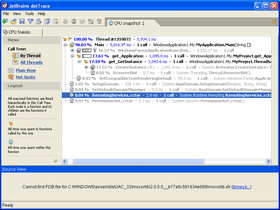
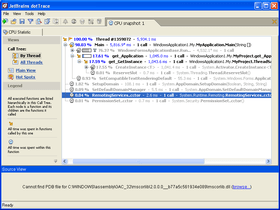
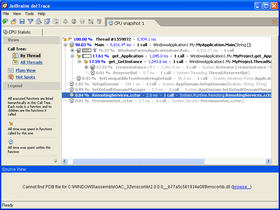
A profiling solution for profiling the performance and memory use of your .NET applications. dotTrace profiles the performance of .NET applications, the memory usage of .NET applications, ASP.NET applications running on Internet Information Server and Windows services. dotTrace program interface features effective navigation, easy filtering and smart search options. dotTrace also features source preview.
일반 적인 소비자 가격은 하기에 표시되어 있습니다. 고객님의 할인가격은 표시 하시려면 로그인 해주시기 바랍니다.
| 주문 | ₩ 689,400 | 1-9 User License - Commercial License (price per license) | 다운로드 (11.0 MB) | |
| 주문 | ₩ 274,900 | 1-9 User License - Commercial License (price per license) - Upgrade from previous version | 확인 | 다운로드 (11.0 MB) |
| 주문 | ₩ 682,400 | 10-49 User License - Commercial License (price per license) | 다운로드 (11.0 MB) | |
| 주문 | ₩ 675,400 | 50+ User License - Commercial License (price per license) | 다운로드 (11.0 MB) |
가격에는 ComponentSource의 기술지원 요금이 포함되어 있습니다. 또한 다운로드 판매를 하고 있는 상품의 대부분은 온라인 백업요금이 포함되어 있어서 구입날로부터 30일 이내에 새로운 버전이 발매된 경우 무료로 업그레이드해 드리고 있습니다. 모든 주문에 대해서 당사표준 계약조건 및 반품조건 의 내용이 적용됩니다. 다음의 경우,고객 서비스로연락하시기 바랍니다. (상기의 리스트에 게재되지 않은 대량의 라이센스나 구 버전 등의 라이센스 옵션이 필요한 경우)
일반 적인 소비자 가격은 상기에 표시되어 있습니다. 고객님의 할인가격은 표시 하시려면 로그인 해주시기 바랍니다.
What's new in dotTrace V3.1?
What's new in dotTrace V3.0?
Memory profiling - dotTrace is now capable of profiling the memory usage of your .NET applications. The profiling process stays just as simple: launch the profiled application, choose the "Memory profiling" option, and then tell the profiler when to take the snapshot of current memory.
As with performance profiling results, memory snapshots allow you to inspect and analyze profiling data for as long as you need, save it and share with others, or put several saved snapshots side by side after you've made changes to the code.
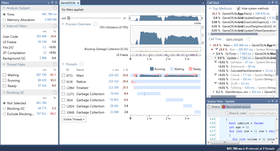
dotTrace offers two ways to profile memory – To check what objects are currently loaded in memory (but shouldn’t be), you can dump memory at any time during profiling. To also view the difference between two application memory states, during profiling you can mark the start and the end of a time interval, then capture a snapshot containing the difference data. A difference snapshot lets you see how much new memory was allocated and how much was released during the marked time interval. The view can be filtered to show only Live objects, only New objects, only Dead objects, only Garbage objects, or the difference between New and Dead objects.
Exploring profiling results - Each memory snapshot holds a wealth of data on all objects allocated in memory, from the roots (Stack, Finalizer, Garbage Collector Handle, Application Domain Static, and Thread Static) to every single object allocated or deleted at any time during the profiling session.
A number of options and snapshot views are available to you for examining and analyzing the results of memory profiling. Any set of objects — an object, class, namespace, or root — can be opened in its own separate tab for closer inspection.
Find objects by class (Ctrl+N) - dotTrace provides the rapid Find objects by class search feature which should be very familiar to users of JetBrains ReSharper (its keyboard shortcut is also assigned to Ctrl+N). The use of wildcards and CamelCase abbreviations is supported for faster search results.
Performance profiling enhancements - Performance profiling in dotTrace has been enhanced with a number of features.
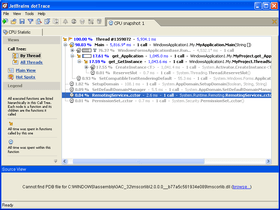
Quick Info - Now you can look up Quick Info on any function from the Call Tree view. The lookup window provides a summary of function statistics with respect to the selected call and to all calls in the current tab.
Better filtering options - dotTrace makes it much easier to see all the data you want to see and none that you don't.
Performance snapshot comparison - dotTrace is now able to compare any two performance snapshots of the same application. It generates a comparison snapshot which shows the difference in the number of calls and times spent in each function. Comparison snapshots can be viewed and analyzed the same way as regular performance snapshots.
New profiling options - JIT inlining disabling option has been added. This lets you choose sides in the tradeoff between greater measurement consistency (that is, when the code you wrote is not inlined, application call structure is preserved, even at the cost of some overhead) and profiling your application in true "field conditions."
Additional enhancements
Multiple snapshots - dotTrace now handles multiple snapshots, providing you with all-around profiling convenience. First, you can generate more than one snapshot of the same application as you profile it. Second, you can open several snapshots at the same time, so that you can compare and contrast them (for performance snapshots, this can even be done automatically).
Windows services profiling - dotTrace lets you easily profile Windows services. Just select the service from the list of all available Windows services and profile it the same way as web applications.
Integration with Visual Studio - Run dotTrace from Visual Studio — with the click of the button you can profile the StartUp project of your solution in Visual Studio. In addition, if you have the JetBrains ReSharper add-in installed on your Visual Studio, you can easily start profiling unit tests from the code editor. Open a file from dotTrace in Visual Studio — if your solution is opened in Visual Studio, you can click a quick link in Source View to navigate to the corresponding source file in Visual Studio.
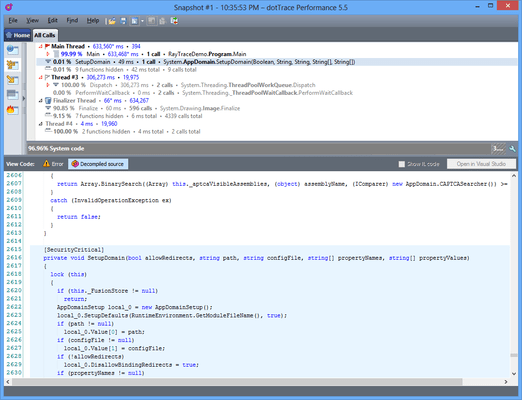
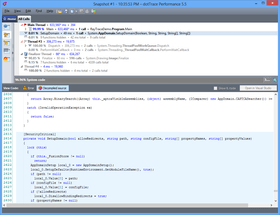
Source View improvements - The Source View now highlights all areas of code relevant to the function currently selected in the upper view. Its new Gutter with highlight stripes — like ReSharper's right-hand gutter in Visual Studio — lets you quickly navigate between the highlighted areas by clicking the yellows stripes.
Better Find function - The Find Function allows you to do more things with your search results:
It also understands wildcards and CamelCase notation for faster search.
Configuring source lookup - To make sure dotTrace looks in the right place for source files, you can specifically configure folder substitutions. If your code has been moved, dotTrace will use the folder substitutions to locate the program database file and display the source code correctly. This also lets several users share snapshots and still see the correct source code on their local machines.