XtraBars Suite - Summary

by Developer Express - Product Type: Component / .NET WinForms / .NET Class / 100% Managed Code

Summary

XtraBars Suite by Developer Express

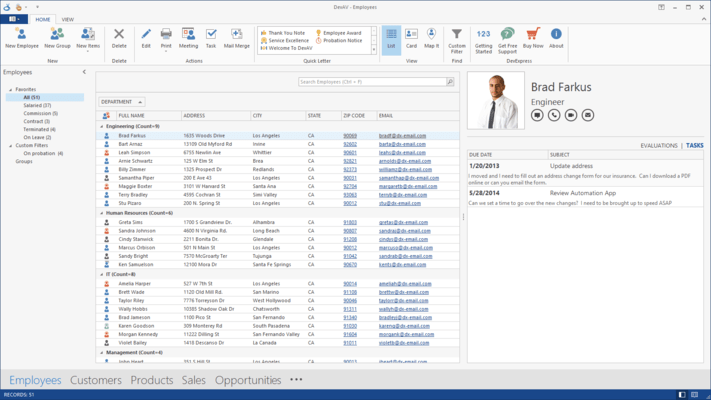
Easily add MS Office XP and Office 2007 style user interface elements to your applications. XtraBars allows you to bring the user interface elements and application customization features introduced in MS Office and Windows XP to your .NET applications, easily and without hassles. XtraBars is packed with a myriad of functions designed to radically simplify the way in which you build navigation and form customization capabilities and gives your applications the look and feel of today's most modern applications - all without writing a single line of code.

With the XtraBars Suite you can build:

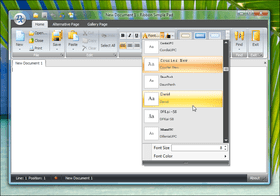
Ribbon - The XtraBars Suite includes several components allowing you to build Ribbon interfaces similar to those found in Microsoft Office 2007

Traditional Toolbar/Menu Systems - With the XtraBars Suite you can easily emulate toolbar/menu systems like those found in Microsoft Office 2003 (or earlier).

Dock Windows - The XtraBars Suite allows you to create a user interface similar to that found in Microsoft® Visual Studio .NET (dockable windows)

Tabbed MDI Interfaces - Simply drop the XtraTabbedMdiManager component onto the MDI container form. MDI children will be automatically arranged into tabs, end-users will be able to switch between tabs using standard shortcuts, rearrange documents by dragging tabs, close and navigate documents using built-in buttons

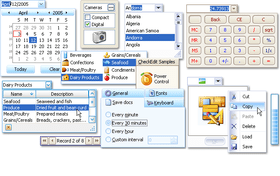
Popup Menus - The XtraBars Suite allows you to create multi-purpose popup menus. These menus can be used as dropdown lists for toolbar or ribbon buttons. As you might expect, you can also bind popup menus to any Windows control on a form

Ribbon Features

Ribbon Elements - All elements required by the Microsoft Office 2007 UI License are supported

Layout Adaptation - The Ribbon implementation doesn't simply mimic appearance, it also provides out-of-the-box layout adaptation capabilities. If you narrow a window, the ribbon's content will automatically be compressed by changing large to smaller images, hiding item text, moving buttons into dropdown windows, etc. If you widen the window, the layout will be restored to its initial state

Galleries - There is a special item type that allows you to create Galleries - an easy and elegant way to organize lengthy option lists

Contextual Tabs in Ribbon - All tabs within the Ribbon are grouped into categories - at least one default category contains permanently visible tabs. You can also create any number of context-dependent categories. Tabs contained in these categories can be made visible on demand, when required by the current context

Application Menu - Our RibbonControl allows you to create an application menu similar to that found in Microsoft Office applications

Key Tip Support - Our Ribbon implementation fully supports Key tips. If an end-user presses the ALT or F10 key, small tooltips showing keyboard shortcuts are displayed over Ribbon items

Advanced Tooltips - The RibbonControl supports "super tooltips". The SuperTip property has been added to the RibbonPageGroup and BarItem classes, enabling an advanced tooltips display for group buttons and all kinds of bar items. Using this property, you can easily specify header, footer and content text and also specify which images to display in each section

Fade Animation - Animated hot-track effects are now supported in our .NET Windows Forms products. When end-users hover Ribbon elements, command buttons, check boxes, editor buttons or main menu items, these elements are highlighted using an animated fade effect. Fade animation is also used to restore an element's original state when the mouse pointer leaves this element

Elements you can use in Ribbon, Toolbars and Menus

Push or check buttons

Buttons with dropdown windows

Buttons with dropdown menus

Sub menus

Static text

Toolbar lists that allows end users to show and hide toolbars

An MDI window list that allows you to invoke any of the opened MDI child windows

A Link container item that can hold a set of any other elements allowing you to reuse the same collection of elements or to construct lists similar to the Internet Explorers Favorites list

List items that make customization easy, via a string list

Embedded editors 20 editors from the XtraEditors Library can be embedded into toolbars and menus from text editors to color and font pickers

Appearance Customization

Toolbars, menus and dock windows can be painted in Office 2000 (Flat), Office XP (UltraFlat), Office 2003 style or using the currently applied system theme

The XtraBars Suite fully supports Skins technology which means elements are constructed from a set of bitmaps. This allows you to provide an XP look and feel to previous operating systems and build your own unique look and feels. With XtraBars, you get over10 built-in skins including Office 2007 paint styles

The previous two benefits are made possible since all the included controls support the shared painting library. With this library, you have centralized control over the look and feel of all controls. You can change the paint style of all the controls by changing just a single property

The XtraBars Suite supports background images and alpha blending

Bar and Menu features:

5 menu animation effects are available

A popup overflow panel is available if the forms width is too small to completely display all the toolbar items

Menus can display only the most recently used items like in Microsoft Office

Full support for MDI Applications including menu merging and main menu buttons to control MDI child windows

Toolbars can occupy multiple lines

Editor items can turn into buttons that invoke dialogs when a toolbar is vertically oriented just like the font editor item in Microsoft Office toolbars

Dock Window main features:

Auto-hide functionality

Dock windows can reside within a tab container

Neighboring dock windows can reside within a split container. This means that you can maximize a window and the other neighboring windows are minimized

End-user Experience - The XtraBars Suite offers out-of-the-box end-user customization mechanisms just like those found in Microsoft Office. These mechanisms include:

Ribbon's Quick Access Toolbar is Fully Supported

Ribbon Minimization - To use form space more efficiently, end-users can temporarily minimize a Ribbon to leave only its page headers visible. For this purpose, they can double-click a page header or select the appropriate context menu item. The same actions can be used to restore the Ribbon state

An Add or Remove Buttons dropdown in each bar

The visibility of Toolbars can be customized using a context menu invoked by right-clicking bars

Customization dialog just like in Microsoft Office

Context menus for each item when the Customization dialog is active

Hot customization end users can reorder and copy items using drag and drop while the ALT key is pressed

Design-time Experience

On-form Ribbon Creation and Customization - When you build a Ribbon, you don't have to invoke a designer dialog each time you need to add or delete Ribbon elements or when you need to access their settings. Ribbon content customization can be done directly on the form by using two very simple context menus. If you need to access an object's settings, simply click that object and modify it using the Properties window

On-form Toolbar/Menu Creation and Customization - The XtraBars Suite allows you to add and customize your bars directly on the form - without the need for designer dialogs. Once you place a BarManager component onto a form, the main menu, the status bar and a toolbar are automatically created for you. You can then add any number of toolbars by using the BarManager's Smart Tag or context menu

Almost all customization approaches from the End-User Experience section are available at design-time

Convenient Designer dialogs to customize ribbons, bars and dock windows are included

Miscellaneous

You can save and restore the layout of toolbars and dock windows via several storage medias

You can enable automatic saving restoring of the layout when closing and opening applications, respectively

The XtraBars Suite fully supports localization

What’s new in XtraBars Suite v2008 vol 2?

Collapsible Toolbars -Microsoft Office applications provide a way to hide toolbars and make them visible again. This functionality was replicated in the XtraBars Suite so that end-user experience can mimic that of Microsoft Office. Though the Microsoft Office approach seems simple enough, the XtraBars Suite now provides a more elegant solution in v2008 vol 2. Prior to this release and like in Microsoft Office, you had to right-click a toolbar then locate its name within the context menu and uncheck the menu item. From this point forward, end-users can simply double-click the toolbar's thumb - and by doing so, all toolbar items are hidden and thus the toolbar is minimized. Another double-click expands the toolbar to its previous state. Both expand and collapse operations are executed with a sliding animation effect.

Icons in Ribbon Tabs - In order to make Ribbon tabs more recognizable by end-users, you can now display icons within them.

What’s new in XtraBars Suite v2008 vol 1?

Close Buttons in Tabs when using XtraTabbedMdiManager - With this new feature, you can easily emulate popular internet browser interfaces.

What's new in XtraBars v2007 vol 3?

Standalone Toolbars - You can now place toolbars at any location within a form.

Ribbon Enhancements - Similar to toolbars and menus, the RibbonControl supports MDI merging. This allows you to save working space by automatically moving bar commands from a child form to the main form when maximizing a child. You don't have to write any code to enable this feature. Simply specify when merging should take place - when the main form is activated or when it's maximized.

Customizable Height for Embedded Editors - The RibbonControl was previously optimized to display single-line editors, which made it hard to display memo data, images and radio buttons. With this release, you can explicitly set an editor's height. Thus you can make an editor use the entire vertical space provided by the RibbonControl.

Displaying Bar Commands to the Right of Tab Headers - Your application's UI can now mimic Microsoft Office more effectively by embedding controls into the tab header area. There are no restrictions on embedded control type - it can be a help button, a search string editor or anything else your business requirements dictate.

Transparent Background for In-place Editors - You can now freely use check boxes, track bars and radio groups within ribbons. A white background will not be displayed when you move focus to these editors.

New Navigation Capabilities - Implemented two new navigation features so that you can provide the same end-user experience as that found in Microsoft Office. You can now change the active tab by scrolling the mouse wheel when the Ribbon is hot-tracked. If tab headers or commands don't fit into the parent window horizontally, scroll buttons are displayed so that all commands remain accessible.

What's new in XtraBars v2007 vol 2?

Contextual Tabs in Ribbon - All tabs within the Ribbon are now grouped into categories - at least one default category contains permanently visible tabs. You can also create any number of context-dependent categories. Tabs contained in these categories can be made visible on demand, when required by the current context.

Application Menu Improvements - You can now populate the Application Menu's right pane and footer with any control. For instance, you can emulate the recent document list and footer buttons available in Microsoft Office.

Enhanced Design-Time Experience - Many enhancements have been made so that you can set up the Ribbon control directly on your form. You will no longer need the Ribbon Designer dialog to customize sub-menus and galleries. With this new design-time extensions, you can open the Application Menu, dropdown menus and galleries to access any element and its properties. You will also be able to customize these containers by adding or removing elements via context menus.

Another significant new feature is the complete support for drag and drop operations. You will now be able to drag elements between tab groups, from the Ribbon to the Application Menu, from the Application Menu to the Status Bar, etc. You can also drag entire groups between tabs.

PartNumbers: PC-512374-162697 512374-162697 PC-512374-162699 512374-162699

Publisher PartNumbers: 130 132

PurchaseOptions: Developer Express XtraBars Suite v2008 vol 2 (V8.2.3) 1 Developer License - Includes one year subscription , Developer Express XtraBars Suite v2008 vol 2 (V8.2.3) 1 Developer License - with Source Code - Includes one year subscription

Resources: Read the Developer Express XtraBars Suite help file, Read the Developer Express License Agreement, Download the DXperience v2008 vol 2 (V8.2.3) for Visual Studio 2005/2008 evaluation on to your computer - Expires After 30 Days

Operating System for Deployment: Windows Vista, Windows XP, Windows ME, Windows 2000, Windows NT 4.0

Architecture of Product: 32Bit

Product Type: Component

Component Type: .NET WinForms, .NET Class, 100% Managed Code

Compatible Containers: Microsoft Visual Studio 2008, Microsoft Visual Studio 2005, Microsoft Visual Basic 2008, Microsoft Visual Basic 2005, Microsoft Visual C++ 2008, Microsoft Visual C++ 2005, Microsoft Visual C# 2008, Microsoft Visual C# 2005, .NET Framework 3.5, .NET Framework 3.0, .NET Framework 2.0

Product Class: User Interface Components

Search Items: New Product Mar 04, New Product Apr 04

Keywords: Toolbar tool bar tool-bar Toolbars Menu Menus Ribbon Ribbonbar Developer Express devexpress Enterprise Partner User Interface windows assistant assistance friendly look style forms form application design visual Developer Express XtraBars Suite xtra bar bars xtrabar

Product Search

Enter search words:

Screenshot Gallery

Award