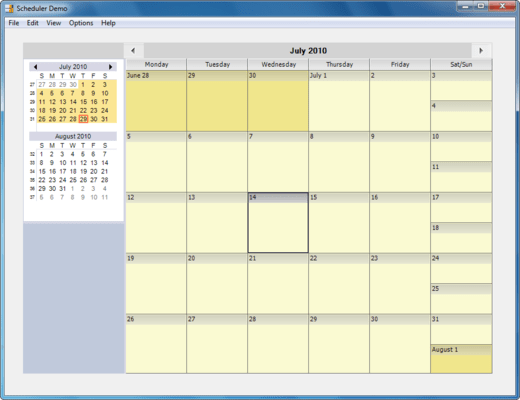
Screenshot Preview

Syncfusion Essential Schedule for Windows Forms

by Syncfusion - Product Type: Component / ASP.NET WebForms / ASP.NET AJAX (ATLAS) / ASP.NET MVC / .NET WinForms / .NET WPF / Silverlight / 100% Managed Code

Syncfusion Essential Schedule for Windows Forms is available as part of Syncfusion Essential Studio Enterprise Edition and Syncfusion Essential Studio User Interface Edition.

If you require more information please Contact Us

Create Outlook-like calendar UI in your Windows Forms applications. Syncfusion Essential Schedule for Windows Forms is a UI control library that lets you add scheduling support for your applications. The support includes creating new appointments in code and letting the user drag the appointments around to reschedule them. Syncfusion Essential Schedule for Windows Forms also includes a header for browsing through adjacent days. You can have both timed and untimed (all-day) appointments.

Screenshot of Syncfusion Essential Schedule - Windows Forms - 2012

Please note: Syncfusion Essential Schedule for ASP.NET also includes Windows Forms, Silverlight, WPF and ASP.NET MVC components.

What's new in Essential Schedule 2012 Vol 2?

  • All-day Appointments - With all-day appointments, you can create an engagement spanning an entire day or longer. This is useful when marking events such as tradeshows or holidays that persist for an extended time. All-day appointments have all the functionality found in normal appointments.
  • Dragging Appointments between Resources - An appointment can be dragged from one resource to another. For example, an appointment can be moved from one person’s schedule to the schedule of another by simply dragging and dropping the appointment. The date and time of a moved appointment will be updated accordingly.
  • Support for Date Ranges - You can set minimum and maximum dates to create a range of dates that can be selected in a schedule. The date range can be set relative to the current date or as a fixed range.
  • Customizing the Schedule View - The viewable area of a schedule can be customized to show times within a certain range. You can also start a week on a day different from the default. Time frames can also be blocked to prevent appointments from being added at specific times. Blocked time frames can be set to recur daily. The customization options for the Schedule control are differentiated enough that time frames can be specified to the minute, and background colors and images can be customized using custom CSS.
  • Customizing Appointment Appearance - The background, font style, and other visual elements of appointments can be customized based on resource, category, or custom CSS. This customization can be used to change the default appearance settings as well to help to distinguish certain appointments from others.
  • Customized Date Highlighting - The navigation panel in the Schedule control can highlight dates to indicate coming events. This highlighting can easily be customized apart from the default styles.
  • Localization Support - Choose which language the user interface elements will be displayed in. Most aspects of the user interface can be localized, including time formats and event reminders.
  • Support for Custom CSS - In addition to having 14 built-in skins, the look and feel of the Schedule control can be customized using your own CSS. Even default styles can be customized in this manner.

What’s new in Syncfusion Essential Schedule for ASP.NET 2010 vol 3?

Fixes

  • Cannot drag appointment on schedule if more than one schedule control is loaded.
  • ResourceID is 0 in AppointmentDragged event.

Syncfusion Essential Schedule for Windows Forms Schedule Control Functional Regions

  • Caption Panel - Placed at the top of the ScheduleControl, this panel also includes the forward and backward navigation buttons.
  • Caption Panel for Schedule Control - Docked to the left of the ScheduleControl by default, this panel includes multiple navigation calendars and a splitter Control. The number of calendars displayed in this panel is determined by its client height and by default displays two calendars. Custom controls can also be included in the Navigation Panel

Syncfusion Essential Schedule for Windows Forms Schedule Grid View

  • Month View - Displays the Schedules for any particular month.
  • Week View - Displays the Schedules for the seven days in a week, against time intervals of one hour.
  • WorkWeek - Displays a five day workweek against time intervals of one hour.
  • Day View - Schedule for a single day are displayed, for the respective hour.
  • Custom Week - The schedule for variable number of days is displayed. The days can be contiguous or random.
  • Schedule Control Functional Regions
  • Schedule Grid View

Syncfusion Essential Schedule for Windows Forms Appointments
The appointments can be set at both designtime and runtime. At runtime the appointments are entered using the Enter Appointment dialog, using which the various features of an appointment can be defined. There are two types of appointments: Item - Appointment for a particular time frame in a day and AllDay Item - Appointment for the entire day.

Syncfusion Essential Schedule for Windows Forms Appointment Label
An appointment label denotes the category of the appointment, with unique colors for individual categories. Some of the categories included are Business, Travel Required, Needs Preparation and Anniversary.

Syncfusion Essential Schedule for Windows Forms Appointment Alert
Alerts can be raised when the appointment time approaches, while using the ScheduleControl. These alerts produce snoozes as a reminder for the End User.

Syncfusion Essential Schedule for Windows Forms Recurring Appointments
The ScheduleControl offers options for including recurring appointments, while entering a new appointment or while editing an existing appointment. The recurrence pattern and the recurrence range can be varied as desired.

Syncfusion Essential Schedule for Windows Forms Schedule Segments
The ScheduleControl offers complete flexibility in defining the time frame for an appointment, ranging from 2 mins. The time frame can be entered in terms of hours and minutes.

Syncfusion Essential Schedule for Windows Forms Schedule Culture
The Date formatting in the ScheduleControl can be formatted on the basis of any culture.

Syncfusion Essential Schedule for Windows Forms Appearance
The appearance of various regions of the ScheduleControl can be customized as desired. Pre-defined appearance setting templates can also be used for this purpose.

Syncfusion Essential Schedule for Windows Forms Drag-and-Drop
Complete drag drop support is available, while using the ScheduleControl. Scheduled appointments can be moved from one day to another, in any of the Schedule Grid Views.

Syncfusion Essential Schedule for Windows Forms Spanned-Label at Top for AllDayItems
The ScheduleControl offers functionality to perform selection even horizontally spanning multiple dates. The added AllDayItem will get displayed as a label at the top of the schedule grid similar to the behavior as MS Outlook does.