Data Dynamics Business Intelligence Suite - .NET - V1.0 - Récapitulatif

par Data Dynamics - Type de produit : Composant / ASP.NET WebForms / ASP.NET AJAX (ATLAS) / .NET WinForms / .NET Class

Récapitulatif

Data Dynamics Business Intelligence Suite by Data Dynamics

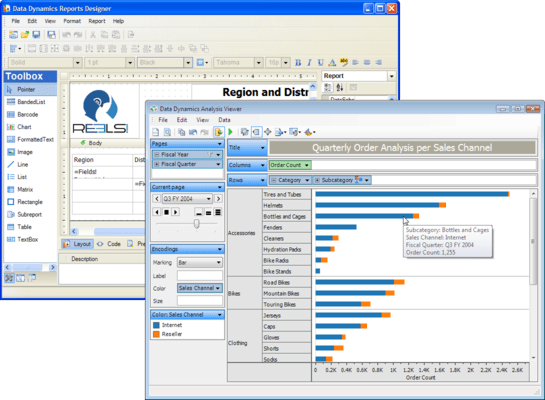
Report on and explore relational and multidimensional data. Data Dynamics Business Intelligence Suite includes Data Dynamics Analysis and Data Dynamics Reports. Data Dynamics Reports integrates into Web and Windows Forms applications and provides a rich API with which to create and modify reports. Features include: master reports, additional chart types, banded list data regions, barcode report items, formatted text report items, themes and data visualizers. Documents created with Data Dynamics Reports can layout data using a combination of lists, tables, charts, matrices or banded lists in a layout-based report. Reports can be populated with data from an ADO.NET DataSet, .NET Object, SQL Server, Oracle, OLEDB, ODBC, or an XML data source. Data Dynamics Analysis is a free form visual analysis component for .NET developers. Data Dynamics Analysis takes the complexity out of standard data analysis and gives users a simple drag and drop environment that promotes exploring data visually. Data Dynamics Analysis is aimed towards developers whose business users need to analyze data.

Data Dynamics Reports has all of the features found in RDL and has added several enhancements:

Master Reports - Master Reports allow developers (or the end-user) to define a template that can then be filled in by other reports

Additional Chart Types - RDL defines several chart types that should be implemented, Data Dynamics Reports provides 10 more types: Gantt, Candlestick, Hi-Lo, Hi-Lo Open-Close, Kagi, Renko, Three-Line-Break, Point and Figure, Pyramid, and Funnel. These chart types are in addition to the standard: Column, Bar, Area, Line, Scatter, Bubble

Banded List data region -Using the standard data regions the only way to get multiple group levels is to either nest many lists together or use a table region, both have severe drawbacks. The lists can be difficult to work with and the table makes it difficult to position things that aren't in a column. This is where the Banded List comes in, it makes it easy to group data and allows the report author to place report items freely within it. The Banded List is available for report authors to use, but it is also used by the Access, ActiveReports, and Crystal import utilities.

Barcode Report Item - The included Barcode report item supports 23 of the most popular barcode symbologies, from Code39 to UPC, PostNET, and JapanesePostal

Formatted Text Report Item -The formatted text report item allows the report author to include XHTML + CSS content into their reports

Themes - Themes make it easier for all of the reports you create to have a common look. Themes allow you to define a set of colors, two sets of fonts, and package any common images that may be used on many reports. The theme file format is also easy to understand so new themes can be created and existing ones replaced, easily.

Data Visualizers - Data bar, color scales, icon sets, and range bars all help explain your data at a glance

Rendering extensions are more than just an export, they render the report using the underlying layout of the report. This means that each report item can be rendered in a way that makes sense for that rendering extension. Rendering extensions available:

Image - The image rendering extension takes the report and converts it into an image. Formats supported: EMF, JPEG, GIF, BMP, TIFF and PNG

HTML - The HTML rendering extension renders a report in the XHTML 1.1 and CSS 2.1 formats. Supports both an interactive mode and disconnected mode, suitable for offline viewing or e-mailing

Word - With the included Word rendering extension, you and your users can export reports to the Word document format directly from the viewer without purchasing costly components

PDF - The PDF rendering extension outputs a PDF version of the report, supporting the encryption and password protection options available in later versions of PDF

XML - The XML rendering extension takes the dynamic content of the report and outputs it into an XML format. Report authors can control how the XML is formed by modifying properties found on the Data Output smart panel of each of the report items

Data Dynamics Reports includes several controls that you can ship with your applications:

Viewer for Windows Forms - The windows forms viewer control allows developers to include the ability to view reports within their own applications

Viewer for ASP.NET - The web forms viewer control allows developers to include the ability to view reports within their own ASP.NET applications

User Designer - The included designer control lets your users design reports from within your own windows forms application

Data Dynamics Reports is not a replacement for ActiveReports for .NET. The goal behind creating Data Dynamics Reports is to create a reporting product in which users need not write code to create most basic reports.

What are the main differences between Data Dynamics Reports and Active Reports for .NET? Briefly, Data Dynamics Reports supports multiple data sources, data sets, and several different data regions. It also supports the use of VB.NET expressions to set properties. These expressions control the entire report generation process and replace the event handlers fired from within ActiveReports for .NET.

Expressions - With ActiveReports for .NET, if you want to set the color of a TextBox at run time based on its value, you have to write an event handler like the following:

private void detail_Format(object sender, EventArgs e)

{

if ( ( (double) textbox.Value) < 0.0 ) {

textbox.ForeColor = Color.Red;

}

else {

textbox.ForeColor = Color.Black;

}

}

In Data Dynamics Reports you instead use expressions- snippets of inline VB.NET code that when executed return the value desired. The expression to duplicate the event handler earlier would be written like so:

=IIF( Fields!field.Value < 0, “Red”, “Black” )

Multiple Data Sources/Data Sets - Each report can have multiple data sources and data sets associated with it. A data region and its children can only be associated with a single dataset. If multiple data sets are needed within a data region a subreport can still be used to link in the second data set. However, in most cases a data set that contains the join of both sets of data could be used.

Drilldown - Data Dynamics Reports has true drilldown support, that allows report authors to hide data conditionally in the report and expose it when requested. This is done by setting a report item to be hidden and then setting its ToggleItem property to the name of a textbox or image report item in the report.

Data Regions - A data region is a how a set of data is manipulated to be output by various report items (if needed). The List data region outputs itself once for every row of data in the data set or unique set of grouping expressions. The Banded List functions very similar to how a report in ActiveReports for .NET works. The Chart data region contains the same charting technology used in ActiveReports, but it has been updated to work with the Data Dynamics Reports ideas of a data set and expressions.

Nested Data Regions - In ActiveReports for .NET it is possible to add a chart to any section of the report, but that is the limit of nesting a data region. In Data Dynamics Reports data regions can also be added within data regions that accept report tiems, as long as the data is grouped. The ability to nest data regions means that report

authors don’t have to resort to using subreports which incur additional processing overhead that should be avoided if possible. A standard usage is to nest another data region within the List data region when it has detail grouping set. This set up allows the summary data to be output in the outer List while details are output in the inner List. Another usage is to take advantage of the grouping construct of the Matrix data region. This allows the report author to create a trellis display of charts, tables, or lists.

Matrix (Crosstab) - Data Dynamics Reports also features a matrix data region – sometimes called a crosstab or pivot table. This data region consists of a grid that adds columns and rows for distinct sets of field values in the data set. Many products exist for the same premise, to group data in n-ways and look at the data comes out. Each row or column group in a matrix can optionally have a subtotal column/row as well. This works by taking the same expression in the data cell and expanding its scope to include all of the data in that group.

Table - Data Dynamics Reports offers a Table data region which simplifies the positioning and sizing of report items in a grid format. The designer makes it easy to set gridlines on the table as well.

Data Dynamics Reports Frequently Asked Questions

Question: What are the differences between Data Dynamics Reports and ActiveReports for .NET 3.0?

Answer: Data Dynamics Reports targets reporting as a function of business intelligence applications while ActiveReports for .NET focuses on providing the most flexible object model that gives developers the freedom to customize and create complex reports with ease.

Data Dynamics Reports is designed to require less code "behind" the report and instead to use Visual Basic .NET expressions within report item properties to evaluate values. ActiveReports for .NET on the other hand, is a very developer-oriented system that features events for complete run-time customization of the report.

Both Data Dynamics Reports and ActiveReports for .NET include WebForms report preview controls, however ActiveReports also includes an ActiveX-based viewer that renders the report graphically instead of through HTML and CSS. Both products also include Windows Forms report preview controls and end-user designer components. Data Dynamics Reports ships with pre-built applications for report viewing and creation.

Data Dynamics Reports supports different data regions. In ActiveReports for .NET, a report is created in a series of bands, each band displaying its data in certain parts of the report. Data Dynamics Reports supports this data region, called the Banded List, and also supports Table, Chart, Matrix (crosstab), and List data regions.

Features available only in Data Dynamics Reports include:

Less code (no code-behind events; uses VB.NET expressions)

Data Visualization functions

Report Drilldown

Matrix (crosstab)

FormattedText report item that displays XHTML and CSS content

Multiple Datasets or Data Sources in a report

Pre-built report viewer and designer applications

Advanced aggregate functions

Master reports that act as templates for child reports

Themes that allow you to set up common styles, colors, and images in one location.

Word Rendering Extension

Image Rendering Extension that renders reports to BMP, EMF, GIF, JPEG, TIFF, and PNG formats

Layout-based reporting

Features available only in ActiveReports for .NET include:

Code behind and an Event system for complete run-time customization

ActiveX Report Viewer

OLE Object and Windows Forms Controls can be used on reports

Unbound mode events for run-time data binding to any data source

Flexible object model

RTF content

Excel Export

RTF Export

Plain Text Export

Graphical canvas-based reporting

Special Data Dynamics features in both products include:

A chart that supports all of the most commonly-used chart types plus a diverse array of financial chart types

A barcode that supports all of the most popular symbologies

PDF Export (or Rendering Extension)

HTML Export (or Rendering Extension)

Royalty-free developer licensing

Question: What are the differences between Data Dynamics Reports and Microsoft SQL Server Reporting Services 2005?

Answer: Both products implement the Report Definition Language (RDL) 2005 specification but from there the products differ.

Data Dynamics Reports introduces several features not found in SSRS.

Master Reports - Master Reports are similar in design to Master Pages in ASP.NET. Reports can specify a live-template that provides a common set of report items, data sources, data sets, report theme, and report parameters

Report Themes - Report Themes allow report authors to easily follow a consistent look for their reports by providing a set of colors, fonts, and images

Data Visualizers - Data Visualizer functions allow the user to display a graphic based on some set of data instead of forcing the user to read individual values. A color scale selects a color from a range based on a value from that range. A data bar or range bar displays a rectangle with the length dependant on the value. An optional progress indicator can be used as well. The icon set allows the report to display one of 5 images to represent the state of some data

FormattedText Report Item:Renders XHTML and CSS into your reports

Barcode Report Item:Supports over 20 of the most popular barcode types

Banded List data region: Gives report authors the freeform placement of the List data region with enhanced grouping support

Enhanced chart control with additional chart types not found in SSRS

Enhanced PDF support with built in security options, font embedding, and font subsetting

Developer support

Report API allows developers to create and render reports programmatically without using the viewer or designer controls

The Designer control allows your end-users to create their own reports with the same design capabilities as found in the Visual Studio 2005 IDE

The Viewer controls allow the full functionality of Data Dynamics Reports; connect to any supported data source, use any of the custom report items, or custom rendering extensions

Question: What is the Report Definition Language and why do I care that Data Dynamics Reports supports it?

Answer: The Report Definition Language (RDL) sets out both a file format and how elements in a report should be rendered. It also defines a base set of functionality that should be available in a report.

Some of the features required in the RDL 2005 specification include:

Table, Chart, List, and Matrix data regions

Grouping, sorting, and filtering support

Multiple Data Sources and Data Sets in a report

Textbox, image, rectangle, and line report items

Data Dynamics Reports and Microsoft SQL Server Reporting Services are just two products that implement the RDL 2005 specification.

Question: Does Data Dynamics Reports require Microsoft SQL Server Reporting Services?

Answer: No, Data Dynamics Reports does not build on Microsoft SQL Server Reporting Services (SSRS). Data Dynamics Reports is a self-contained reporting library that contains its own report engine, API, viewer, and designer controls. Data Dynamics Reports can read and execute the RDL files produced by SSRS because the files follow the RDL format, but that is the only connection.

Data Dynamics Analysis

With Data Dynamics Analysis managers of all business industries are now able to spot new trends and dive deep into their data. Businesses such as financial services, sales, retail, marketing, software, hospitality, insurance, manufacturing, or government are now able to embed visual analysis to their .NET applications. The new Data Dynamics Analysis component offers pivot tables, bar charts, line charts and xy charts with interactive sorting and filtering to provide a complete ad hoc information source.

Rediscover Your Data

Data Dynamics Analysis allows you to find trends in your data. A single connection is able to generate thousands of chart variations using nothing more than a mouse. Each view gives the user a different look inside their business data. A different story can be told using the same data simply by reorganizing your field layouts. When data is seen in the right perspective, new findings appear that may have otherwise gone unnoticed.

Instant Dashboards

Data Dynamics Analysis offers the ability to connect multiple PivotView's to a single data source control. You can achieve a different view of the same data organized together using completely different fields against the same data source which would enable a business executive to gain deep insight to actionable data with little effort.

Connect to Any Data Source

Data Dynamics Analysis can connect to any data source. There is no limit to what type of data you can analyze with Data Dynamics Analysis. For easy setup, there are various data source controls that help bind to some of the more common data sources such as SQL Server, MySQL, Oracle, Microsoft Access, Microsoft Excel, Xml, DB2, Microsoft SQL Server Analysis Services, and many more.

Relational Data - Model relational data into multidimensional objects including dimensions, measures, hierarchies, and named sets. Fields can be modeled from any OleDb data source, a SQL Server data source, or any ODBC data source. Stored procedures are supported as well. Data Dynamics Analysis doesn't care how you get the data, as long as you can feed it to the data engine in a flat manner.

Xml Data - Transform your XML data into visual charts and pivot tables. Data Dynamics Analysis has built-in support for analyzing XML data. By mapping to an Xml file and an (optional) Xsl file, Xml data becomes meaningful and allows business executives to analyze the data in a unique way.

Disconnected Data - Disconnect your data by saving it to a compressed format. This allows business users to analyze data away from the data source in a fully disconnected mode. Imagine analyzing data on a plane or at some remote location where the data source is not accessible. This option enables users to analyze a snapshot of the data, and then sync the layouts to live data once reconnected to get updated results instantly.

Multidimensional Data - Connect to SQL Server Analysis Services 2005 data cubes and begin exploring the data in an exciting new way. Using simple drag and drop operations, multidimensional data is transformed into presentation quality charts. Data Dynamics Analysis has full support for multidimensional hierarchies, KPI's, named sets, dimensions, and measures.

Unbound Data - Connect Data Dynamics Analysis to in-memory business objects. A good example of unbound data would be a case where you wish to analyze data from a web service or analyze your computers processor load. The nice thing about Data Dynamics Analysis unbound data source is that it can be used for every other data source that isn't supported directly.

Basically, if you can get access to your data in code, then Data Dynamics Analysis will allow you to explore it visually.

Visual Analysis in Your Browser

Data Dynamics Analysis installs with a Windows Forms component as well as an ASP.NET Ajax Web component. The Web component is capable of connecting to all of the same data sources. The result enables end users to experience a multi-tiered analysis solution for visualizing relational and multidimensional data over the Web.

Built-In Undo / Redo Support

The process of analyzing data involves looking for new insight that has never been discovered before. In order to support this fast analytical thinking, Data Dynamics Analysis provides the ability to undo any changes made to the view. This allows users to revisit their results at any time. Having this built right into the component saves hours and possibly weeks of development for such support. This is works in both the Windows Forms control and the ASP.NET Ajax control.

Filters Everywhere

Filtering data is an essential item to any data analysis experience. Data Dynamics Analysis is built to ensure that every conceivable way to filter data is possible and available directly from the component with no additional configurations.

Data Dynamics Analysis offers the ability to filter data in several ways. Simply by placing the control on a Windows Form or ASP.NET Web form, users are immediately able to begin drilling into their data and filtering their results to show only the data that are most important to their analysis goals.

Top N Filters - Users are able to isolate the top 10 results, the bottom 15%, or even the top results that calculate to a certain value. All Top N filters are capable of being determined by any measure or calculated field. This enables business users to isolate and highlight the values that matter most.

Conditional Member Filters - Filter data using a conditional filter definition. Users are instantly able to exclude all values where the data meets a certain conditional filter. For example, perhaps the user wishes to view all products that end with "ion". Perhaps they wish to view all customers whose name starts with "Adams" and ends with "Jones". These types of ad hoc filtering capabilities are available using the built-in dialogs and context menus.

Value Filters - Users are able to filter results based on a calculated value within the grid. This enables business users to exclude all results that fall within a conditional filter definition, such as a range of values. So, for example, show only the States where Sales were greater than $400,000 during 2007.

Manual Filters - Filter out certain values using the manual filter dialogs. Users are able to filter out individual members using a checked member tree for dimension filters. Filtering measures is possible through a custom range slider control. Using the built in measure range slider and hierarchical member tree, users are able to isolate exact members and values. All of these filtering techniques are possible using nothing more than a mouse or track pad.

Quick Filters - Both types of filters are capable of being displayed on a card that sits inside the PivotView while you analyze your data. Use the quick filter cards to filter your data without ever opening a dialog. Quick filters offer quick access to hierarchical and numeric filtering capabilities.

Built In Toolbar

Almost all of the functionality that is within Data Dynamics Analysis is accessible using the built-in toolbar. This makes it easy for developers to access the commands and speeds development time. The toolbar can be hidden using the design time properties grid or programmatically with a single line of code.

Model Unstructured Data

One of the most powerful features of Data Dynamics Analysis is its ability to model unstructured data into a multidimensional format. Using a single Xml file, a flat set of data can be structured to support a full OLAP analysis experience. Data Dynamics Analysis comes with a utility to assist in this modeling process. When a schema configuration is not provided, a simple schema is built internally using intelligent defaults.

Data Dynamics Analysis allows the following objects to be modeled from unstructured data:

Hierarchies- Enable multiple categories that are closely related to each other into separate levels. When hierarchies are used on the PivotView, users are able to drill down into detail data and roll up to summarize results.

Dimensions- Group like fields together into logical collections using custom dimensions. Dimensions are able to contain folder groups, hierarchies, and attributes.

Attributes- Attributes are individual fields from the underlying data source. An example of an attribute is 'FullName' or 'OrderNumber'.

Measures- Any numeric data can be transformed into a measure. Measures are the key to all analysis functionality; they are the "data" of the view. One key aspect of a measure is the ability to plot numeric scales on the X and Y axes in the PivotView.

Calculated Attributes - When modeling data, Data Dynamics Analysis offers the ability to perform various functions on any field. An example of a calculated attribute would be OrderYear = Year(Fields!OrderDate.Value) to extract the year value from a date field. Another example would be SalesQuarter = DatePart(DateInterval.Quarter, Fields!SaleDate.Value) to extract the quarter from a date field. These are only two simple examples. However, Data Dynamics Analysis has many built in functions to enable all kinds of calculated attributes.

Calculated Measures - Create custom calculations from any data source. An example of a calculated measure would be AverageSale = Fields!TotalSales.Value / Fields!OrderCount.Value.

Custom Security

Deliver permission based security to every aspect of the analysis experience. Easily provide a role based security system using Data Dynamics Analysis' built in persist flags to load custom security settings per user.

Charts and Pivot Tables

Data Dynamics Analysis delivers both a pivot table and charting solution. It provides a wide array of charting capabilities; with the click of a button, users can turn a cross tab pivot table into a trellis display of feature rich chart displays.

CSS-like Styling

Data Dynamics Analysis offers a robust themes engine that enable users to get the look and feel that they want. Styling can be performed down to each aspect of the view using a CSS style approach. The product ships with many pre-built themes like Office 2007, Windows Classic, Windows Vista, and more. Configuring your own style is as easy as modifying an Xml file and does not require a full recompile of the hosting application.

Dockable Cards

Every aspect of Data Dynamics Analysis' user interface experience is capable of being displayed, repositioned, or hidden. This is a very nice feature, not only because it allows for a customized experience for each user, but also because the UI logic is fully encapsulated within the component itself. Card layouts can be saved to disk (or memory) and reloaded at any time.

Summarize Dynamic Data

Highlight a selection of data points and watch them summarize into various aggregate results on the Summary Card. This feature allows for detailed analysis against dynamic displays. Selecting data points and summarizing the values of those points is very handy for determining what values make up major outliers.

Extract Aggregate and Detail Data

Once a section of data has been highlighted, use the built in context menu to view the underlying data. All data sources are capable of extracting the aggregate data. When connected to an OLAP cube, users have the additional option of performing a "drill through" against the cube to retrieve the detailed transaction rows.

Paged Chart Displays

Analyze multiple pages of data easily using the built in Page Controller. By placing fields on the PageShelf, users are able to move pages of dynamic chart displays.

Ranking and Sorting

Using the built in context menus users are able to sort their display in many different ways. Members are able to be sorted and ranked in ascending or descending order as defined by the end user. When a field has a sorting function applied to it, a sort indicator is displayed on the field to inform the user that a custom sort operation is set on that field.

Persist Flags

Data Dynamics Analysis provides a robust architecture for saving and loading various aspects of the view. By combining flags on the Read() and Write() methods, users are able to load pre-saved layouts, permissions, card configurations, data, and styles without ever recompiling the hosting application. This is a very powerful feature and saves a lot of time when it comes to developing and deploying an analysis solution.

Layouts- Save layout configurations to XML and then load those pre-saved layouts at a later time to refresh the view with updated results. When saving layouts, there is an optional flag to save the layouts with data. This is a handy feature when sending layouts to business users that my not have access to the data source.

Card Settings - Saving and loading card layouts allows for each user to customize their card layouts to fit their needs.

Permissions- Loading permissions is a key feature of Data Dynamics Analysis and is extremely easy to do. At design time, developers are presented with a checked list of various permission settings. At runtime, it's as easy as loading a pre-saved XML file.

Styles- Every aspect of the user interface is configurable. This enables users to style the PivotView to fit seamlessly into their existing Windows Forms and ASP.NET applications.

Data Source - Most analysis solutions are capable of connecting to multiple data sources with the same database schema. Data Dynamics Analysis enables layout files to persist the data source information with the layout file which ensures that the results will always use the specified data source. Alternatively, omitting the data source information allows the current layout to be run against an older version of the database for historic analysis.

Present your Results

In order to get the most out of an analysis experience, it is paramount that the results are able to be shared with others. Data Dynamics Analysis offers many features that promote the presentation of the analysis results to various formats:

Title Card - Describe the overall goal of your analysis experience using the Title card. By using this card, users are able to describe their analysis goal for all to see.

Description Card - As the user filters and drills down into data, the built-in description card describes the layout in verbal form. This enables others to simply read the description to understand exactly what the display is showing.

Copy Image to Clipboard - Directly from the built in toolbar, users are able to copy their image to the system clipboard and paste their results into PowerPoint or a Word document. All of the necessary information is included in the image by default.

Built-In Printing Capabilities

Share your results with others by using the built-in print preview capabilities. All of the necessary UI aspects are sent to the printer as well to help describe the resulting view, including the various legends, the title, and the description text.

Codeless Development

Every aspect of the development process is capable of being configured at design time within Visual Studio 2005 IDE. It is possible to develop and deploy a full blown business intelligence solution that offers visual analysis against relational or multidimensional data without ever writing a single line of code.

Add Calculated Fields

Using Data Dynamics Analysis schema files, users are able to add calculated fields to their solution with little effort. Calculated fields can be sent directly to the data source, or they can be configured to be calculated in the data engine after the results have been queried from the data source. Both options have their advantages depending on the type of calculation.

Drill Down Into Your Data

Data Dynamics Analysis enables business users to drill down into databases to gain deep insight to their business data. By drilling down users are gaining deeper insight to their data. When rolling values up, values are automatically summarized.

PartNumbers: PC-518379-157555 518379-157555 PC-518379-157559 518379-157559 PC-518379-157560 518379-157560

PurchaseOptions: Data Dynamics Business Intelligence Suite (includes Data Dynamics Business Intelligence Suite and Data Dynamics Reports) 1 Developer License , Data Dynamics Business Intelligence Suite (includes Data Dynamics Business Intelligence Suite and Data Dynamics Reports) 10-19 Developer License (Price per license, Minimum quantity 10) , Data Dynamics Business Intelligence Suite (includes Data Dynamics Business Intelligence Suite and Data Dynamics Reports) 20+ Developer License (Price per license, Minimum quantity 20)

Resources: Read the Data Dynamics Analysis End User License Agreement, Browse the Data Dynamics Reports License Agreement, Download the Data Dynamics Business Intelligence Suite evaluation on to your computer - Displays Evaluation Messages

Operating System for Deployment: Windows Vista, Windows XP, Windows Server 2003, Windows 2000

Architecture of Product: 32Bit

Product Type: Component

Component Type: ASP.NET WebForms, ASP.NET AJAX (ATLAS), .NET WinForms, .NET Class

Compatible Containers: Microsoft Visual Studio 2008, Microsoft Visual Studio 2005, Microsoft Visual Basic 2008, Microsoft Visual Basic 2005, Microsoft Visual C# 2008, Microsoft Visual C# 2005, .NET Framework 3.5, .NET Framework 3.0, .NET Framework 2.0

Keywords: Mining analyze analyse analysis データ分析 Analysis Design Modeling Product Suites Suite bundles bundle On-Line Analytical OLAP analysis analyze analyse Data Dynamics datadynamics Enterprise Partner bi suite bisuite b i suite ddbi suite ddbisuite ddanalysis dd dynamic datadynamic datadynamics dynamicanalysis dynamicanalysis dynamicsanalysis dunamicsanalysis datadynamicsanalysis datadynamicsanalysis datadynamicanalysis datadynamicanalysis

Recherche produit

Entrez vos critères de recherche :

Autres liens

Éditeur

Catégorie principale

Produits similaires

Catégories similaires

Galerie de copies d'écran

Award