Designer Widgets - ActiveX/VBX - V2.0

by Infragistics - 상품타입: Component / ActiveX OCX / VBX

주의 : 이 제품정보에는 한글안내가 포함되어 있지 않습니다.
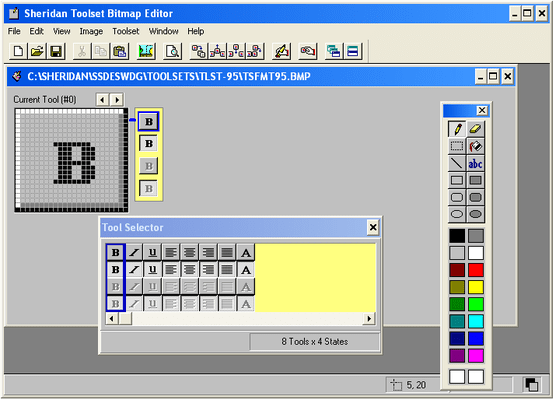
Designer Widgets - ActiveX/VBX - V2.0 의 스크린샷Design enhanced user interfaces complete with rich toolbars and tabs. Designer Widgets is a collection of ActiveX components for VB that includes: Dockable Toolbar - to create floating toolbars of buttons that can be docked to the top, sides or bottom of your MDI form. The Notebook Tab Control - for notebook-style interfaces complete with "turning" pages and the ability to design customized notebook styles by varying the look and feel of the ring binder, the tabs style. The Index Tab Control - for a tabbed "index card"-like display allows you to present several screens' worth of data in the space of one screen. And FormFX - for total control over the appearance and behaviour of your forms.

평균  Designer Widgets - ActiveX/VBX - V2.0 의 평균 리뷰 스코어  1 리뷰.

407,600₩
통화 선택

일반 적인 소비자 가격은 하기에 표시되어 있습니다. 고객님의 할인가격은 표시 하시려면 로그인 해주시기 바랍니다.

Designer Widgets V2.02

주문 ₩ 407,600 1 Developer License 다운로드 (6.2 MB)

본 제품은 GSA Schedule 가격으로 제공해 드릴수 있습니다.가격에는 ComponentSource의 기술지원 요금이 포함되어 있습니다. 또한 다운로드 판매를 하고 있는 상품의 대부분은 온라인 백업요금이 포함되어 있어서 구입날로부터 30일 이내에 새로운 버전이 발매된 경우 무료로 업그레이드해 드리고 있습니다.  모든 주문에 대해서 당사표준 계약조건 반품조건 의 내용이 적용됩니다. 다음의 경우,고객 서비스로연락하시기 바랍니다. (상기의 리스트에 게재되지 않은 대량의 라이센스나 구 버전 등의 라이센스 옵션이 필요한 경우)

일반 적인 소비자 가격은 상기에 표시되어 있습니다. 고객님의 할인가격은 표시 하시려면 로그인 해주시기 바랍니다.

Notebook Control allows you to create applications utilizing the notebook metaphor. The Dockable Toolbar lets you create floating toolbars of buttons the user can 'dock' to the top, sides or bottom of a Multiple Document Interface (MDI) form. FormFX gives you total control over the appearance and behavior of your forms, maximizing the effectiveness of each screen.

There is no other package that combines controls that allow you to program with the style and power of Designer Widgets 2.0. They are supplied as version 3 16-bit Visual Basic Custom Controls (.VBX), and 16-bit and 32-bit ActiveX Controls.

Dockable Toolbar

The Designer Widgets 2.0 Dockable Toolbar control lets you create floating toolbars of buttons that the user can 'dock' to the top, sides or bottom of a Multiple Document Interface (MDI) form. When toolbars are not docked, the user can resize and reshape the 'floating' palette as needed. This gives users the flexibility to customize the work area to suit their working habits. Creating toolbars of multiple buttons is as simple as placing a Dockable Toolbar control on a form and using the Toolbar Layout Editor to set the number of buttons and assign button attributes.

Designer Widgets 2.0 now gives you the ability to place other controls such as combo boxes or labels on the Dockable Toolbar. All the properties that you can define for a button like the ToolTip to display or a description for your status bar can easily be defined for each child control on the toolbar as well. The result is it will be easier for you to give your applications the features that make your users more productive.

In addition, the ToolbarFloating property gives you the ability to have a toolbar float even if the toolbar is not used on an MDI form. Also, the ToolbarOrientation property allows you to place a toolbar vertically or horizontally oriented on any form, making it possible to align the toolbar to the left, right, top or bottom of your form. And collections have been added to the Toolset, Tool, and Button properties in order to take full advantage of new host syntax.

Index Tab Control

The Index Tab control lets you design efficient dialogs using the index tab metaphor to group collections of related options. With this control you can effectively present several screens' worth of data in the space of one screen, extending a metaphor that is familiar to all users -- the index card. With labeled tabs neatly presented in multiple rows, the user can see at a glance what options are available and easily navigate between them by pointing and clicking on the desired tab. And since the tabs are active at design time, the developer can easily place controls on the cards by selecting the desired tab and drawing the controls right on the card. Simply place an Index Tab control on the form, set the 'Tabs' property to the number of cards you need and start drawing controls. What could be easier?

Notebook Control

The Notebook control allows you to easily create applications utilizing the notebook metaphor. Design customized notebook styles by varying the look and feel of the ringbinder, the tabs style, and even animate the effect of turning pages. Place multiple pages behind each tab, and "earmark" pages just as you would in a real notebook. Notebook tabs is the ideal interface for Personal Information Management Systems (PIMS), or any application containing multiple "topics."

FormFX Control

To maximize the effectiveness of each screen, the FormFX control gives you total control over the appearance and behavior of your forms. Form caption areas can now have custom buttons on the left or right side. That means you can use caption buttons for frequently used functions, such as help or Exit. And FormFX control can now be used on MDI parent or child forms, giving you even greater flexibility in designing applications. FormFX also now displays custom form settings during the design time which permits you to see your setting immediately.

So if you need a form with a small VB toolbox-like caption, FormFX can do it all! Or use FormFX to create a form with an oversized 3-D caption that contains left-justified caption text and a bitmapped graphic. It's easy! If you ever wanted to give a form sizable borders, but limit the minimum and maximum size of the form without VB code and annoying flicker, FormFX can do that, too! Whether you need to change the way a form looks or behaves, to let your user get the most from your application, FormFX is the tool you need.


상품검색

검색어를 입력해주세요:

Quick 링크

화면 바로가기 갤러리

Award