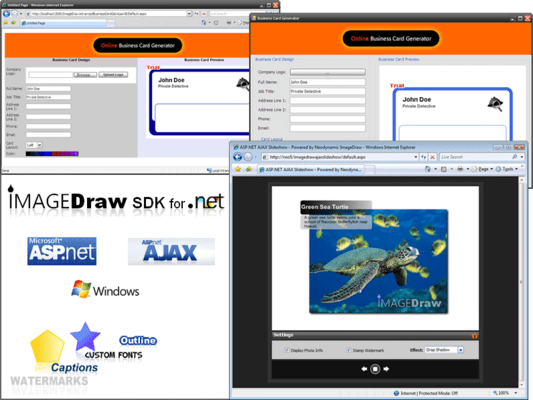
Add dynamic image composition (Images, Texts and AutoShapes) with loads of imaging effects out-of-the-box to any .NET applications. Neodynamic ImageDraw SDK for .NET is a lightweight royalty-free .NET component (.NET DLL Class Library a.k.a. assembly) which lets you to easily add advanced Imaging Effects and Dynamic Image Composition to any .NET Framework-based application. ImageDraw allows you to use all the potential of GDI + to dynamically create composite images (Supporting image files, Texts like captions and watermarks as well as AutoShapes (lines and arrows, rectangles, ovals, polygons, stars, etc)) with lots of useful built-in Imaging Effects like drop shadows, reflections, perspective views, Polaroid, filmstrip, scaling, resizing, skewing, and so on.
Our regular prices are shown below. Please logon to see your discounted prices.
ImageDraw SDK for .NET V1.0
| Add to Cart |
$ 274.30 |
1 Developer License |
|
Download (3.4 MB) |
| Add to Cart |
$ 822.91 |
1 Small Business License (5 Developers) |
|
Download (3.4 MB) |
| Add to Cart |
$ 1,371.51 |
1 Corporate License (Unlimited Developers) |
|
Download (3.4 MB) |
Our prices include ComponentSource technical support and, for most downloadable products, an online backup and a FREE upgrade to the new version if it is released within 30 days of your purchase. All sales are made on our standard Terms and Conditions and subject to our Return Policy. Please contact us if you require any licensing option not listed above including volume licensing and previous versions.
Our regular prices are shown above. Please logon to see your discounted prices.
ImageDraw Architecture - Canvas and Elements
The ImageDraw Object Model is very flexible. ImageDraw controls generate Dynamic Composite Images and the main characters in this scenario are Canvas and Elements.
- Canvas is a rectangular area intended for drawing Image, Text, and Shape Elements. It plays a key role in the ImageDraw architecture because it governs and determines the final size for the output composite image to be generated.
- Elements are simple graphical objects which are assembled together to create a composite image. All elements are drawn on the Canvas in the order that each of them has in the stack of elements (the Elements property that each ImageDraw control features). In addition, each element can have associated to it zero or more imaging Actions that affect its appearance (more on this later).
There are three main elements:- ImageElement which simply wraps an image or picture that must be drawn on the Canvas. Those images or pictures can be acquired from several sources such as a URL or path file, Base64 string, byte array, or System.Drawing.Image object.
- TextElement which simply wraps a text string that must be drawn on the Canvas. TextElement objects are created by specifying some basic properties such as Text, Font, ForeColor, StrokeColor, etc. TextElement are useful for drawing custom captions and watermarks.
- ShapeElement which are preset shapes like rectangles, ovals, lines, arrows, stars, and polygons that can be drawn on the Canvas. AutoShapes support imaging effects, text inside them by allowing padding text feature, border roundness and dashed patterns.
Built-in ImageDraw Actions - Imaging Effects
Element objects (ImageElement, TextElement and ShapeElement) will require some "retouching" such as resizing, scaling, FX effects, etc. Actions are imaging effects that are applied on any Element objects. You can easily apply more than one Action on any elements. ImageDraw comes with 33 useful and impressive built-in ready to use Actions.
- AdjustBrightness: This action adjusts the brightness of an Element. Brightness is adjusted by specifying a level value which ranges from -100 (dark) to 100 (light). This action is typically used when correcting images that are too dark or too light.
- AdjustContrast: This action adjusts the contrast of an Element. Contrast is adjusted by specifying a level value which ranges from -100 (dark) to 100 (light). This action is typically used when correcting images that are too dark or too light.
- AdjustGamma: This action adjusts the Gamma correction value of an Element. Gamma correction is adjusted by specifying a value which ranges from -100 to 100.
- AdjustHue: This action adjusts the Hue Channel of an Element. Hue Channel is adjusted by specifying an angle value which ranges from -180 to 180 degrees.
- AdjustHSL: This action adjusts the shade of a color, its hue; the intensity of a color, its saturation; or the lightness of a color of an Element.
- AdjustOpacity: This action adjusts the opacity of an Element. Opacity is adjusted by specifying an opacity level value which ranges from 0 (totally transparent) to 100 (totally opaque). This action is typically used when creating watermarks through an ImageElement, a TextElement or a ShapeElement.
- AdjustSaturation: This action adjusts the saturation level of an Element. Saturation is adjusted by specifying a level value which ranges from -100 (dark) to 100 (light).
- CameraView: This action simulates a camera view of an Element. In CameraView action, the camera point of view is defined by specifying two angles called Elevation & Azimuth which refer to the vertical and horizontal rotation angle of a camera's sight line relative to the center point of an element respectively.
- ConvertToGrayscale: This action converts an Element to grayscale.
- ConvertToNegative: This action converts an Element to negative.
- ConvertToSepia: This action converts an Element to sepia.
- Crop: This action crops a rectangular section from an Element. The rectangular section to crop is specified by an x/y location and a given size.
- DecorativeBorder: This action adds decorative border to an Element. The decorative border is specified by setting a border width, a dash style and a Fill.
- DistortCorners: This action distorts an Element by changing the coordinates of the four corners (see figure) defined by the element's boundaries.
- DropShadow: This action adds real drop shadows to an Element. ImageDraw makes it easy to apply drop shadows to any Element allowing you to specify the Shadow's Angle (the direction of the shadow and to simulate the angle of the light shining on the object); the color of the shadow; the distance of the shadow from the Element; the percentage of transparency in the shadow; and the sharpness of the shadow.
- Filmstrip: This action creates a Filmstrip representation of an Element. This action is typically used when showing VHS or DVD Covers at Entertainment Stores Websites or when showing photo albums at Photography-related or Personal Websites.
- Flip: This action flips an Element across its vertical or horizontal axis.
- GaussianBlur: This action softens the look of an Element. Gaussian Blur applies a weighted average of blur to each pixel producing a hazy effect. The only property for setting up when working with Gaussian Blur is called Radius which is the strength of the blur effect.
- GlassTable (Reflection): This action creates a glass table effect (a.k.a. Reflection effect) on an Element. ImageDraw makes it easy to apply reflection effect on any Element showing it as it was standing on a glass table.
- MailStamp: This action creates a mail stamp representation of an Element. This action might typically used when showing photos or stamps in Personal Websites for example.
- MakeTransparent: This action makes color transparent for an Element. This action is typically used to convert a given color pixel to transparent. The conversion process takes a solid color -with a specified alpha channel value if any- and then converts all pixel matches on the Element to transparent. It also supports color tolerance for transparency. Color Tolerance represents the tonal range of colors that will be converted to transparent taking the specified color as starting point.
- PerspectiveReflection: This action adds perspective reflection to an Element.
- PerspectiveShadow: This action adds perspective shadows to an Element.
- PerspectiveView: This action simulates a perspective view of an Element.
- Polaroid: This action creates a Polaroid representation of an Element. This action is typically used when showing photo albums in Photography-related or Personal Websites.
- RemoveTransparency: This action removes transparent pixels from an Element and automatically resizes it.
- Resize: This action changes the size of an Element. This action is typically used when you need to reduce or enlarge the current Element size to a new one. One interested feature is LockAspectRatio which determine how Element's proportions are maintained.
- Rotate: This action rotates an Element pivoting on its center point. Rotate action requires a rotation angle which is measured counterclockwise from the x-axis.
- RoundCorners: This action rounds Element corners. RoundCorners settings include the corner roundness and a color and width for the border if necessary.
- Scale: This action enlarges or reduces the size of an Element based on percentage values.
- Silhouette: This action creates a Silhouette of an Element. A silhouette is a view of an object consisting of the outline and a featureless interior. Silhouette action is effective only for irregular images with transparent background.
- Skew: This action transforms an Element by slanting it along the horizontal or vertical axis. When skewed, an element pivots on its origin point. Skew action is defined by specifying a skewing type (Parallelogram or Trapezoid), an orientation (Horizontal or Vertical) and a positive or negative angle.
- Stretch: This action stretches an Element to fit a given size.
Merging Actions
As stated before, ImageDraw architecture allows you to apply more than one Action on a given Element (ImageElement, TextElement, and ShapeElement). The following figures show how some combination of Actions applied on an Element can improve its appearance.
Image Formats Supported
ImageDraw controls support the following image formats.
Input Image Formats: ImageDraw controls manage input images by wrapping them through ImageElement objects and the supported formats are PNG, GIF, JPG/JPEG, BMP, TIFF, WMF, EMF, and ICO.
Output Image Formats: Each ImageDraw control features the ImageFormat property which indicates what image format must be rendered. The following formats are supported for the output image: PNG, GIF, JPG/JPEG, and BMP.
- GIF output images support Index Transparency
- PNG output images support Alpha Channel Transparency
Visual Studio Development Support
- ImageDraw SDK can be referenced and used from any .NET Development Tool like Microsoft Visual Studio 2005/2008 versions including Visual Studio Express Editions and Visual Web Developer
- Visual Studio Intellisense support
Solution Projects Support
- ASP.NET Web Site
- Console Application
- Class Library
- Windows Service
- ASP.NET Web Services
- Windows Forms Application