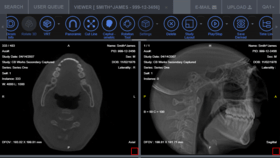
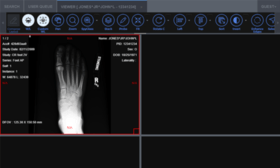
Screenshot Preview

LEADTOOLS Medical Imaging SDK

by LEAD Technologies - Product Type: Component / Add-In / ASP.NET AJAX (ATLAS) / .NET WinForms / .NET Class / .NET WCF / .NET WPF / Silverlight / .NET WF / DLL / VC++ Class Library

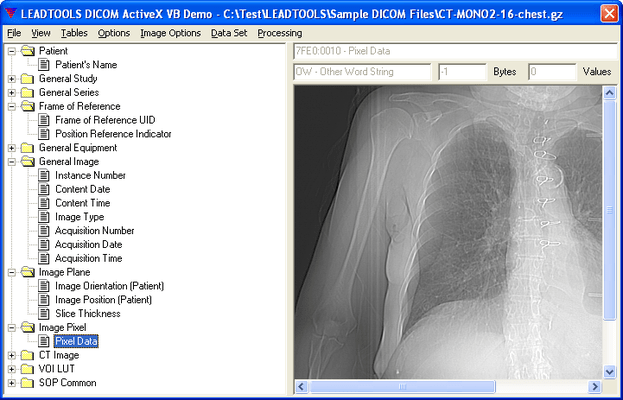
Medical imaging programming libraries. LEADTOOLS Medical Imaging includes hand-picked and optimized features to meet the specific needs of medical imaging application development, such as full DICOM dataset support, support for 8-16 bit grayscale, and 12 and 16 bit image processing and display with window leveling and LUT processing. DICOM 3, the industry standard medical imaging format/protocol is fully and completely supported, allowing programmers access to medical images retrieved from digital imaging modalities such as CT and MR scanners. LEAD's DICOM imaging support is one of the richest in the industry supporting 8, 10, 12, 16, 24 and 32 bit images including JPEG (8, 10 , 12, 16-bit Lossless grayscale, 8, 12-bit lossy grayscale, 24-bit lossless and lossy color), Run Length, Uncompressed, Photometric Interpretation (Monochrome1, Monochrome2, Palletized, RGB, ARGB, CMYK, YBR Full 422, YBR Full), and single and multi-page images. LEAD's Medical Imaging toolkit includes 8-16 bit grayscale display with window leveling. Window leveling is a linear conversion from stored pixel values to values to be displayed; LEADTOOLS can map the stored pixel values of interest using a user defined color map (using a LUT or Palette) or linear gray LUT.

From
$4,495.50
Price in

Our regular prices are shown below. Please logon to see your discounted prices.

LEADTOOLS Medical Imaging SDK V17.5  

Add to Cart $ 4,495.50 1 Developer License
Mfr. Part No: MEDIMG175
Download (819.4 MB)
Add to Cart $ 3,234.26 1 Developer Upgrade License from previous version
Mfr. Part No: UMEDIMG175
Verify Download (819.4 MB)
Add to Cart $ 1,849.08 1 Annual Maintenance License
Mfr. Part No: AMMEDIMG175
Verify Download (876 KB)

LEADTOOLS Medical Imaging SDK Add-Ons - Medical Multimedia Module
(Requires LEADTOOLS Medical Imaging SDK)  

Add to Cart $ 895.50 1 LEADTOOLS Medical Multimedia Module Developer License
Mfr. Part No: MDMM175
Verify Download (611.6 MB)
Add to Cart $ 644.26 1 LEADTOOLS Medical Multimedia Module Developer License Upgrade License from previous version
Mfr. Part No: UMDMM175
Verify Download (611.6 MB)
Add to Cart $ 369.08 1 LEADTOOLS Medical Multimedia Module Annual Maintenance License
Mfr. Part No: AMMDMM175
Verify Download (876 KB)

Our prices include ComponentSource technical support and, for most downloadable products, an online backup and a FREE upgrade to the new version if it is released within 30 days of your purchase.  All sales are made on our standard Terms and Conditions and subject to our Return Policy. Please contact us if you require any licensing option not listed above including volume licensing and previous versions.

Our regular prices are shown above. Please logon to see your discounted prices.

What's New in the LEADTOOLS Medical Engine V17.5 Re-mastered
The healthcare industry continues to demand innovation and rapid development capability. This new version of 17.5's Medical Web Viewer Framework and PACS Framework have new major features including cross-platform and mobile device capable viewers, more robust and simpler customization, and a new OEM-ready DICOM Server application with source code.

  • New OEM-ready DICOM Storage Server application with Source Code
  • New Patient Updater feature includes a patient/study management client that allows users to move, merge, and update patient information using DICOM communication
  • New Auto-Copy feature automatically routes retrieved DICOM image data to multiple storage locations
  • New Gateway feature acts as a query/retrieve proxy, automatically relaying a single query/retrieve message to any number of specified external DICOM servers
  • New Forwarding feature automatically forwards DICOM image data to another PACS server immediately upon storage, or on any schedule
  • Full source code provided for customization or branding with your own company logo

Medical Web Viewer Framework

  • HTML5 Viewer with window level support
  • Improved thin-client layout for mobile devices including iPhone, iPad, Android and Windows Phone

Medical Image Viewer

  • Improved reference line support
  • New Probe Tool to display pixel information and user text
  • New Snap Ruler that allows the ruler to snap to the image, making measurement simpler
  • Added customization of the look, style and color of overlay tags and rulers
  • New Zoom on Click mouse action
  • Added ability to set any number of rows and columns of cells
  • Dynamic Zoom which keeps the clicked area visible at all times
  • New LUT Spectrum feature which provides a colored lookup table that improves ability to analyze images

Other Enhancements

  • Enhanced DICOM Communication support

What's new in LEADTOOLS Medical Imaging SDK V17.5

  • Medical Workstation now fully supports customization and localization.  Users can easily change the look and feel or language strings of the Medical Workstation for re-branding or localization purposes.
  • New DICOM Modality Worklist (MWL) WCF Service Component for the PACS Framework
  • Medical Image Viewer Features and Enhancements
    • Added options for customizing the border of cells in the viewer
    • Exposed more low-level annotation features
    • Image Orientation tag automatically updates based on the current image orientation
    • Added GetScale method, so user can get the current image scale value
    • Added feature to allow the user to change the active sub-cell programmatically
    • Added MatchScale method to allow users to make all the other cells match the scaling value of the specified cell
    • Added Cobb Angle annotation tool
    • Added user interface tools for Image Alpha(Sigmoid, Exponential and Logarithmic)
    • Added VirtualImage property which allows the user to receive advanced details and status regarding the cell. This is useful for MPR, Derivative and Low Memory Usage cells.
    • Empty cells with no assigned image can now be active, utilize tools and display text/tags
    • Added Drag and Drop support for cells
    • New image display and scaling options: UseDpi, FitIfLarger, Stretch, Explode
    • New MPRType property to identify the axis for localization purposes
    • Advanced synchronization tools including multiple series and viewer control instances
    • Added GetPage method to allow user to get the desired frame from any cell type
  • 3D Features and Enhancements
    • Added support for Curved MPR/ Panoramic Polygon
    • Added ability to generate and view Paraxial Cuts
    • Added the ability to programmatically set the index of the MPR cell
    • Added ImageLoaded event
  • DICOM Features and Enhancements
    • New DLL dedicated to the internal DICOM tables, reducing deployment footprint
    • Ability to load DICOM tables from XML, making customization simpler
    • Get and Set encapsulated documents from memoryand disk
    • Added support for YBR_FULL Photometric Interpretation with uncompressed and RLE-compressed DICOM image pixel data
    • Added support for DICOM JPEG-LS Lossy and Lossless transfer syntaxes

LEADTOOLS Medical Imaging includes everything in the Document Imaging product and adds Medical Imaging features: Window-leveling display and processing functions, support for 9-16 and 32 bit grayscale and full DICOM file format support. Add on full DICOM communications support. LEADTOOLS Medical Imaging also includes all the features you need to build a full web-based DICOM-enabled viewing application.

Key Features:

  • DICOM Basic
  • New WPF Standard .NET
  • New WPF Pro
  • DICOM Dataset
  • DICOM Waveform
  • DICOM Annotation
  • JPEG2000 Compression
  • Enhanced Greyscale Display
  • Enhanced Greyscale Processing
  • DICOM Digital Signatures
  • General Imaging Features
  • ePrint Integration
  • Medical Image Viewer

Additional features can be added to Medical Imaging:

  • New DICOM Pacs Module
  • New Medical Multimedia Module
  • New Medical Web Viewer Framework Module
  • DICOM Data Security
  • DICOM Communication
  • Multimedia API and COM
  • MPEG-2 Video Codecs
  • Video Codec (MJPEG/MCMP)
  • New Optical Character Recognition (OCR)
  • New Intelligent Character Recognition (ICR)
  • New Optical Mark Recognition (OMR)
  • New Forms Recognition
  • OCR PDF Plug-in
  • Raster PDF Plug-ins
  • New JPIP Client and Server
  • Barcodes

DICOM Basic:
LEADTOOLS Medical Imaging product line includes general medical imaging technologies (1-16,24,32 bit color, 1-16 bit grayscale and window leveling of 12 and 16-bit grayscale images), and support for the DICOM file format. Load, process, display, window level and save 12 and 16 bit grayscale images (including support for 16-bit grayscale TIFF). Detect and set LowBit and HighBit for image data, display images with automatic LUT intensity expansion, or set LUT entries and ranges with specific values and gradients. Display images through the LUT without changing the data, or process the image data using the LUT.
DICOM Basic

LEADTOOLS Medical Imaging provides COMPLETE support for the DICOM 2003 specification, including all standard IOD classes and modalities (CR, CT, MR, NM, US, RF, SC, VL, etc.) and complete DICOM Basic Directory support.

With the base DICOM support you can do the following:

  • Supports 2008 version of DICOM
  • PDF, 1-bit and raw data can be stored in DICOM
  • Simply Create/Initialize complete Data Sets (all modules and elements) for any IOD class
  • Load and Save Data Sets with or without header, using any Transfer Syntax
  • Maneuver through a Data Set in Tree or List mode
  • Search a Data Set
  • Insert and Delete Data Set Members
  • Get and Set Data Element Values
  • Get and Set Data Set Information
  • Get, Set and Insert Single or Multiframe Images (compressed or uncompressed)
  • Maneuver through Basic Directory Data Set in Tree or List mode
  • Insert and Delete Keys in a Basic Directory Data Set
  • Get and Set Keys in a Basic Directory Data Set
  • Maneuver Through the IOD Table
  • Search the IOD Table
  • Insert and Delete IODs
  • Modify an Existing IOD
  • Set the Default IOD Table
  • Maneuver Through the Data Element TagTable
  • Search the Data Element Tag Table
  • Insert and Delete Tags
  • Modify an Existing Tag
  • Set the Default Data Element Tag Table
  • Maneuver Through the UID Table
  • Search the UID Table
  • Insert and Delete UIDs
  • Modify an Existing UID
  • Set the Default UID Table
  • Maneuver Through the Value Representation Table
  • Search the Value Representation Table
  • Insert and Delete Value Representations
  • Modify an Existing Value Representation
  • Set the Default Value Representation Table

NEW Windows Presentation Foundation (WPF) Standard .NET
WPF supports robust imaging capabilities, interface automation, data-driven user interfaces and visualization, as well as Windows shell integration. WPF can natively access Windows Imaging Component (WIC) codecs and APIs, allowing developers to write image codecs for their specific image file formats.

The LEADTOOLS WPF Standard Edition includes controls for everything you need to start adding imaging functions to your Windows Presentation Foundation (WPF) applications.

WPF Standard .NET Features:

  • WPF BitmapSource Viewer - Supports all Microsoft .NET BitmapSource image objects. Includes Display, Scroll, Zoom, Margin, Frame, Shadow, PanWindow, and customizable MagGlass options. Provides interactive UI Tools like ZoomTo, Pan, CenterAt, and Scale.
  • ImageList Control - Lets you display lists of thumbnail images in multiple View Styles like Explorer, Normal, Button, and User-defined. Allows you to set Image List Item Size, Selection Style, and scroll style.
  • WPF Bitmap Effects - Use 130+ image processing effects and functions to add visual interest to WPF content.
  • Windows Imaging Component (WIC) Codecs - Instantly add support for 40+ file formats to any WIC/WPF application, including the Windows XP SP3 Explorer and Vista Photo Explorer.

NEW Windows Presentation Foundation (WPF) Pro
Use the LEADTOOLS WPF Pro to unleash the power of LEADTOOLS in your XAML applications. Using LEAD's WPF interface, you can add LEADTOOLS OCR, TWAIN scanning, document pre-processing, medical imaging, and much more to any WPF application. Get Expression Blend-compatible and fully styleable controls for complete interoperation support between LEADTOOLS and Windows Presentation Foundation (WPF) images.

Key Features:
LEAD Technologies' most advanced WPF Image Viewer - Leadtools.Windows.Controls.Pro incudes image viewer controls that not only support all Microsoft .NET BitmapSource image objects, but works directly with LEADTOOLS Imaging Pro .NET classes, allowing you to leverage the full power of LEADTOOLS file format and image processing support. The fully styleable control includes scroll, zoom, pan, magnify glass, and image list.
Advanced WPF Image Processing - The Leadtools.Windows.Media namespace contains classes that let you convert a LEADTOOLS image (Leadtools.RasterImage) to and from a WPF image (System.Windows.Media.ImageSource). This namespace also gives you access to all LEADTOOLS image processing functions, allowing you to create powerful imaging applications using the WPF framework.

Benefits include:

  • The most support for File Formats - Support even more file formats and flavors, as well as file metadata. Extend WPF file format support with LEAD's WIC-enabled codecs to load and save many image formats including PDF, TIFF, lossless and lossy JPEG, JPEG2000, JBIG2, PSD, DICOM and many more. Includes low-level control when loading and/or saving image files.
  • Our most advanced Image Processing - Use over 130 Image Processing Effects including edge, blur, noise, artistic, texture, spatial, color adjustments and 3D. Low and High level image processing routines for document, medical, color adjustment, region processing, image analysis and statistics.

WPF Annotations
The Leadtools.Windows.Annotations namespace included with LEADTOOLS Document and Medical products adds powerful annotation capabilities to documents and images in WPF. These include not only lines, shapes, and pointers, but essential tools like redaction (blackout), hotspots, text, images, highlights, sticky notes, images, stamps and hyperlinks.

WPF Transition Effects
The Leadtools.Windows.Media.Transitions namespace allows you to add multiple slide show transition effects to your WPF projects. Choose from 10+ basic effects like wipe, blinds, push, rotate, and zoom, plus dozens of variants.

DICOM Dataset:
A Data Set is a collection of Data Elements stored in a DICOM file. Each DICOM file may or may not include a header consisting of a Preamble and a Prefix. Each DICOM file represents a separate class of information. For example, one DICOM file may represent the Computed Tomography Image class, and another DICOM file may represent the Radiotherapy Structure Set class. DICOM Standard defines a vast numbers of Class Information Object Definitions as standard classes. LEADTOOLS supports user-defined classes in addition to the standard classes.

For each class supported by DICOM there are certain modules contained in each class. Each module consists of a number of Data Elements, each Data Element having its own tag. These Data Elements can be mandatory or optional, depending on the module and the class. In addition to the standard modules and data elements supported by DICOM, user-defined modules and data elements are also supported by LEADTOOLS.

LEADTOOLS maintains the Data Set internally as a tree structure and provides functions to evaluate the Data Set as a tree or as a list. The developer can create the data set object with all the appropriate elements for the specified class in one function call. LEADTOOLS Medical Imaging toolkit provide a number of functions for maneuvering through the Data Set, getting and setting Data Set information, getting and setting Data Element values, searching the Data Set, and creating, loading and saving Data Sets. LEADTOOLS provides functions to delete individual items, delete entire modules, delete all items and delete one or more images in a Data Set.

To retrieve and store values in the Value Field of the Data Element in a Data Set, LEADTOOLS provides low-level and High-level functions.

What are Value Representations (VR's)?
The value representation of a data element indicates the type of data that can be stored in the value field of the data element. There are a number of value representations that are standard for the DICOM. In addition to the standard value representations, user-defined value representations may also be added using LEADTOOLS.

LEADTOOLS maintains a table (or list) internally along with the code, name, length, restrictions and unit size of all available standard and user defined value representations. LEADTOOLS also provides functions to get, set, delete, and rename the value representations in the table.

What are Data Elements and Tags?
The tag of a data element consists of an ordered pair of 16-bit values that represent a Group number and an Element number. The tag indicates the type of information stored in the value field of the data element. There are a number of tags that are standard in DICOM. In addition to the standard tags, user-defined tags may also be added using LEADTOOLS.

LEADTOOLS maintains a table (or list) internally of all available standard and user-defined tags, including the tag's code, name, value representation and value multiplicity information. LEADTOOLS provides a number of functions for maneuvering through, adding, deleting and modifying the Data Element Tag table. Also Data Element table allows the developer to add support for future Data Elements in DICOM without having to receive an upgrade from LEADTOOLS.

What do Unique Identifiers (UIDs) identify?
A unique identifier identifies items such as Service-Object Pair Classes and images. There are a number of unique identifiers that are standard for the DICOM file format. In addition to the standard unique identifiers, user-defined unique identifiers may also be added using LEADTOOLS.

LEADTOOLS maintains a table (or list) internally of all available standard and user-defined unique identifiers, with the UID's name, value and type information. LEADTOOLS provides a number of functions for maneuvering through, adding, deleting and modifying the UID Table.

What is an Information Object Definition?
An Information Object Definition (IOD) is an abstract data model that specifies information about Real-World objects. It provides a means of standardizing information exchanged between applications. There are a tremendous number of IODs that are standard in DICOM. In addition to the standard IODs, user-defined IODs may also be added using LEADTOOLS.

LEADTOOLS maintains a tree internally of all available standard and user defined Information Object Definitions (IODs). LEADTOOLS' functions allow you to evaluate the internal IOD Structure as a tree or as a list.

LEADTOOLS provides a number of functions for maneuvering through and modifying the IOD Structure such as GetRoot, GetParent, GetChild, GetFirst, GetLast, GetCountModule, etc... The toolkit provides several functions for searching the IOD Structure to insert new items, delete individual items and change the name or the description of an IOD already in the IOD Structure. A developer can use the IOD Structure to validate a DICOM Data Set. Additionally, the IOD table Structure allows user to add support for future IODs in DICOM with the current version of LEADTOOLS.

What are DICOM Basic Directories (DICOMDIR)?
In order to identify a DICOM file-set and to facilitate accessing the information stored in the DICOM files of the file-set, the DICOM standard has defined the Basic Directory IOD. A DICOM file-set contains one or more DICOM files. One of the files contained in the file-set is the DICOMDIR file. The DICOMDIR file contains DICOM Directory information, making it easier to access the information contained in the other DICOM files in the file-set. The DICOM files in the file-set are assigned File IDs; so, they can be referenced by the DICOMDIR File, which itself, is identified by a File ID of DICOMDIR.

DICOM Dir data sets may contain special data element called key elements. A Key element is a data element that also contains special information about other key elements in the data set and their relative location within the data set. The specialized information included in a key element maintains information on key element children, non-key element children, parent key elements, and the logical relationships between the elements.

LEADTOOLS maintains the DICOMDIR data set as a tree; however, all key elements are stored at the same level of the tree. LEADTOOLS provides special functions for searching the DICOM Dir data set, maneuvering through the data set, inserting and deleting key elements, and manipulating key elements.

LEADTOOLS also provides high-level functions to create or update DICOMDIR by adding DICOM files or DICOM Data Set loaded in the toolkit.

DICOM Waveforms:
The DICOM standard supports waveform storage and communication: this includes hemodynamic curve data, cardiac electrophysiology, electrocardiography (ECG) and audio signals (WAV files).

LEADTOOLS waveform support is comprehensive and handles the various features supported by the standard which include:

  • Management of Waveform Group attributes
  • Channel Manipulation (setting/getting channel samples, source, sensitivity and other attributes)
  • Audio Support (with the ability to create Basic Voice Audio files for report dictation)
  • Waveform annotations

In addition, LEADTOOLS supports the different waveform-related IODs defined by the standard which include:

  • Basic Voice Audio
  • 12-Lead Electrocardiogram
  • General Electrocardiogram
  • Ambulatory Electrocardiogram
  • Hemodynamic

DICOM Annotation:
LEADTOOLS medical programming SDKs offer a variety of annotation (image markup) options that can be added to medical, grayscale and color images.

Annotation objects available include Ruler, Protractor, Cross Product, Pointer, Text, Circles, Freehand, etc. LEADTOOLS allows you to read or write annotations as an external annotation file, private DICOM data elements or LEAD or Wang annotation tags within a TIFF file, or annotations can become a permanent part of the image data or applied to a 1-bit image to create an overlay. With LEADTOOLS Annotations, you can choose between low level access to the annotations, or you can implement annotation support through a fully automated mode with a ready to use floating, customizable toolbar and pop-up menus. The superior annotation features provided in LEADTOOLS can be used in any application where image markup is desired.

LEADTOOLS allows the end-user to reposition nodes of an existing freehand object, which prevents the user from having to redraw the object. Enhanced redact objects allow you to restore parts of an image that were blacked out. When combined with annotation security, these redact objects provide a means of granting user-level access to parts of an image. Annotation objects can be stored as a separate object layer, or can be burned or embedded into the actual image. LEADTOOLS allows you to read or write annotations as an external file or as LEAD or Wang annotation tags within a TIFF file. With LEADTOOLS, you can choose between low level access to the annotations, or you can implement annotation support through a fully automated mode with a ready to use floating, customizable toolbar and pop-up menus. The superior annotation features provided in LEADTOOLS can be used in any application where image markup is required.

With LEADTOOLS Annotation support you can:

  • Create any of the following objects: line, arrow, rectangle, square, ellipse, circle, polygon, freehand line, text, highlighter, hot spot, note, stamp, redaction, button, audio clip, video, freehand hot spots, points, protractors, cross-products, push pins, and rubber stamps
  • Implement automated annotation support
  • Implement annotation passwords (case-sensitive) providing security for every object
  • Implement hyperlinks for every object. Hyperlinks can be user defined messages, programs to run, or jumps to Web pages
  • Modify text strings used in automated annotation support
  • Scale and position a group to fit the displayed bitmap
  • Group and ungroup objects
  • Apply an object or group to a bitmap
  • Size and position an object or group
  • Rotate an object or group
  • Flip, reverse, or shear an object or group
  • Save an object or group on the Windows clipboard
  • Print an object or group
  • Save an object or group in a file
  • Save annotations as an external LEAD file, WMF file, or as a WANG compatible tag inside a TIFF file
  • Save an object or group as a file in memory. (This is useful for database support)
  • Save an object or group in a database using OLEDB or VB data binding
  • Control over where optional annotation name or title is displayed
  • Multi-page annotation support

The LEADTOOLS Medical Image Viewer Control is a high-level component for building medical display applications such as DICOM viewers, view stations, teleradiology solutions, and high-end diagnostic workstations found in radiology and other medical specialty departments. Whether you are building a PACS for radiology, cardiology, mammography, ophthalmology, pathology, dermatology, dentistry or any other specialty, this control will eliminate the complexity from your project and give you a solid foundation you can rely on.

Key Features:

  • Display medical grayscale and colored images including MRI, CT, Digital X-Ray, Ultrasound and much more
  • Support to adjust the screen layout both manually and programmatically. For example the screen shot below shows an MRI and an XA series displayed side by side, the MRI series is shown as 2X2 images while the XA is shown as 1X1
  • Support to change the scale and offset of a single sub-cell
  • Support to add different images with different sizes to the same cell
  • Includes a ActiveSubCell changed event that fires when the active sub-cell has been changed
  • Support to reset Window Level, Position, Rotation, Zoom
  • Support to add and remove pages or images to the medical viewer cells
  • Support to display overlay information on the images, which is an essential feature for any high-end medical viewer. The programmer has full control over the text to be displayed and how it should be positioned and sized inside each window. The control also comes with a set of built-in overlays such as window center and window width values, field of view and much more
  • Built-in tools:
    • Window level (brightness and contrast)
    • Zooming or scaling an image
    • Panning or moving an image
    • Image magnification
    • Stacking or moving from one image to another in a series of images with a single mouse or button click
    • Annotation
      • Annotation created event to notify when a new annotation object is created by the user
      • Annotation clicked event to notify when an annotation has been clicked
      • Support for changing fore and back color of the text object
      • Support to rotate, flip and reverse the annotation container
      • Load and save the annotation objects that are drawn on the control
    • Region of Interest
    • Load and save region information that is drawn on the control
    • Region change event to notify when a region is created, removed or changed
  • Programtically adjust all the settings related to each one of these tools such as:
    • Which mouse button to use for applying the tool (left, right and so on)
    • What keyboard buttons to use for applying the tool. For example the right arrow can be used to increase the window width and the left button to decrease it
    • What cursor to use when the tool is activated
    • Apply the effect of the tool to a single image or to all images in a series
    • Apply the effect of the tool to a single series or to all series managed by the control
    • Apply the effect of the tool programmatically or through user interaction
    • Includes a function to easily convert mouse coordinates to bitmap coordinates
    • Events for mouse actions
    • Support to apply some action and adjust the MedicalViewer while an animation is running

The window level tool has settings that can be adjusted programmatically such as full control over the different properties of the display container, such as colors, cursors, rulers and so on. Some settings can be adjusted for the container such as built-in ruler that adjusts based on the DPI of the image and the zoom or scale factor. Interpolated image display for higher quality.

Typical applications that can be built using this control:

  • High-end medical diagnostic workstations
  • Medical review and quality assurance stations
  • DICOM viewers
  • Light-weight viewers that are typically distributed on a CD with patient images
  • Web-based medical viewers

JPEG2000 Compression:
LEADTOOLS JPEG2000 compression/decompression conforms to the JPEG2000 International Standard. This new state-of-the-art ISO/ITU still image compression standard provides a fast and flexible solution for high-quality, wavelet-based compression. LEAD has committed to fully support all future parts as they are released and therefore LEADTOOLS JPEG2000 will continue to grow as the JPEG2000 standard grows.

LEADTOOLS JPEG2000 Features currently supports:

  • Native support for 8, 10-16 bit grayscale and 24 bit color lossy compression in a DICOM dataset
  • Adds intrinsic DICOM JPEG2000 16-bit grayscale lossy compression support to LEADTOOLS Medical Imaging. (JPEG2000 is the only 16 bit grayscale lossy compression supported by DICOM)
  • Native support for 8, 10-16 bit grayscale and 24 bit color lossless compression in the DICOM dataset
  • Signed 10-16 bit grayscale image data as supported by JPEG2000
  • Easily convert DICOM datasets to and from JPEG2000 transfer syntax to and from any other transfer syntax included in DICOM 3 (2003 file standard) (except JPEG LS) using built in LEADTOOLS functions
  • Improved network performance and image quality as compared to JPEG
  • Support for four progressive display methods:
    • Quality Axis - The image starts blurred and the sharpness increases as more image data is received
    • Resolution Axis - The image is loaded as a smaller version and the physical pixel size increases as more image data is received
    • Color Axis - The image is loaded one color plane at a time. The image starts loading as a grayscale image and the color will fill in as more image data is received
    • Position Axis - The image is loaded as blocks. As more image data is received, more blocks are displayed
  • Multiple resolutions can be stored in the same file without duplication of the image data providing the ability to only decode and display the size of image required by the application
  • Error checking and robustness allows the transmission of JPEG2000 encoded files over a noisy medium. If an error occurs in the decoding, the image will still be displayed
  • Control over the final size of the file without hit and miss quality factor adjustments

JPEG2000 compared to JPEG:
JPEG2000 is a new image-encoding standard that provides a feature set vital to the medical imaging community. JPEG2000 provides high compression with image quality superior to all existing standard encoding techniques. This high compression and quality performance is due to the adaptation of wavelet transforms. Wavelet transforms are mathematical formulas that represent complex structures in the image, thereby compressing an extremely large amount of image data into a relatively small amount of compressed data. This compression technique allows applications to save compressed images with higher compression ratios and better image quality as compared to any other software currently in production.

JPEG2000 is a wavelet-based compression stored in a hierarchical format which can contain several stored resolutions of the image in the same file without duplication of data. For that reason, a JPEG2000 compressed image can then be sent to a device in the resolution that best fits without additional storage overhead. LEAD Technologies has used its more than twelve years in the imaging and compression developer toolkit marketplace to formulate a JPEG2000 product that offers DICOM developers the best JPEG2000 implementation available.

JPEG2000 Key Benefits:

  • Greater compression while maintaining better quality than traditional JPEG. This helps reduce network bandwidth and storage requirements.
  • JPEG2000 is the only 16-bit grayscale lossy compression supported in DICOM
  • Maintain diagnostic image quality by using JPEG2000
  • Multiple resolutions in JPEG2000 means that only the data needed to view the image for a particular device or zoom need be sent over the network and loaded into memory
  • Progressive display provides feedback to the user while the image is loading
  • Region of interest encoding and decoding. Compress specified areas of the image more or received more detail for an area of interest on the client maximizing network efficiency while providing the user the detail that he or she demands
  • JPEG2000 supports 24 bit color, and 8, 12 and 16 bit grayscale image data
  • LEADTOOLS supports JPEG2000 on multiple platforms including Windows, Pocket PC and an Internet Explorer plug-in

Grayscale Imaging:
Grayscale is a range of shades of gray without apparent color. The darkest possible shade is black, which is the total absence of transmitted or reflected light. The lightest possible shade is white, the total transmission or reflection of light at all visible wavelengths. Intermediate shades of gray are represented by equal brightness levels of the three primary colors (red, green and blue) for transmitted light, or equal amounts of the three primary pigments (cyan, magenta and yellow) for reflected light.

The LEADTOOLS Medical Imaging product line offers complete support for 8-16 bit grayscale, and 12 and 16 bit image processing and display with window leveling and LUT processing.

LEADTOOLS Document and Medical Imaging SDKs include the following grayscale functionality:

  • Grayscale Image Display
  • Grayscale Image Processing
  • Grayscale Common Dialogs
  • Grayscale Signed Images
  • Grayscale Compression - JPEG Lossy/Lossless, JPEG2000

Grayscale Image Processing:
LEADTOOLS includes a number of medical image processing functions. Below is a list of key image processing features focused on the medical imaging community and is not a comprehensive list of functionality. If there is a particular image processing function that you need, but can not find below, LEADTOOLS probably supports it. Contact sales@componentsource.com for information.

  • Get Functional Lookup Table Updates a range of entries in a lookup table, based on specified mathematical functions such as exponential, natural logarithm, linear
  • Get User Lookup Table Updates a lookup table, based on a curve that passes through specified points
  • Get Min and Max Bits Returns the low and high bits of the values present in a 12 or 16-bit grayscale or 48 or 64-bit color image
  • Get Min and Max Values Returns the minimum and maximum intensity values present in a 12 or 16-bit grayscale or 48 or 64-bit color image
  • Combine Combine performs logical or mathematical operations to merge the image data from two images to create a new image. Source and destination areas, color planes (R or G or B or R, G, and B) to combine as well as the operations to use on the data are specified by the user. Combine can be used to add or subtract overlay bits(plane) to an image
  • Add or average list of images Noise can be reduced by averaging a list of images together. Adding a list of images together can be used to show details in low intensity areas of an image
  • Spatial Filters Spatial Filters can be used for line detection, point detection or to smooth high spatial frequencies (low pass filter), and specialized image processing for CAD (Computer Aided Diagnosis). Use one of several predefined spatial filters or specify a user-defined spatial filter kernel (matrix)
  • Intensity Detection Intensity detection is used to threshold an image based on intensity. Thresholding can be helpful in measuring objects such as a tumor in an image
  • Contour Filter Contour filter is a type of morphological binary filter used to get the outline of objects in an image. The outline created by the contour filter can be useful for object measurement
  • Binary Filters Binary filters can be used for the erosion or dilation of objects or removal of noise in an image and can also be used for area measurement
  • Edge-detection Filter The Edge-detection filter detect edges in an image by looking for sharp contrast changes and can be useful for object measurement. Additionally, the edge-detection filter can be used to sharpen or enhance edges in an image when used in combination with Combine
  • Median Filter The Median filter can be used to remove negative exponential, and salt and pepper type of noise while preserving the edge details within an image
  • Histogram Histogram provides information about the image concerning the intensity or gray-level distribution of pixels. This information can be used for many image corrections for the proper display of the image
  • HistoContrast Increases or decreases the contrast of the image, using a histogram to determine the median brightness as opposed to using an arbitrary value of 128. This function finds the median brightness of the image, then brightens the pixels with values above the median and darkens the pixels with values below the median
  • HistoEqualize Linearizes the number of pixels in an image based on the specified (RGB, YUV or GRAY) color space. This can be used to bring out the detail in dark areas of an image
  • Stretch Intensity Increases the contrast in an image by centering, maximizing, and proportioning the range of intensity values. Unlike ordinary contrast, Stretch Intensity always retains the original number of different intensity values. (Ordinary contrast adjustments can lose values at the high and low ends of the scale.)
  • Unsharp Mask Unsharp mask is a technique to enhance the edges of an image. Unsharpen mask tends to show more details in areas of an image that are normally not visible
  • Anti-aliasing Filter Anti-aliasing filter is used to smooth edges in an image and smooth jagged diagonal lines
  • Gaussian Blurring Gaussian blurring is a noise reduction technique that employs a mean filter to remove high spatial noise and blurs the edges within an image
  • Balance Colors Redistributes the RGB values of the image, using values specified for each color channel
  • Change Hue Change the hue of the image by rotated the hue wheel a specified number of degrees
  • Change Saturation Increase or decrease the color saturation in an image
  • Color Inversion Inverts the colors in the image so that a positive image becomes a negative and a negative image becomes a positive
  • Swap Colors Swap color channels in an image

Region of Interest (ROI)

  • Create a region based on a specific color or intensity
  • Create a region based on RGB or HSV color range
  • Create rectangular, elliptical, polygonal and rounded regions
  • Create region with from seed pixel and threshold (magic wand)
  • Create curved regions or add a curved region to an existing region
  • Convert standard curved regions to Bezier curves

Use low-level functions to change parts of an image as follows:

  • Get and put rows of image data
  • Get and put parts of rows
  • Get and put the colors of individual pixels
  • Process a region within a bitmap

DICOM Digital Signatures:
Digital signatures are used to verify the identity of the signer and to ensure that the signed data has not been altered or destroyed in an unauthorized manner. LEADTOOLS is the first commercial toolkit to add comprehensive support for the DICOM Digital Signature Profiles , which include: "Base RSA Digital Signature Profile", "Creator RSA Digital Signature Profile" and "Authorization RSA Digital Signature Profile".

With the complete LEADTOOLS support for Digital Signatures you can easily perform the following:

  • Create Digital Signatures in the main Data Set as well as in an Item of a Sequence of Items; you can specify the MAC Calculation Transfer Syntax UID, the MAC Algorithm, the Data Elements to be signed, and the Digital Signature Security Profile to conform to
  • Verify a single Digital Signature or all the Digital Signatures in the whole Data Set at once
  • Get information about a particular Digital Signature
  • Enumerate the Digital Signatures in the main Data Set as well as in an Item of a Sequence of Items
  • Search the Data Set for a specific Digital Signature

General Imaging Features:
LEADTOOLS Medical Imaging adds 8-16 bit grayscale support, and 48 and 64 bit color functionality to the Raster Imaging Pro features to make the Medical Imaging a complete imaging solution. Other general imaging features include: Image Processing, Color Conversion, Display, Special Effects (choose from more than 2000 effects), Compression, Image Format (import/export), Printing, Internet/intranet imaging (Web Forms), Database imaging, Imaging Common Dialogs and Screen Capture.

Image Display, Memory and Processing Optimizations (Bitonal Scaling): (*Only available in LEADTOOLS Document Imaging or Medical Imaging Toolkits. †Only available in LEADTOOLS Medical Imaging Toolkits.)
LEAD Technologies continually reviews and adds file format support to give your application control over the display of almost any Raster or Vector image (only available in LEADTOOLS Vector Imaging SDK) you encounter. LEADTOOLS currently supports over 150 different image formats and sub formats, each of which has its own unique set of load/save/display options, which may encompass varying types and/or degrees of compression, a range of image information bit-depths, progressive (multi-pass) image display, the ability to maintain multi-page or multi-channel images, animations, or non-image data, just to name a few. You can depend on LEAD Technologies to provide you with the support you need to give your application control over the display of almost any image you encounter. Image display can be subdivided into two groups: raster image display and vector image display. These groups are described in more detail in the following sections.

Raster Image Display
LEADTOOLS provides numerous functions to let you take control of your application's image display. Control brightness and contrast settings, color reduction with dithering and palette control, scaling/fitting, enlargement/reduction, panning, scrolling, painting with transparency and/or regions.

Further, LEADTOOLS provides high level image-list and thumbnail browser controls, a special magnifying-glass feature, an automated pan-window control, and a Zoom View control that allows you to annoate pre-defined zoomed regions.

Key Features

  • Intensity, contrast and gamma correction - LEADTOOLS renders an image of any color depth (1 to 64 bit † ) to any display device, automatically handling any color reduction or expansion. Changes can be applied to the display without affecting the original data. If desired, color reduction and display settings can be rendered into the image (See Image Processing). You can render images with a color specified as transparent.
  • Dithering - Images can be automatically dithered to match the output display device on the fly, without changing the image in memory. Specify the dithering method for images that have more bits per pixel than the current video mode. The following are options can enhance the quality of your image display:
    • Normal dithering (using error diffusion).
    • Ordered dithering, faster but less accurate than normal.
    • [DLL only] No dithering, which relies on the display device for color reduction.
  • Position and Scale - Position the displayed image, and zoom in or out (enlarge or reduce) by scaling and clipping. Use nearest neighbor (fastest), bilinear (fast-good quality) or bicubic (best quality) resampling for enlarged/reduced display size. Specify a source rectangle (portion of source image to paint) and destination rectangle (position on screen or drawing surface on which to paint it) for complete control over image zoom and position. Or, specify higher level properties like ZoomFactor (fit-to-window preserving aspect ratio, stretch to entire window, fit-to-width, 1:1 normal display).
  • Display Enhancement - Using our Document and Medical toolkits, when displaying 1-bit (black-and-white) images, to enhance the quality of display you can:
    • Specify a scale-to-gray option *, which increases the clarity of the 1-bit images when they are scaled (zoomed out).
    • Specify a favor-black option *, which prevents loss of details, such as fine lines, when an image is scaled down (zoomed out).
    • The rotated display feature allows rendering images rotated in 90-degree increments without changing the image in memory. Large 1-bit images can remain compressed in memory while decompressing only the portion needed for display*.
  • Automated Controls - When working with the ActiveX, COM, or .NET controls, you can set properties which determine the way that images are displayed in the control, such as AutoScroll (automated scroll bars), AutoSize (snap control to image), PaintSizeMode (1:1 scale, fit image to control, zoomed at specified magnification factors).

When used with the AutoScroll option, all Scroll Bar activity is automatic (scroll bars respond to programmatic changes of display settings, and display settings are updated by user's use of scroll bars).

  • Palette Control - If the display mode is 256 colors or less, you can use a palette already associated with the image, or use a fixed palette to eliminate palette (color) shifting when displaying more than one image at a time.
  • Image List and Thumbnail Browser Controls - Display and manipulate a list of images as an array of thumbnails using the ImageList Control, or use the Thumbnail Browser for browsing entire directories of image files.
  • Pan Window - The automated pan window enables navigation through a large image using a small thumbnail view.
  • Zoom View - Our Document and Medical toolkits include a Zoom View control that allows you to display and/or annotate multiple pre-defined zoomed regions.
  • Regions of Interest - Display an automated rubberband (rectangle, ellipse or freehand) to mark an area and create a region of interest.
    • Paint an image only in a selected region of interest, or paint an image with transparency (any pixels which are the selected transparent color are not painted).
    • Zoom in on a selected area. Use with automated rubberbanding for entirely automated behavior, or specify selected area in code.
  • Drawing - Define the client area of a LEAD control as a display surface where you can use Windows graphics device interface (GDI) functions for drawing or adding text. (You can also get a display surface derived from the actual image stored in memory in order to use Windows GDI to draw permanently into the image - see Image Processing: Drawing.
  • Apply Effects - Apply any of over 2000 Special Effects, such as wipes, fades, dissolves, transitions commonly used in slide presentations.
  • Complete Control - When painting images on any video device, you can:
    • Selectively force repainting of the image in a LEAD control to avoid unnecessary repaints, or use AutoRepainting to automate all display updates.
    • Limit the area to be painted by specifying the source and destination clipping areas (independent of source and destination rectangles which position image on screen).
    • Use Double Buffer painting to eliminate flicker when painting.
    • se a buffer as the source to paint. (Can be used, for example, to paint an image as it is being loaded)
    • Specify an option for fast painting (without device error checking).
    • Apply ROP codes, which determine how to interact with the existing image on the screen. (not supported in .NET).

Raster Imaging features that support unicode:

  • File loading and saving
  • Image display
  • Common dialogs
  • Image processing
  • TWAIN
  • Digital Paint features
  • Screen capture
  • Special effects
  • Internet imaging
  • ImageList
  • etc..

Document Imaging features that support unicode:

  • Annotations
  • DocClean
  • Imaging processing
  • MRC
  • OCR (Document Imaging)

Medical Imaging features that support unicode:

  • DICOM and DICOM Communications

Other features that support unicode:

  • PDF
  • Barcode

LEADTOOLS products that include unicode support:

  • LEADTOOLS Imaging Pro
  • LEADTOOLS Vector Imaging
  • LEADTOOLS Document Imaging
  • LEADTOOLS Medical Imaging

Programming Interfaces:
Included programming interfaces: low level C DLL, C++ class libraries, COM objects, .NET class libraries and WPF XAML controls. LEADTOOLS Imaging Pro, Document and Medical Imaging products ship with sample source code for C, Visual C++ (MFC), VB, VB.NET and C#. Supported OS: 32 and 64 bit versions of Windows.

The following products include the Document Imaging SDK

  • LEADTOOLS Document Imaging
  • LEADTOOLS Medical Imaging

Product Search

Enter search words:

Why buy from ComponentSource?

ComponentSource offers a unique global service, used by over 1,000,000 software developers worldwide.

More Info | About Us

Development Savings

Read our White Paper on
calculating ROI

Lines of Code: 3,215,584
Person Months: 3,216
Labor Cost: $16,077,920

Functions Required:

Effort per 1,000 LoC:

Labor Cost per Month:

Screenshot Gallery

Click for full screen preview

Screenshot of LEADTOOLS Medical Imaging SDK - API, C++ Class Libraries, .NET, WPF/XAML, COM - V17.5 Screenshot of LEADTOOLS Medical Imaging SDK - API, C++ Class Libraries, .NET, WPF/XAML, COM - V17.5 Screenshot of LEADTOOLS Medical Imaging SDK - API, C++ Class Libraries, .NET, WPF/XAML, COM - V17.5 Screenshot of LEADTOOLS Medical Imaging SDK - API, C++ Class Libraries, .NET, WPF/XAML, COM - V17.5 Screenshot of LEADTOOLS Medical Imaging SDK - API, C++ Class Libraries, .NET, WPF/XAML, COM - V17.5
Award Award Award Award