by Developer Express - Product Type: Component / ASP.NET WebForms / ASP.NET AJAX (ATLAS) / .NET WinForms / .NET Class / 100% Managed Code
XtraCharts Suite by Developer Express
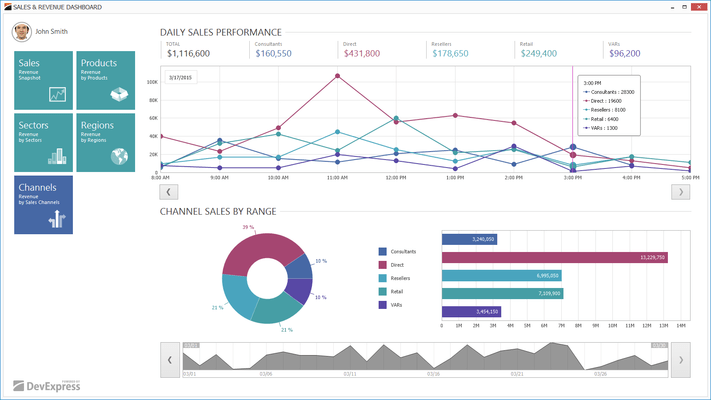
Add 2D and 3D charts to your .NET and ASP.NET applications. XtraCharts Suite offers you a comprehensive set of 2D and 3D charts to address a broad range of business needs with ease. It was designed for both Windows Forms and ASP.NET. In addition to standalone use, XtraCharts offers native integration with the Developer Express reporting platform - XtraReports. Regardless of data source or the manner in which application information is stored on disk, the XtraCharts Suite promises flexibility in its consumption of input data as well as its ability to output/render information on-screen or on the printed
Target Platforms
Windows Applications - The XtraCharts Suite includes a ChartControl component that provides charting capabilities for Windows Forms applications. Using this single control you can build numerous chart types from 2D bar charts to financial chart views and 3D charting
ASP.NET - The WebChartControl allows you to add charts to your ASP.NET web pages. It delivers the same exact features as its Windows Forms counterpart. The WebChartControl component provides complete View State support - you can customize your chart in web applications and you won't have to restore your changes with each post-back in each individual session. Chart state persistence is done for you automatically
Printed Page - This easiest way to obtain a printed diagram is to render your chart control via the XtraPrinting Library (one line of code)
Banded Report - If you must embed charts into banded reports, you can do so with the XtraReports Suite
3D Chart Types - Based on the 3D charting engine, we have built the following most frequently used 3D view types:
Manhattan Bar view
Line View
Step Line View
Area View
Stacked Area View
Full-Stacked Area View
Pie View
The 3D charting engine offers you the following benefits:
True OpenGL rendering. Since OpenGL has proven its stability and power, you can be sure to get less bugs and life-like pictures with real light sources, real shadows and flares
End-user chart rotation. You toggle a single property to allow end-users rotate a chart in any direction by simply clicking and dragging. Thus, you don't have to guess which rotation angle to specify in order to make the entire chart's content visible. You simply make your chart and end-users will be able to view it from any perspective
Full anti-aliasing support.An advanced multi-stage smoothing algorithm is included so that there are always clean and sharp lines and no rough edges
Perspective projection support. You can change the viewing angle to control how big front objects appear relatively to background objects. This can enhance your chart's readability in certain cases
Gradient fill and texture support
Transparency support
2D Chart Views
Bar View
Stacked Bar View
100% Stacked Bar View
Column View
Stacked Column View
100% Stacked Column View
Range Bar View
Side-by-Side Range Bar View
Gantt View
Side-by-Side Gantt View
Point View
Line View
Step Line View
Area View
Stacked Area View
100% Stacked Area View
Pie View
Candle Stick View
Stock View
Radar Point View
Radar Line View
Radar Area View
Polar Point View
Polar Line View
Polar Area View
Multiple and Different Series in One Diagram - Over time, you may encounter the need to display multiple series within the same diagram. XtraCharts Suite has been engineered to provide you with maximum flexibility in this regard. In fact, you are never limited to using the same view for each series within your diagram.
End-User Scrolling and Zooming - Both 2D and 3D charts now fully support end-user scrolling and zooming operations.
Axis Features - Charts display an argument axis and a value axis by default. You can additionally create as many X and Y axes as you need. Each individual series can use its own axes for visual representation. Thus, you can visually compare trends of multiple series within a single diagram, even if series values differ greatly.
You can access each axis individually and customize the following aspects of their appearance:
Visibility
Tickmarks - you can specify whether to show major and minor tickmarks, their length and thickness, and whether they should cross the axis
Direction - you can reverse any axis to display a right-to-left or bottom-to-top chart, if needed
Title - any explanatory text can be displayed next to an axis
Value Range - if you aren't satisfied with auto-specified value ranges, you can set them manually
Value Formatting - you can apply any numeric or date-time format to text labels displayed for major tickmarks
Custom Labels - instead of using auto-generated values, you can display your own labels at manually specified positions
Diagram Features - Readability is a crucial aspect of any well designed chart and capabilities hae been engineered into the XtraCharts Suite to maximize this all important reality. For instance, you can mark the most relevant areas or critical levels within the chart thus pointing the user's attention to specific issues within their business. You can also customize the diagram's appearance aspects for decoration purposes. The following list describes the features available to you in this regard:
Major and Minor Grid Lines - specify their visibility, thickness and color
Interlaced Appearance - the diagram can have alternating appearances starting with each major tick mark either horizontally or vertically
Constant Lines - you can mark critical values, allowed minimums and maximums or other important values by displaying horizontal or vertical constant lines
Strips - In addition to the display of constant lines, you can mark up entire horizontal or vertical regions to make a chart more representative
Background Image and Shadows - add a unique look to your diagram by using advanced appearance customization settings
Legend Features - A legend makes it easier for end-users to determine the meaning of what they see within a chart. Legends display small glyphs that identify visual elements and captions that describe the meaning of these elements. The XtraCharts Suite allows you to display the following elements within a chart: series, individual points, strips and constant lines. You can specify whether a particular element should be displayed within the legend using that element's ShowInLegend property. With the XtraCharts Suite you can customize the following aspects of legend appearance:
Visibility
Position - a legend can be located in any corner or at the center of any edge of the diagram. You can also specify whether it should be located inside or outside of the diagram
Glyph Size and Visibility
Legend Item Arrangement - you can arrange legend items vertically or horizontally
Border and Shadow
Label Features - The XtraCharts Suite allows you to display a label for each data point. These labels can display either the point's value, argument (useful for pie charts), both argument and value or a series name. You can customize the following label appearance aspects:
Visibility
Connector Line's Angle and Length
Appearance and Shadow
Title Features - You can display an unlimited number of titles within a single chart. For each individual title, you can customize the following appearance attributes:
Position within the chart
Text Alignment
Distance to the Diagram
Colors, Fonts, etc.
Design-Time Features - Elements that can be accessed directly on the form include:
Diagram
Axes that provide access to custom labels, strips, etc.
Constant lines
Legend and titles
Series and series point labels
The chart control itself
If you are new to XtraCharts and need to get up to speed fast, we provide a chart wizard that allows you to customize the main elements of a given chart. This dialog is automatically invoked each time you drop a chart control onto a form but can also be invoked at any time if you prefer using a traditional design-time customization dialog versus on-form object access.
Data Binding and Exchange
Both Unbound and Bound Modes at Your Service
Create Individual Series or Use Series Templates
Print and Export Data - If you own the XtraPrinting Library, you can easily export your chart to:
An image file (BMP, JPG, PNG, GIF, TIFF, WMF, EMF file formats are supported)
A PDF file
An image embedded into an HTML page
An image embedded into a Microsoft Excel spreadsheet
A printed page
If you need printed or web reports with charting capabilities, consider using the XtraReports Suite. This reporting suite now includes an XRChart control - built upon the XtraCharts engine so that you can deliver advanced charting capabilities within your reports.
Appearance Customization
Appearance Customization for Individual Elements
Multiple Built-in Palettes for Automatic Series Coloring
Custom painting is fully supported
What’s new in XtraCharts Suite v2008 vol 2?
Group Summary Calculation -Chart control now fully supports aggregate function calculations against data groups. Traditionally, there are five built-in functions – sum, maximum, minimum, count and average. You can also implement custom aggregate functions by registering your own calculation procedure. As a result, your custom function will be available to end-users via the XtraCharts Wizard.
Top N Values Display - The option to display only a few of the most important values (such as sales for a few best-selling car models). Simply specify the number of best values you're interested in and XtraCharts will automatically filter out the rest. This feature also allows you to enable the remaining values (Others) – an aggregate value calculated against all records that were filtered out.
Smart Positioning for Value Labels - Although charts display axes with tick marks and can even display a grid within the diagram, it may be difficult for end-users to determine exact values or to compare them. In these instances, the best way to improve chart readability is to enable value labels. In the past, this solution has always had a disadvantage – if values were too close to one another, their labels could overlap. In version 2008 vol 2, XtraCharts introduces a new label layout mechanism. When enabled, this algorithm ensures neighboring labels won't overlap one another.
Trend Lines - XtraCharts v2008 vol 2 introduces a chart element that was missing from our views – Trend Lines. These lines connect a value (Open, Close, Low or High in Financial charts) of one argument with a value of another argument. You can also force a trend line to be extrapolated. As with many other elements in XtraCharts, Trend Lines can be hot-tracked and selected by end-users. Thus, you can allow end-users to delete or customize specific trend lines, as shown in our product demo.
Multi-Pane Charts - If you must display several series that share the same arguments or the same values, a few options are available to you:
Display several charts - This will require a lot of form space and provides no ability to share an argument axis.
Display several series in one diagram - This works fine if series can share both axes. If not, you will end up creating secondary axes, which make a chart unreadable if you have more than two series.
Display a multi-pane chart (new option available with XtraCharts Suite v2008 vol 2) - This chart type has multiple side-by-side charts that can share an axis - you can even enable the simultaneous scrolling of the charts.
Free Formatting in Chart Titles - Chart titles have improved with v2008 vol 2. You can now use HTML-like markup to format text fragments.
What’s new in XtraCharts Suite v2008 vol 1?
New Spline Views - Eight in Total - Below are the spline series views that have been added in XtraCharts v2008 vol 1:
2D Spline View 3D Spline View
2D Spline Area View 3D Spline Area View
2D Stacked Spline Area View 3D Stacked Spline Area View
2D Full-Stacked Spline Area View 3D Full-Stacked Spline Area View
New XML Serialization - This means that you can design a chart in one application (such as a Windows Forms app), and then, at design time, transfer it to a Web Application or to an existing report. You can easily change any of its parameters using any text or XML editor.
Medium Trust Support in ASP.NET Charting - Since many web hosts do not grant Full Trust permission to their clients, v2008 vol 1 allows you to create web charts that can work at the Medium Trust permission level. Note however that 3D charts still require Full Trust permission level, because 3D charts are based upon the OpenGL rendering library.
Advanced Customization
Separate Titles for Pie and Doughnut Views - It's now possible to display titles for individual series (if represented using a Pie or Doughnut view). This feature is extremely useful when multiple pies are shown on the same diagram.
Display Text Patterns for Labels - You now have total control over text displayed in series point labels, or in a legend. In addition to the CustomDrawSeriesPoint event, which allowed you to customize this text at runtime, you can now specify a display pattern at design time. For example, "{A} - {V}" will be represented as an argument and a value for each data point, separated by a hyphen.
Labels for Zero-Height Bars - In previous versions, if a bar's height was zero, it was not visible. This made it hard to understand whether there was a bar or not. Now you can indicate such bars using labels.
What's new in XtraCharts Suite v2007 vol 3?
New 3D Bar Views
Previously, if a 3D Bar View had several series, each series was shown as a separate row of bars. This could complicate data analysis, since some bars could be hidden behind bars from a closer series. Even with end-user chart rotation support, this limitation could pose a challenge to some. With vol 3 you can avoid these hassles by using the new 3D Bar View that arranges all bars in one row. Series continue to be easily distinguished from one another by bar color. Also added Stacked and Full-Stacked 3D Bar Views. With them, you can enhance you UI by converting existing 2D charts to their 3D equivalent.
3D Stacked Bar View 3D Full-Stacked Bar View
2D and 3D Doughnut Views
2D Doughnut View 3D Doughnut View
Major Improvements in ASP.NET Charting - This version radically improves the usability of the ASP.NET chart control. DevEpxress have re-designed the WebChartControl so that it's now based on the ASPxperience Suite, and thus provides you with the following benefits:
AJAX Callback Support - Web chart control now exposes a comprehensive set of client-side events. When handling these events, you can indicate that server-side processing is required. If you do so, a callback is initiated thus allowing you to customize the chart on the server. The server will finalize the callback cycle by sending the newly generated chart image to the client.
Server-side and Client-side Hit Testing - These features allow you to create a more interactive web chart UI. They help you determine which chart element is clicked or hot-tracked. This means that you can display tooltips for chart points, create drill-down charts and even edit charts on the client side.
Empty Point Representation - Included new capabilities in the XtraCharts Suite for situations wherein a data source contains an argument that doesn't have a corresponding series value. This often takes place when you have several characteristics to measure and measurements are carried out against slightly different argument sets. Though arguments differ slightly, you can still store these measurements within a single data table and compare them within a single chart.
These Empty Points - arguments without values are displayed as gaps in Line and Area Views or as missing bars and points. Previously, Empty Points were represented as zeros or were simply ignored (depending on value type).
Convert On-Screen Coordinates to Diagram Values - With vol 3, the chart control can serve not only as a data visualization tool but can also enable data editing directly within a chart. That's right, you can allow end-users to change database values by simply dragging chart elements - points or bar edges. This is possible thanks to the ability to convert on-screen coordinates to internal diagram values.
Improved Legend Customization - Legend should no longer contain the same text as point labels. A new LegendPointOptions property controls how a series point is represented in a legend. This feature is especially useful for Pie and Doughnut series.
If you prefer, you can specify any custom text via the CustomDrawSeries and CustomDrawSeriesPoint events.
What's new in XtraCharts Suite v2007 vol 2
3D Area Views and Transparency in 3D Charts - With the introduction of 3D Area View, you now have the ability to create transparent 3D series. This not only provides a cool visual effect, but also delivers important usability features for your end-users. In addition to the side-by-side Area View, also implemented Stacked and Full-Stacked Area Views. All these new series views can be combined with the previously available Manhattan Bar and 3D Line Views within a single chart
Exploded Pies - You can now emphasize specific pie slices (both 2D and 3D) using the Exploded Pie feature. There are several ways in which to specify the slices to be emphasized. The simplest variant is to enable automatic selection of the smallest or largest slice. You can also select slices manually or specify filter conditions that will be used for actual selection. If the 2D Pie View is used, you can even allow end-users to manipulate slices by simply dragging them in and out
Scrolling and Zooming in 3D Charts - 3D Charts now fully support end-user scrolling and zooming operations
Radar and Polar Charts The following new 2D Views are now available:
Radar Area View Polar Area View
Radar Line View Polar Line View
Radar Point View Polar Point View
These new chart types provide you with the same advanced appearance customization options as those found in Area, Line and Point Views. Options include customizable markers, transparent views, various line styles, etc.
New Chart Wizard Dialog -Version 2007 vol. 2 introduces a completely re-designed Wizard dialog. Most changes introduced have been engineered to provide a better chart customization experience for end-users. Major improvements include:
Certain chart pages allow you to filter settings they expose. For instance, you can now filter the list of chart types available to end-users
Settings exposed via the Wizard dialog now allow full control over a chart. Thus, new pages have been added to the Wizard and existing pages have been extended, where appropriate
The Wizard dialog can now use any look and feel option allowed by the Developer Express shared painting library. By default, it uses the same option as the bound chart control. This enables visual consistency throughout your applications
You can now add custom pages to the dialog.
More effective screen space usage has been implemented. The dialog has become resizable and its pages now contain splitters, where appropriate
Office 2007 Look and Feel – The chart appearance customization mechanism has been enhanced to emulate the look and feel found in Microsoft Office® 2007. Enhancements include:
More color palettes than in previous versions
You can create palettes using shades of a particular color
The new chart Wizard dialog provides you with similar chart customization capabilities as those found in Microsoft Office
Data Management Improvements - Direct Access to Data in Data-Bound Charts. .It has become much easier to access chart data via code. Now you don't have to read values from the bound data source. You can simply obtain arguments and corresponding values via the Points property of the desired series.
Improved Performance on Large Datasets - Charts can now be made much more responsive when bound to large datasets. One way to do this is to disable hit information recalculation. This means that you won't be able to determine which chart element is at a particular point, but the majority of applications don't require that. Another way to increase chart performance is to disable data fetching with each re-paint operation. This means that the control will re-read its data only if the data source sends a change notification or if you manually request an update
PartNumbers: PC-517048-162685 517048-162685 PC-517048-162689 517048-162689
PurchaseOptions: XtraCharts Suite v2008 vol 2 (V8.2.4) 1 Developer License - Includes one year subscription , XtraCharts Suite v2008 vol 2 (V8.2.4) 1 Developer License with Full C# Source Code - Includes one year subscription
Resources: Read the Developer Express License Agreement, Download the DXperience v2008 vol 2 (V8.2.4) for Visual Studio 2005/2008 evaluation on to your computer - Expires After 30 Days
Operating System for Deployment: Windows Vista, Windows XP, Windows ME, Windows 2000, Windows NT 4.0
Architecture of Product: 32Bit
Product Type: Component
Component Type: ASP.NET WebForms, ASP.NET AJAX (ATLAS), .NET WinForms, .NET Class, 100% Managed Code
Compatible Containers: Microsoft Visual Studio 2008, Microsoft Visual Studio 2005, Microsoft Visual Basic 2008, Microsoft Visual Basic 2005, Microsoft Visual C++ 2008, Microsoft Visual C++ 2005, Microsoft Visual C# 2008, Microsoft Visual C# 2005, .NET Framework 3.5, .NET Framework 3.0, .NET Framework 2.0
Product Class: User Interface Components
Search Items: New Version Sep 03, New Version Nov 03, New Product May 05, New Product Sep 05
Keywords: Chart Charting Charts Graph Graphing Graphs Developer Express devexpress Enterprise Partner net dotnet xtra