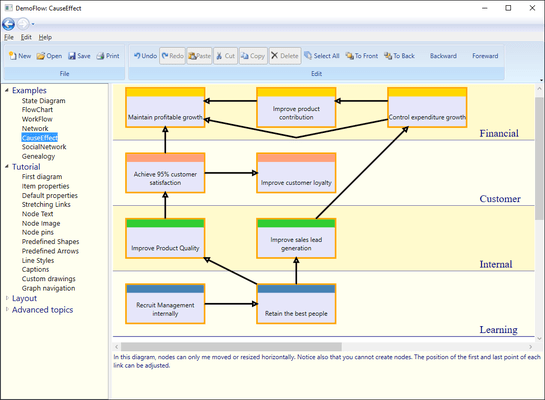
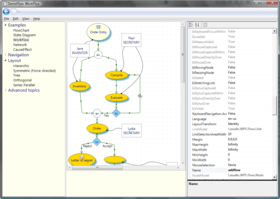
Screenshot Preview

AddFlow for WPF Standard

by Lassalle Technologies - Product Type: Component / .NET WPF / 100% Managed Code

Create interactive flowchart and workflow diagrams for your WPF applications. Addflow for WPF Standard is a Windows Presentation Foundation custom control that lets you quickly build flowchart enabled WPF applications like workflow diagrams, database diagrams, communication networks, organizational charts, process flow, state transitions diagrams, telephone call centers, CRM (Customer Relationship Management), expert systems, graph theory, quality control diagrams, etc. Addflow for WPF Standard is very easy to use, very light and it is designed to be very fast. Addflow for WPF Standard requires the Microsoft .NET Framework 4 and VS2010. Royalty free redistribution. Addflow for WPF Standard does not include LayoutFlow that is only as part of Addflow for WPF Professional. Addflow for WPF Standard is 64 bits compatible.

From
$489.02

Our regular prices are shown below. Please logon to see your discounted prices.

Price in

AddFlow for WPF Standard V1.3

Add to Cart $ 489.02 1 Developer License Download (5.3 MB)
Add to Cart $ 979.02 4 Developer Team License Download (5.3 MB)
Add to Cart $ 2,939.02 1 Site Wide License (Allows Unlimited Developers at a Single Physical Address) Download (5.3 MB)
Add to Cart $ 4,899.02 1 Enterprise License (Allows Unlimited Developers Worldwide) Download (5.3 MB)

Our prices include ComponentSource technical support and, for most downloadable products, an online backup and a FREE upgrade to the new version if it is released within 30 days of your purchase.  All sales are made on our standard Terms and Conditions and subject to our Return Policy. Please contact us if you require any licensing option not listed, including volume licensing and previous versions.

Our regular prices are shown above. Please logon to see your discounted prices.

What's New in AddFlow for WPF 1.3?

  • Rotation. If the CanRotateNode property of AddFlow is true (which is the case by default) and if the IsRotatableproperty of a node is true (which is the case by default), a node can be rotated programmatically, using the node RotationAngle property or interactively, using a handle placed at the right of the node. You may change the look of this rotation handle using the RotateHandleStyleproperty.When rotating nodes interactively, the SelectedNodesRotating event is fired and the IsRotatingNode property of AddFlow is true
  • Interactive zoom. This new release adds the possibility to zoom the diagram interactively with the mouse if the MouseSelection property of the AddFlow control is set to MouseSelection.Zoom
  • Interactive selection enhancement. A new property to accelerate the selection of items inside a rectangle drawn with the the mouse: CanSelectOnMouseMove. It is true by default. If false, the selection is made only at the MouseUp event (see for instance the “Stress” example in the demo)
  • AddFlow for WPF adds also two properties SelectionBoxStyle and ZoomingBoxStyle allowing  defining the style of the rectangle used when selection items or zooming interactively with the mouse

What's New in AddFlow for WPF 1.2?

64-Bit Compatible: AddFlow for WPF is now compatible with 64bit systems.

What's New in AddFlow for WPF 1.1?

  • Jumps may be displayed at intersections of link segments
  • Panning mode: Can scroll the diagram directly with the mouse
  • Connectors and pins: You can know customize the shape of the pins used to connect create the links. And you can define for each node a connector object that contains several pins.

AddFlow for WPF Standard is a WPF custom control for creating flowchart diagram. It offers the following advantages:

  • A small deployment assembly. The size of the Lassalle.WPF.Flow.dll file is less than 150 Kb
  • A light programming interface
  • Speed: A design where nodes and links are not controls but just low-level DrawingVisual objects. Using DrawingVisual is the most lightweight way to perform drawing. A good choice if you need to create big diagrams (several thousands of nodes and links).
  • Full integration with the WPF environment
  • Runtime royalty free

The main difference between AddFlow for WPF Standard and AddFlow for WPF Professional is that AddFlow for WPF Professional includes Automatic Graph Layout functionality provided by LayoutFlow.

AddFlow for WPF Main Features

AddFlow for WPF Standard General Features

  • Drawings can be made interactively or programmatically.
  • Distinct shapes, styles, colors, font can be defined on a per item basis (for a node or a link) or as default properties for the control.
  • Use of the LINQ technology allowing you to traverse the graph in many ways.
  • Many properties allowing customizing the control (CanDrawNode, CanMoveNode, CanMultiLink, etc...) or an item (IsXSizeable, IsYSizeable, IsXMoveable, IsYMoveable, IsSelectable, IsStretchable, etc...)

AddFlow for WPF Standard Interactivity and display facilities

  • Multi selection
  • Multi-level Undo/Redo
  • Grid support
  • Nodes stay connected when moved or resized
  • Zooming
  • Scrolling, drag scrolling


AddFlow for WPF Standard Input/Output

  • XML serialization also via the free extension XMLFlow. The C# source code of XMLFlow is provided.
  • XAML exportation


AddFlow for WPF Standard Nodes

  •  43 predefined shapes
  • Custom shapes (using Geometry objects)
  • Ability to display a text and an image in a node
  • Ability to associate DrawingVisual objects to the node Children collection
  • In-place edition
  • Text positioning options
  • Image positioning options
  • Tooltip

AddFlow for WPF Standard Links

  • 15 predefined arrow styles
  • Custom arrow styles (using Geometry objects)
  • Stretchable links. A link can be composed of many segments. The user can interactively add or remove segments
  • Curved links (Bezier and Spline)
  • Reflexive links
  • Possibility to interactively change the origin node or the destination node of a link
  • Tooltip

Automatic Graph Layout (Professional version only)

AddFlow provides a set of several graph layout algorithms:

  • Hierarchic layout
  • Orthogonal layout
  • Symmetric layout
  • Series Parallel layout
  • Tree layout
  • Radial Layout

Each of these graph layout algorithms performs a layout on a graph. Performing a layout automatically positions its nodes (also called vertices) and links (also called edges).


Product Search

Enter search words:

Award