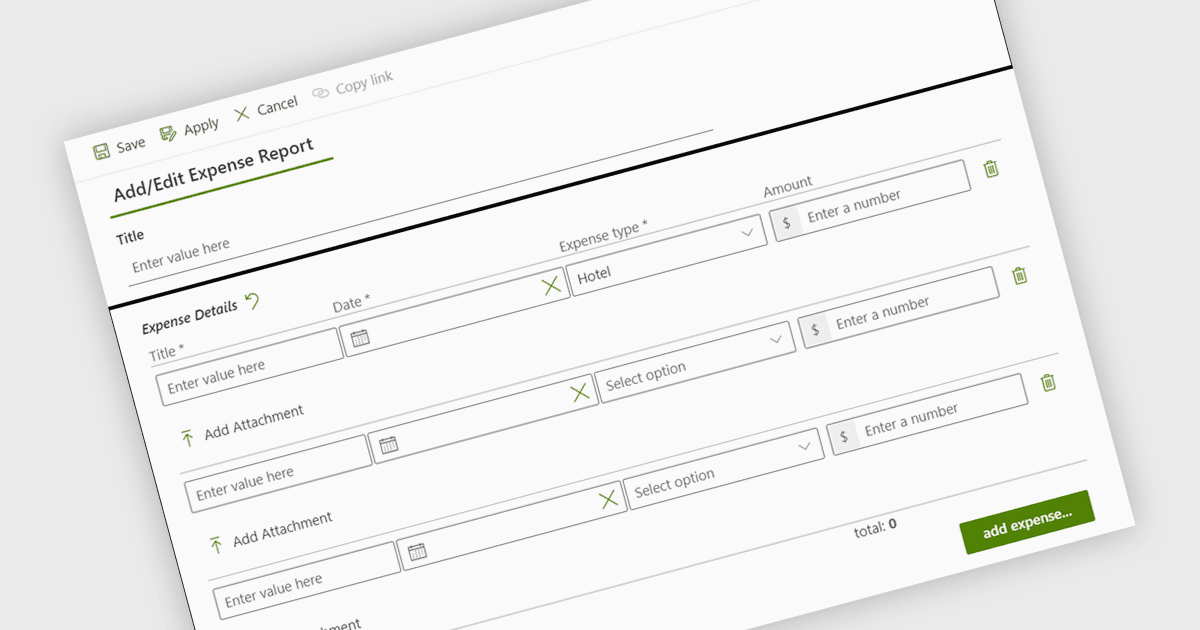
Cargue de forma fiable varios archivos en SharePoint
KWIZ Forms Enterprise agrega subcarpetas automatizadas y un nombre inteligente para mejorar el envío de formularios con varios archivos sin errores.
Componente flexible de creación de formularios para entornos Microsoft.

Precios desde:
| Disponible por separado | Nuestro precio |
|---|---|
| KWIZ Forms Enterprise | Cargando |
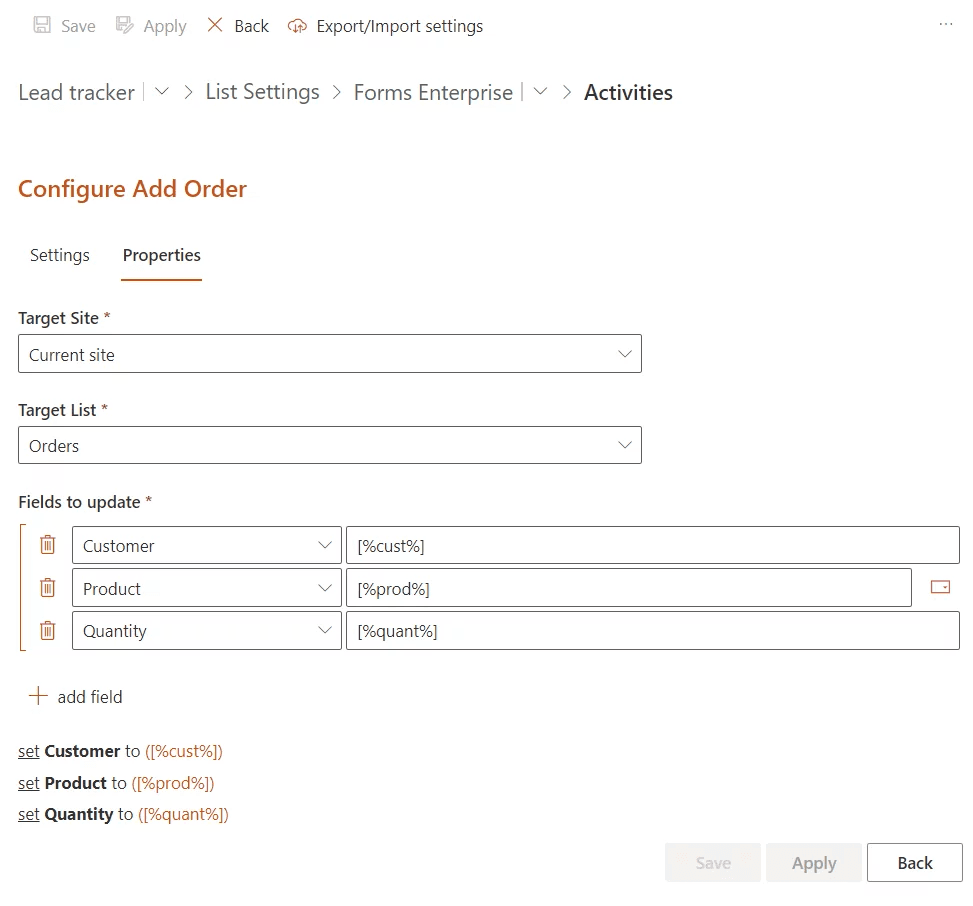
Ofrece una interfaz flexible y fácil de usar para crear y personalizar formularios dinámicos que se adaptan a las necesidades de diversos procesos empresariales y requisitos de captura de datos.
Se integra sin problemas con Microsoft SharePoint y Teams, lo que permite incrustar y utilizar formularios dentro de estas plataformas de colaboración para mejorar la accesibilidad.
Permite automatizar los flujos de trabajo empresariales activando procesos en función del envío de formularios, agilizando las operaciones y reduciendo las tareas manuales en todos los departamentos.
Facilita la recopilación y estructuración eficiente de datos dentro de los sistemas empresariales, mejorando la gobernanza de datos y las capacidades de generación de informes.
Fomenta el trabajo en equipo y la comunicación mediante la inserción de formularios en espacios de trabajo digitales compartidos, favoreciendo la interacción de datos en tiempo real entre los usuarios.
Proporciona controles y configuraciones que ayudan a las organizaciones a mantener los estándares de gobernanza y el cumplimiento dentro de sus ecosistemas Microsoft.
Diseñada para escalar en entornos empresariales, admitiendo una mayor complejidad de formularios y bases de usuarios sin sacrificar el rendimiento.
Se adapta a necesidades empresariales específicas al permitir a los desarrolladores personalizar el comportamiento de los formularios y los puntos de integración dentro de la infraestructura de TI más amplia.
Revise los detalles a continuación para asegurarse de que este producto sea compatible con su entorno.
KWIZ Forms Enterprise agrega subcarpetas automatizadas y un nombre inteligente para mejorar el envío de formularios con varios archivos sin errores.
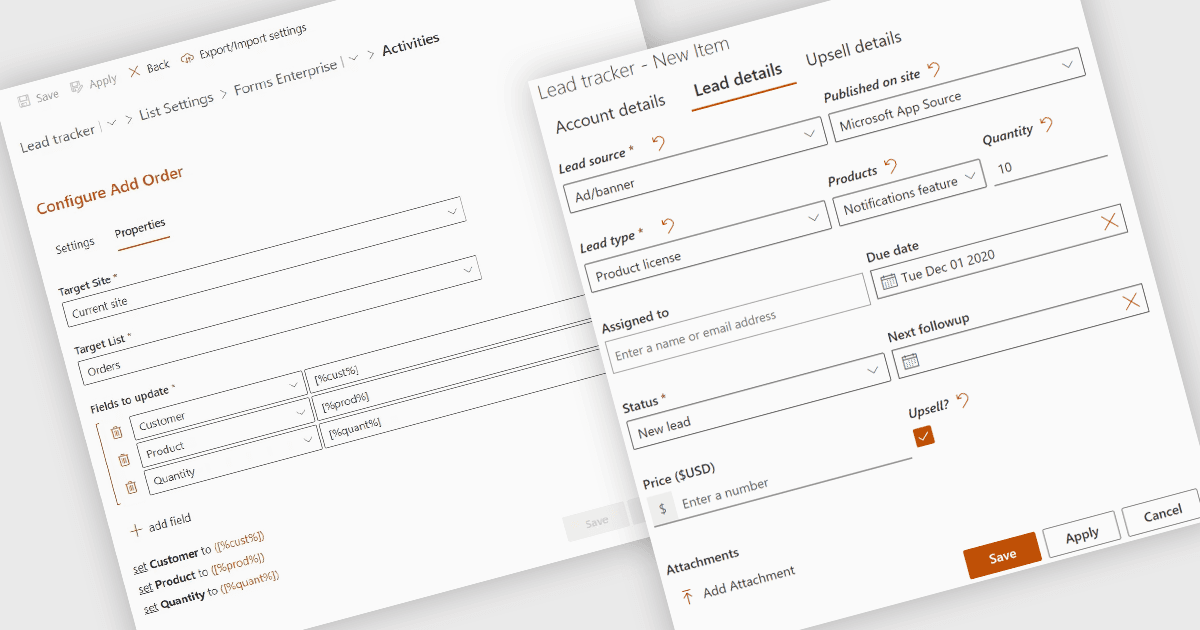
KWIZ Forms Enterprise ofrece soluciones nativas y seguras de formularios para SharePoint que maximizan la privacidad de los datos e integran de forma fluida con Microsoft 365.
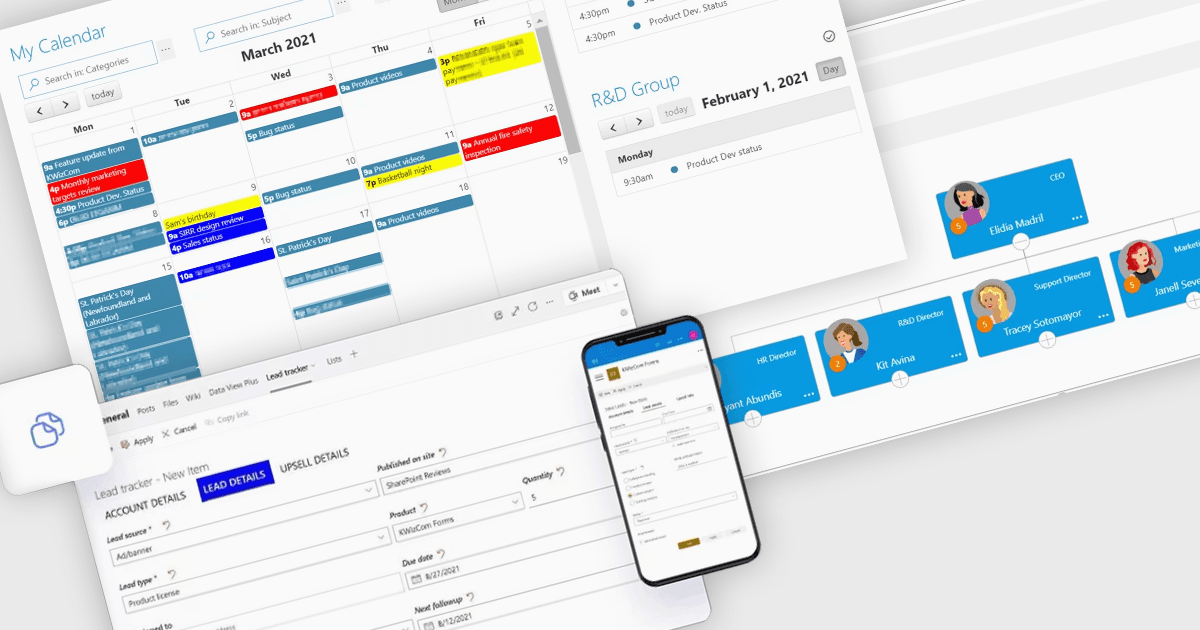
ComponentSource colabora con KWIZ para proporcionar a los desarrolladores herramientas avanzadas destinadas a mejorar y optimizar SharePoint.
SnapOn Software, anteriormente conocida como KWIZ, se estableció para ofrecer componentes y soluciones de software innovadores diseñados para mejorar la productividad, la colaboración y la gobernanza dentro de ecosistemas empresariales líderes como Microsoft y NetSuite. Con sede en línea y al servicio de una clientela global, es reconocida por desarrollar marcos adaptables e integrados que abordan diversas necesidades de seguridad, cumplimiento y operativas. Al ofrecer mejoras basadas en componentes tanto para colaboración como para sistemas de back-end, SnapOn Software permite a los profesionales de TI y a las empresas optimizar el rendimiento y obtener más valor de sus entornos de software existentes.
Obtén más información sobre SnapOn SoftwareDescubre los productos de SnapOn Software

Como distribuidores oficiales y autorizados desde 2009, ComponentSource le ofrece licencias legítimas directamente de SnapOn Software.