by FOSS Software - Product Type: Component / .NET WinForms / .NET Class / 100% Managed Code / Source Code
Elegant Ribbon by FOSS Software
URLs: foss-elegant-ribbon, foss elegant ribbon, fosselegantribbon, foss
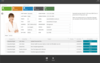
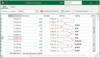
Add a Microsoft Office look user interface to your application. Elegant Ribbon is a set of Windows Forms controls that allow you quickly and easily provide your application with a new-generation user interface like that introduced in Microsoft Office 2007. It is written in 100% managed C# and is CLS compliant. The following innovative approaches were used: context-sensitive and windowless controls, command-oriented programming interface, XML-based skinning, and WYSIWYG and rich design-time support in Visual Studio. All the implemented features fully meet 2007 Microsoft Office System User Interface Design Guidelines.
Automatic Scaling and Adaptive Layout
The developer can control the control's dynamic layout behavior in different ways. You can set the minimum and maximum informativeness levels and/or exclude particular levels for the control. You can also combine controls into layout groups. All controls in their layout group change their informativeness level simultaneously. All this allows you to design any layout.
Advanced Skinning
The visual representation of every control in Elegant Ribbon is defined using XML. The two built-in visual themes, Blue and Black, provide pixel-to-pixel matching with those implemented in Microsoft Office 2007. The non-client area of a form, which consists of the window border and title bar, is typically drawn by the Windows. The Elegant Ribbon component, when placed on a form, completely changes the look and feel of the non-client area so it looks similar to that in Microsoft Office 2007 applications. This is achieved with a skin component (Frame Skinner). You can also customize the frame's skin or even implement the non-client area in your own custom way, for example, by adding additional controls to the title bar.
Innovative Context-Based Architecture for Controls
Usually UI component libraries are designed in a way that similar control classes vary across context. For example, if you want to use a regular button on a form, you need to use the Button class, but for a button on a toolbar, you would have to use some other class (for example, ToolbarButton). That approach restricts you in terms of polymorphism and is not conceptually elegant.
The Elegant Ribbon introduces a context-based architecture, where logic and appearance of a control depend on its context, so when the parent window changes, the control's look and behavior change too. This means that when using the component, you can always drag a button from the Ribbon to a form and back because in both cases the button is represented by the very same class.
Basic Extensions of Windows Forms
FOSS Software extended Windows Forms base classes to lay a solid foundation for the whole library. For example, the base class for all controls is designed to make each control windowless. Using windowless controls instead of those based on window handles enables the application to work faster and requires less system resources.
Cascading Pop-Up Menus
The distinguishing feature of the Elegant Pop-Up window is that you can put both menus and regular controls into it. In the current version you can add Button, Toggle Button and Drop-Down controls to Pop-Up menus. The menu is multi-monitor friendly so when it crosses a multi-screen boundary, it is correctly adjusted.
Keyboard Navigation
All the controls in the Elegant Ribbon are designed taking into account keyboard navigation, which is one of the most important accessibility features. The user can traverse the controls using the keyboard like in Microsoft Office 2007 applications.
Command-Oriented Interface
Elegant Ribbon supports the concept known as command-oriented interface, when user-interface controls are separated from the code that implements user actions. You have a global pool of command objects, which you can easily generate using Elegant Ribbon's Commands Designer and you have controls. You can now link commands and controls and place your custom logic into command object code. This approach has several advantages and enables you to develop large-scale applications with rich user interface.
You can however use the standard Windows Forms approach by placing your custom logic into handlers of control events.
Controls
The current version includes the following set of basic controls:
Button
TextBox
CheckBox
SplitButton
DropDown
ToggleButton
Separator
PopupMenu
ButtonGroup
The controls in Elegant Ribbon are context sensitive. For example, you can use a Button in the ribbon bar or in a pop-up menu.
Screen Tip
All controls on the ribbon support a Screen Tip that appears when the mouse pointer hovers over a control. You can specify a caption, a short description and an image to inform the end user about the functionality this control provides.
WYSIWYG Designer
FOSS Software endeavors to make the design-time functionality for the controls and components easy and intuitive. In fact, now the Ribbon control in Windows Forms Designer looks, feels and behaves almost like at run time.
What's New in Elegant Ribbon 4.2
Added ListBox and CheckedListBox controls
Added support for the following controls in a popup menu: TextBox, MaskedTextBox, SplitButton, DateTimePicker and NumericUpDown
Customize QAT dialog now displays proper control labels instead of variable names.
Customize QAT dialog now allows you to add controls from the Backstage View to the QAT.
Group Box control now wraps the text in its label when the text exceeds the label's width.
Screentips can be enabled for disabled controls by just setting a new static property UISettings.MouseForDisabledHandlelessControlsEnabledto true.
Added support for putting MessageBox's content to the Clipboard when hitting Ctrl+C or Ctrl+Insert.
Help is now Visual Studio 2010 compatible.
Bug Fixes
If a RibbonGroup was hovered and you switched tabs, it remained to be hovered when it should not be.
Screentip did not show for the RecentDocuments item.
Vertical text was drawn incorrectly in TabControl and GrouppedNavigationBar controls.
NavigationBar sometimes caused a NullReferenceException at design time.
ToggleButton added from QAT worked in radio group mode incorrectly in some cases.
Maximized form with the ribbon in Aero mode prevented the auto-hidden Windows taskbar from being shown.
Gallery did not invalidate when its item collection changed.
Message box was visible in the Windows taskbar.
What's New in Elegant Ribbon 4.1
Added support for baseline snaplines in Elegant controls.
Added a QuickAccessToolbarDropDownVisible property so that you can control whether the user can add/remove commands to/from QAT.
You can now add custom buttons at the end of the TabControl’s tab line (using the TabControl.AdditionalTabLineControls collection and TabControlToolbarCustomButton class). This feature is demonstrated in the Controls sample.
Panel can now have a border.
Added a GroupedNavigationBar.MeasureGroupHeaderHeight event to control the height of the header of a group in a Navigation Bar.
Minor updates to the Image Viewer Sample.
Bug Fixes
Focus failed to be set programmatically (using the Focus method) for a TextBox and a ComboBox in the ribbon.
After clearing a gallery, it failed to be updated.
Disposing of a TextBox (with its Dispose method) caused in some cases stack overflow.
Scrollabe control in the Backstage View caused an exception "'child' is not a child of this parent".
First tab in the TabControl when the EqualTabWidth was not set to true was not visible in some cases.
Elegant Ribbon 4.0 is a major release with a new Navigation Bar control and a number of improvements.
What's New
Added a Navigation Bar multi-purpose control that allows you to combine similar items in vertically stacked groups so that the user can easily navigate through and access these items. The control supports three different views: Normal, Accordion and Outlook. If none of the standard appearances fits your taste, you can customize its look.
Added a Navigation Bar sample to illustrate the features of the Navigation Bar control.
Added support for shortcut keys in controls inside ribbons and pop-up menus.
Optimized memory management for better garbage collection.
Now you can customize the content of your screen tips. For example, you can play video in your screen tips.
Added support for background images in all controls.
Bug Fixes
When resizing the window, ribbon groups got collapsed too early.
Design time bugs in the drop-down, split button and color picker.
Other minor improvements.
Scrollbar painting issue in the multiline textbox.
What's New in Elegant Ribbon V3.8:
Elegant Version 3.8 is a major release with a number of new controls and improvements.
BackstageView now supports three Office 2010 themes: Blue, Black and Silver. In the previous version only the Office 2010 TP theme was supported
Added a SplitContainer control
Added a NotifyIcon contro
Improved startup and layout performance of the framework
Added a GroupBox control
You can now assign custom text to the buttons of the MessageBox (Button1Text, Button2Text and Button3Text)
Improved scrolling performance of the ComboBox's Drop Down list
ScreenTip.Text property now supports multiline text
Enhanced usability in the Windows Forms Designer through new smart tags
Improved layout performance when rolling the mouse wheel over the ribbon tab line
Container controls like NavigationBar, Panel and BackstageView now support scrolling
Added a DropDownColorPicker control
Added a ColorPickerDialog control
Added a PinList control that allows you to pin selected items at the top of the list
Added support for separators in the Backstage View
Popup menus now support keyboard shortcuts
Backstage View now supports tab key navigation
Improved the border appearance of themed windows that have a fixed border style
SplitButton, Button, ToggleButton and DropDown controls now support a DescriptionText that can be used to display additional info or description in a gray color below the regular text
Added a ScrollableControl to make your container controls scrollable
Optionsand Exit buttons in the Application Menu are now localizable
Updated the Elegant Ribbon UI and Commands samples
Bug Fixes
Parameter that specifies the default button in the MessageBox did not work
Incorrect keyboard selection in galleries
AltGrkey in combination with another key showed a Key Tip though this was supposed to be used as a modifier
Repainting issue reported in the forum
When opening the BackstageView, controls with the same commands as those in the Quick Access toolbar became disabled
Layout problems when using large fonts in the status bar
Context Menu designer did not show up in cases when there were no other controls on the form
What's New in Elegant Ribbon V3.7:
Added a BackstageView control
Added a Slider control
Added a MessageBox control
Added a PictureBox control
Added a ScreenTipData.ImageScaleMode property that specifies the way the image is scaled inside a screen tip.
Added a FlatStyle property for button-based controls (Button, Drop-Down, Split, Slider, Toggle) to provide a flat style for controls put into the Backstage View.
Added a Ribbon.AllowCloseFormOnApplicationButtonDoubleClick property that specifies if the application button is allowed to close the form on double click.
Now you can change the visual theme at design mode. Just drag-and-drop the ThemeSelector component from the toolbox and select a theme in it.
Improved memory usage.
Improved the framework performance and rendering quality in RTL mode.
What's New in Elegant Ribbon 3.6:
Added three new Office 2010 themes: Blue, Black and Silver
Added support for Visual Studio 2010
You can now use the Elegant progress bar on forms
Text and icon are now visible by default for TextBox, ComboBox, NumericUpDown, DateTimePicker and MaskedTextBox
Popup.AllowShadow property value is nullable now and inherited by its descendant popups
Modified the Controls sample to illustrate new features
What's New in Elegant Ribbon 3.5:
Windows 7 visual theme is now supported for common controls
FontComboBox control for selecting fonts now has the AutoComplete feature. This control is used in Elegant Ribbon sample applications
ComboBox control now has the AutoSelect feature
Improved the cold startup performance
Gallery control now has a better appearance with the System theme
Better support for using Elegant Ribbon's source code in solutions on developers' machines
Added a Ribbon.MinimizedChanging event to cancel changing the ribbon into minimized state
Added a Ribbon.CurrentTabPageChanging event to cancel a tab change
Added a StatusBar.IntegrateWithForm property to control how the status bar is integrated with the form
Updated the Controls sample
Elegant Ribbon V3.4 - What's New
Added a Windows 7 visual style
Added support for a cue banner (banner text) in TextBox, ComboBox and DateTimePicker controls
Added a themed MaskedTextBox control
Added a CollapseIndex property to the RibbonGroup to control in which order ribbon groups are collapsed when there is not enough space to accommodate all groups inside the ribbon
Added MinDate and MaxDate properties to the DateTimePicker to limit the range of available date-time values
Improved drawing performance for some controls including pop-ups
Scrollbars now support animation
TextBox, ComboBox, NumericUpDown and DateTimePicker now feature the Validating event when they are used in the ribbon
Updated the documentation and sample applications to reflect the changes made to the framework
Elegant Ribbon V3.3 - What's New
Version 3.3 introduces a new Office 2010 TP visual style, better support for large dpi settings, eleven new localizations and a number of other new features:
Added an Office 2010 TP visual style
Improved support for large dpi settings (125 and 150)
Now the TextBox supports a multiline layout
Now the edit part of the combo box can display an image of the selected item. Added two new properties, DisplaySelectedImage and SelectedItemImageSize, that allow you to control this feature
Now the NumericUpDown supports an image through its new properties EditorImage and EditorImageSize
Added highlighting animation to the application button. You can start or stop it using the Ribbon.ApplicationButtonAnimationEnabled property. If the animation is on, it automatically stops when the user clicks the application button
Added a Control.MouseOver property to determine if the mouse is over the control or over one of its children
Now the user can change a date/time in the Date/Time Picker by rolling the mouse wheel
Added a TabControl.GetTabRect method that allows you to get the bounding rectangle for a specified tab
Added support for Dannish, German, Finnish, French, Italian, Spanish, Dutch, Norwegian, Polish, Portuguese and Swedish. You can now localize Elegant Ribbon to a new language if it is not yet supported
Updated the documentation and sample applications to reflect the changes made to the framework
Elegant Ribbon V3.2 - What's New
The main feature of version 3.2 is a theme consistent tab control with RTL support:
Added a tab control that allows you to manage a related set of tab pages represented by tab page objects. The control is theme consistent and supports RTL
Added a boolean QuickAccessToolbarCustomizationEnabled property to the ribbon so you can prevent the user from customizing the Quick Access Toolbar
You can now customize the names of commands in the Customize Quick Access Toolbar dialog
Added an ApplicationMenu.ContentMinimumHeight property, which allows you to set the minimum height of the Application Menu. It can be handy when you have a few items in the left pane of the menu, a lot of items in the right pane and you would like the right pane to have no scrolling
Added support for drag-and-drop events for the controls inside the ribbon. Because such controls are windowless, they were not available out of the box earlier
Added support for shortcut keys for form controls (the ampersand character in the name of a control). So now you have an option of using either common Window Forms shortcuts or KeyTips for form controls
Customize Quick Access Toolbar, Label.Text and Control.ScreenTip can now be correctly localized
What's New in Elegant Ribbon V3.0?
Added right-to-left (RTL) support for languages like Arabic and Hebrew in all controls
Added MDI support for the ribbon
You can now use ribbon galleries on forms
Gallery categories can now be expanded/collapsed
Added a Calendar control
Added a Date/Time Picker control
You can now assign an individual image and a tooltip for each combo box item
Added a TextAlignment property to the Label control
Added a Ribbon MDI sample
Updated the Controls sample to illustrate the new controls and features
Added two new articles: Using a Calendar Control and Using a DateTimePicker Control
Updated the documentation
What's New in Elegant Ribbon V2.2?
Added ribbon galleries including gallery categories , gallery filters and more
Added contextual tabs with seven stock tab colors
Added context menus including merging menu items with standard items in the ribbon context menu
Added a Radio Button control , which can be used both in the ribbon and on the form
Added support for Microsoft Active Accessibility (MSAA)
You can now place the ribbon inside any nested control with the form frame remaining skinned
You can now place any standard Windows Forms control, an ActiveX control or a 3rd party control in the ribbon
Added a QuickAccessToolbarCustomizationEnabled property to the ribbon. If you set it to false, the end-user will not be able to customize the Quick Access Toolbar
Tested for compatibility with Microsoft Visual Studio 2008
Added a Style Composer sample that illustrates how to use galleries
Added an ImageViewer sample, which allows you to load images locally or using the Google Image Search web service as well as to view and manipulate loaded images. The sample illustrates how to use galleries and contextual tabs and demonstrates some advanced techniques
Updated the Ribbon UI sample. Added a lot of galleries and several contextual tabs
Updated the Controls sample to illustrate the use of new controls
Added the following articles:
Ribbon Galleries
Contextual Tabs in Ribbon UI
Context Menus
Updated the documentation
What's New in Elegant Ribbon V2.1?
Added a status bar similar to that in Microsoft Office 2007 ribbon-based applications. You can use the following Elegant Ribbon controls in the status bar:
Push button
Toggle button
Button group
Progress bar
Label
Added Vista Glass support. Now, by default, the window's not-client area on Windows Vista has translucent, glass-like look. You can however turn off the glass effect by setting the Elegant.Ui.FormFrameSkinner.AllowGlass to false
Added the Office 2007 Silver theme. So now an Elegant Ribbon application has the same set of themes as in Microsoft Office 2007
Added a navigation bar control. You can find an example of using it on the Sample Options form that is displayed by clicking the Options button in the Ribbon Application Menu in the Elegant Ribbon UI sample
Added a progress bar control, which can be used in the status bar
You can now fill the control's background with a custom color set in BackColor and use a custom foreground color set in ForeColor instead of the default theme colors. To use these features, you should set Control.UseVisualThemeForBackground to false and Control.UseVisualThemeForForeground to false
Added support for the Help button in the upper right corner of the Ribbon
Updated the samples to illustrate the new features
Updated the documentation
What's New in V2.0:
Version 2.0 introduces a number of important features, which make Elegant Ribbon fully compliant with the 2007 Microsoft Office System User Interface Design Guidelines.
Added the Ribbon Application Menu
Added two informativeness levels, Large and Large with Description, for button-based controls (Button, Toggle Button and Drop-Down Button) in popup menus
The user can now minimize the Ribbon by double-clicking the currently selected tab, choosing Minimize the Ribbon from the tab right-click menu, or typing CTRL+F1
When the Ribbon is minimized, clicking on any tab displays the controls on the Ribbon for that tab over the document workspace
Added support for scrolling ribbon tabs when there is no room for all tabs
Added support for two vertically distributed controls in a ribbon group
The minimum width of a ribbon group is now determined by the width of its caption
The Ribbon now hides automatically when the form becomes too narrow or too short
Added a sample, Data Binding, which illustrates how to use complex data binding with Elegant Ribbon controls on the form
Updated the Ribbon UI sample with new tab pages and controls
Added an API reference to the documentation
Updated the icons for Elegant Ribbon controls in the Visual Studio Toolbox
What's New in V1.2?
Added the Quick Access Toolbar functionality
Added the KeyTips functionality for the ribbon and for controls on the form
Button, ToggleButton, DropDown, SplitButton, and CheckBox controls can now be used both on the ribbon and on the form
Added DefaultSmallImage and DefaultLargeImage properties to the Control base class. This allows you to set up images for controls in a more convenient way when you can only set these two properties for a control rather than setting images for all available control states (pressed, hovered, etc)
Added a feature that allows you to control the behavior of all pop-ups (the Elegant.Ui.Popup.UseScreenBoundsForPopupsPlacement static property) or a particular pop-up (the Elegant.Ui.Popup.PlacementArea property) when it overlaps working screen boundaries
Added a Elegant Controls sample that demonstrates how to use context-sensitive controls on the form
Updated the documentation with two articles: "Working with Quick Access Toolbar" and "Keyboard Navigation with KeyTips"
Whats New in V1.1?
Added a combo box control (ComboBox)
Added a up-down control (NumericUpDown)
ComboBox, NumericUpDown and TextBox are context-sensitive, which means they can be used both in the ribbon and on the form
Added a label control (Label)
Added a panel control (Panel), which features a theme consistent background when put on the form
Added scroll bar controls (HorizontalScrollBar and VerticalScrollBar)
Controls in pop-up menus and ribbon groups can now be reordered by drag-and-drop at design time
Added an Informativenes.FixedLevel property, which allows you to make a control’s appearance independent of the width of the application window
Added a Scribble sample that demonstrates how to use the combo box, up-down and push button in the ribbon. The sample also features an owner-drawn combo box
Added a number of FAQ articles
Add a Microsoft Office look user interface to your application.
Pricing: Elegant Ribbon V4.2 with 90 days technical support 1 Developer License, Elegant Ribbon V4.2 with 90 days technical support 2 Developer License, Elegant Ribbon V4.2 with 90 days technical support 3 Developer License, Elegant Ribbon V4.2 with 90 days technical support 4 Developer License, Elegant Ribbon V4.2 with 90 days technical support 5 Developer License, Elegant Ribbon V4.2 with 90 days technical support 6 Developer License, Elegant Ribbon V4.2 with 90 days technical support Unlimited Developer License, Elegant Ribbon V4.2 with 1 year technical support 1 Developer License, Elegant Ribbon V4.2 with 1 year technical support 2 Developer License, Elegant Ribbon V4.2 with 1 year technical support 3 Developer License, Elegant Ribbon V4.2 with 1 year technical support 4 Developer License, Elegant Ribbon V4.2 with 1 year technical support 5 Developer License, Elegant Ribbon V4.2 with 1 year technical support 6 Developer License, Elegant Ribbon V4.2 with 1 year technical support Unlimited Developer License, Elegant Ribbon 1 year Technical Support Renewal 1 Developer Technical Support Renewal License, Elegant Ribbon 1 year Technical Support Renewal 2 Developer Technical Support Renewal License, Elegant Ribbon 1 year Technical Support Renewal 3 Developer Technical Support Renewal License, Elegant Ribbon 1 year Technical Support Renewal 4 Developer Technical Support Renewal License, Elegant Ribbon 1 year Technical Support Renewal 5 Developer Technical Support Renewal License, Elegant Ribbon 1 year Technical Support Renewal 6 Developer Technical Support Renewal License, Elegant Ribbon 1 year Technical Support Renewal Unlimited Developer Technical Support Renewal License, Elegant Ribbon V4.2 with Source Code includes 90 days technical support 1 Developer License, Elegant Ribbon V4.2 with Source Code includes 90 days technical support 2 Developer License, Elegant Ribbon V4.2 with Source Code includes 90 days technical support 3 Developer License, Elegant Ribbon V4.2 with Source Code includes 90 days technical support 4 Developer License, Elegant Ribbon V4.2 with Source Code includes 90 days technical support 5 Developer License, Elegant Ribbon V4.2 with Source Code includes 90 days technical support 6 Developer License, Elegant Ribbon V4.2 with Source Code includes 90 days technical support Unlimited Developer License, Elegant Ribbon V4.2 with Source Code includes 1 year technical support 1 Developer License, Elegant Ribbon V4.2 with Source Code includes 1 year technical support 2 Developer License, Elegant Ribbon V4.2 with Source Code includes 1 year technical support 3 Developer License, Elegant Ribbon V4.2 with Source Code includes 1 year technical support 4 Developer License, Elegant Ribbon V4.2 with Source Code includes 1 year technical support 5 Developer License, Elegant Ribbon V4.2 with Source Code includes 1 year technical support 6 Developer License, Elegant Ribbon V4.2 with Source Code includes 1 year technical support Unlimited Developer License, Elegant Ribbon with Source Code 1 year Technical Support Renewal 1 Developer Technical Support Renewal License, Elegant Ribbon with Source Code 1 year Technical Support Renewal 2 Developer Technical Support Renewal License, Elegant Ribbon with Source Code 1 year Technical Support Renewal 3 Developer Technical Support Renewal License, Elegant Ribbon with Source Code 1 year Technical Support Renewal 4 Developer Technical Support Renewal License, Elegant Ribbon with Source Code 1 year Technical Support Renewal 5 Developer Technical Support Renewal License, Elegant Ribbon with Source Code 1 year Technical Support Renewal 6 Developer Technical Support Renewal License, Elegant Ribbon with Source Code 1 year Technical Support Renewal Unlimited Developer Technical Support Renewal License
Evals & Downloads: Read the Elegant Ribbon help file, Read the Elegant Ribbon License Agreement, Download the Elegant Ribbon V4.2 evaluation on to your computer - Displays evaluation messages
Operating System for Deployment: Windows 7, Windows Vista, Windows XP, Windows Server 2003, Windows ME, Windows 2000, Windows NT 4.0
Architecture of Product: 32Bit, 64Bit
Product Type: Component
Component Type: .NET WinForms, .NET Class, 100% Managed Code, Source Code
Built Using: Visual C# .NET
Compatible Containers: Microsoft Visual Studio 2010, Microsoft Visual Studio 2008, Microsoft Visual Studio 2005, Microsoft Visual Basic 2010, Microsoft Visual Basic 2008, Microsoft Visual Basic 2005, Microsoft Visual C++ 2010, Microsoft Visual C++ 2008, Microsoft Visual C++ 2005, Microsoft Visual C# 2010, Microsoft Visual C# 2008, Microsoft Visual C# 2005, .NET Framework 4.0, .NET Framework 3.5, .NET Framework 3.0, .NET Framework 2.0
Keywords: Office 2007 ribbon UI user interface
User Interface UI
User Interface Collections UI
Part numbers: PC-517606-379728 517606-379728 PC-517606-379734 517606-379734 PC-517606-379736 517606-379736 PC-517606-379730 517606-379730 PC-517606-379738 517606-379738 PC-517606-379746 517606-379746 PC-517606-379732 517606-379732 PC-517606-379729 517606-379729 PC-517606-379735 517606-379735 PC-517606-379737 517606-379737 PC-517606-379731 517606-379731 PC-517606-379739 517606-379739 PC-517606-379747 517606-379747 PC-517606-379733 517606-379733 PC-517606-379740 517606-379740 PC-517606-379741 517606-379741 PC-517606-379742 517606-379742 PC-517606-379743 517606-379743 PC-517606-379744 517606-379744 PC-517606-379748 517606-379748 PC-517606-379745 517606-379745 PC-517606-379749 517606-379749 PC-517606-379750 517606-379750 PC-517606-379751 517606-379751 PC-517606-379752 517606-379752 PC-517606-379753 517606-379753 PC-517606-379754 517606-379754 PC-517606-379767 517606-379767 PC-517606-379755 517606-379755 PC-517606-379756 517606-379756 PC-517606-379757 517606-379757 PC-517606-379758 517606-379758 PC-517606-379759 517606-379759 PC-517606-379760 517606-379760 PC-517606-379768 517606-379768 PC-517606-379761 517606-379761 PC-517606-379762 517606-379762 PC-517606-379763 517606-379763 PC-517606-379764 517606-379764 PC-517606-379765 517606-379765 PC-517606-379766 517606-379766 PC-517606-379769 517606-379769
Mfr. Part No: ER-1UL1YTS ER-1UL1YTSR ER-1UL90DTS ER-1ULSC1YTS ER-1ULSC1YTSR ER-1ULSC90DTS ER-2UL1YTS ER-2UL1YTSR ER-2UL90DTS ER-2ULSC1YTS ER-2ULSC1YTSR ER-2ULSC90DTS ER-3UL1YTS ER-3UL1YTSR ER-3UL90DTS ER-3ULSC1YTS ER-3ULSC1YTSR ER-3ULSC90DTS ER-4UL1YTS ER-4UL1YTSR ER-4UL90DTS ER-4ULSC1YTS ER-4ULSC1YTSR ER-4ULSC90DTS ER-5UL1YTS ER-5UL1YTSR ER-5UL90DTS ER-5ULSC1YTS ER-5ULSC1YTSR ER-5ULSC90DTS ER-6UL1YTS ER-6UL1YTSR ER-6UL90DTS ER-6ULSC1YTS ER-6ULSC1YTSR ER-6ULSC90DTS ER-UUL1YTS ER-UUL1YTSR ER-UUL90DTS ER-UULSC1YTS ER-UULSC1YTSR ER-UULSC90DTS
Publisher
Primary Category
Related Products
Related Categories
ComponentSource offers a unique global service, used by over 1,000,000 software developers worldwide.