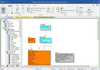
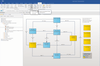
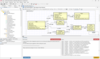
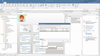
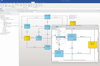
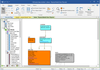
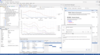
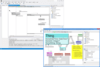
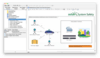
Screenshot Preview

GUI Design Studio - Summary

by Caretta Software - Product Type: Application / Developer Application / End User Application

Summary

GUI Design Studio by Caretta Software

URLs: gui-design-studio, gui design studio, guidesignstudio, caretta-software, caretta software, carettasoftware

Create user interface designs and interactive prototypes in 3 easy steps without writing a single line of code. GUI Design Studio is a tool which allows you to create screen designs and application prototypes quickly and easily before putting time and effort into coding. Get early feedback and acceptance of designs to dramatically reduce rework, costs and project risks. Try alternative designs, iron out usability issues, find missing requirements and identify areas of difficulty, all before committing to implementation. Interactive prototypes are easily shared. Specification documentation generated in HTML, PDF and RTF formats. Supports Windows, Web and custom applications including Ribbon Bar designs.

GUI Design Studio is a stand-alone user interface design and interactive prototyping tool. It uses simple drag and drop from an extensive range of controls and other elements to create high quality user interface designs and also low fidelity wireframes or mockups.

GUI Design Studio supports the design of Windows desktop applications (including Microsoft Office 2007 style Ribbon Bars), Web applications and embedded or custom applications. Windows styling can be switched at any time between NT (Classic), XP and Vista with over 20 color schemes to choose from.

Designs are organized into projects. Individual designs may represent entire screens, pages or individual panels and groups of elements that form components for use on other designs.

Connect screens and panels together using navigation links to quickly and easily create interactive prototypes and explore how the application design works as a whole, pinpoint usability issues and clarify requirements. By creating and comparing design variations, you can test them with users to see which one works best for them. For example, you can compare a Ribbon Bar design against a traditional menus and toolbars design.

A Viewer application is also freely available to allow all stakeholders to view your annotated, interactive prototype. For ease of sharing, a single distribution file can be created containing all design and graphics files required to run the prototype.

Documentation can also be created in HTML, PDF and RTF formats to provide a complete specification including all screen images, annotations, notes and action statements. This can also be shared with stakeholders and used as an alternative, static reference for developers to implement. Update documentation can also be created highlighting only the changes made to the project.

Projects

Organize your work into projects

Each project has its own folder structure

Link to other library projects anywhere on your computer or network

Link to other folders for convenient access to images and other files anywhere on your computer or network

Create individual design files that are independent of any project if you want to

Create design libraries for reuse and consistency between projects

Screen Designer

Open multiple design documents at a time and use the tabbed interface to quickly switch between them

Create graphical user interface (GUI) screens using standard Windows elements including frame windows, dialogs, menus, toolbars, tabs, push buttons, check boxes, radio buttons, scroll bars, sliders, spinners, combo boxes, trees, list boxes, edit boxes, static text and more

Create applications designs using the Microsoft Office 2007 Ribbon Bar style of interface

Create Web application designs and Rich Internet Applications (RIAs) with dynamic panels

Create custom controls from existing elements or other custom controls

Switch your visual style preference between Windows Classic, Windows XP and Windows Vista with color scheme and default font options and Outline styles for low-fidelity visual styling

Add icons and images from common file formats

Drag and drop from control palettes that show you exactly what you will get

Property editors allow you to customize each element

Automatic parenting of elements

No restrictions on where you can place any element

Edge snapping allows screen elements to just 'click' together

Design grids provide simple means for creating consistent layouts

Align groups of elements at the click of a button

Evenly space groups of elements

Resize elements to match others or span a group of other elements

Zoom in to see fine detail or zoom out for an overview of large designs. Zoom in increments using toolbar buttons or the keyboard or smooth zoom using the mouse

Quickly pan around large designs using the mouse with support for scroll and tilt wheels

Cut, copy, paste and duplicate commands

Unlimited undo/redo

Graphics Support

Paste images from the clipboard directly into files within project folders

Supports BMP, GIF, ICO, JPEG and PNG file formats

Transparent GIF and PNG files supported

Tiling and cropping options available

Icons

Provides fast access to palettes of icons

Common icons are shared between projects

Projects may also have their own set of icons

Scale icons to avoid having to create different sized versions in your prototype

Uses standard ICO files that may later be used in development of an actual product

Icon Express editor included, supporting 16-colour, 256-colour and true-color icons of any size up to the maximum 127 x 127

Can also integrate with any other icon editor application if preferred

Annotations and Documentation

Annotate designs with text boxes and marker overlays

Add formatted notes to each design and individual elements

Notes appear in popup tooltips while designing and also when running the prototype

Generate specification documentation in HTML, PDF and RTF formats

Create full documentation or only the changes since previous documentation

Storyboarding and Prototyping

Draw connections between navigational elements such as buttons and windows to show flow of control

Add overlays to images and other elements to create navigational hotspots

Supports modal and modeless windows, showing, hiding or toggling windows, window replacement and tabbed interfaces

Anchors allow you to position windows precisely

Instantly test or demonstrate your design by running it as a prototype

Add message boxes to describe functionality that might occur in the real application

Create multiple scenarios such as a normal condition and various error conditions

Choose which scenario to activate or let the prototype runtime choose for you

Change the effective screen resolution to see how your design might fit with a different screen size

Everything is done graphically with no scripting or coding

Components and Masters

Create component designs using any number of elements

Place component designs within other designs as background masters or foreground panels and elements so that changes in a component are reflected in every design that uses it

Place components within components to any level of nesting

Override element attributes in components (such as text or color) for individual instance usage

Components can be self-contained sub-systems containing interactive storyboarding

Benefits:

Unleash your creativity

Design what you want without the restrictions of any development environment

Add user interface elements that don't even exist yet - if you can draw it, you can use it

Quickly prototype multiple alternatives for evaluation

Visual design without coding is accessible to everyone

Easier to duplicate, change and distribute than paper and pencil designs

Reduce risk and costs

Create project specifications that everyone can understand

Get early feedback from users to ensure your software meets their needs

Discuss implementation issues with developers before writing any code

Catch design errors, find critical factors and explore special cases early in the project lifecycle

Create refined requirements that lead to fewer changes during development

Avoid costly rework later in the development cycle

Build the right application first time

Improve the usability of your software

Gain higher user satisfaction

Improve productivity

Use the fastest method for creating graphical user interface (GUI) prototypes

Developers can focus on implementing well specified designs that won't be constantly changing

Get a head start on writing the user manual in parallel with software development

Reduce your time to market

What’s new in GUI Design Studio 4.3

Fresher App - The application has been given a make-over with fresher icons, neater rendering and anti-aliasing of certain graphical elements.

Workspace Background Options - A new preference option has been added to set a background to the design workspace from a number of presets that include a flat color or tiled image overlaid with optional horizontal lines, vertical lines and dots.

Sketch Visual Style - Includesa new “Sketch” style option providing a hand drawn look and feel.

Image Slicing to Maintain Corners - Bitmap images now support slicing to provide resizable background images for custom elements, such as buttons, and fancy CSS3-style borders. Up to 9 slices can be created using left, right, top and bottom slice margins.

Line Segments - New Line Segment elements have been added with various options for shape, text label and arrow heads.

New Shapes - New Shape elements have been added with various fill and border options, plus transparency and drop shadows

Monochrome Display Options - Project options now allow you to design or present with elements and/or images displayed in monochrome to focus attention on content and layout and avoid distractions caused by color.

Smoother rendering - The newgraphics engine means rendering should appear smoother. Standard font sizes have been adjusted to improve their display.

Sound files - .wav file type now shows up in the Project File Tree and can be added to designs in the same was as adding images by using drag and drop or double-clicks.

Icons - You can now disable and display icons as a dimmed monochrome version which helps improve the visual indication of their enabled state.

Prototype tab - Added to most of the element property editors for the Pro edition it adds flexibility for conditional states and removes the need to use an additional parent container element (where a transparent Rectangle was often used).

Resize Anchors - These are now turned off by default to avoid visual distraction.

Button tooltips - Text Button elements with preset actions (Accept/Cancel/Close) now display that action as part of the tooltip in the Elements palette.

GUI Design Studio 4.0 Released With New Interaction and Templates

The new features are grouped around interactivity and element and design sharing. They enable you to build more realistic and interactive prototypes and to share or reuse individual elements or whole design templates with ease.

New editions

GUI Design Studio is now available in two different editions.

GUI Design Studio Express provides the prototyping functionality that was in v3, but focussed on individuals without the need to share projects and generate specification documentation.

GUI Design Studio Professional builds on v3, adding new interactivity and design sharing features, and is better suited to those working on larger projects, in teams, or on multiple designs.

All projects created in one edition will run in the other, or in the free viewer, except that the enhanced interactivity features in the Professional edition (see below) are not available in the Express edition.

Prototypes get more interactive (Pro edition only)

As your user interface design develops, everyone involved starts to focus on the details of interactivity. What process does the user need to go through to achieve certain tasks, how many button presses, how much navigation, is it clear and obvious, can they make simple mistakes?

All of these questions, and more, need to be considered in developing and refining a good UI and they cannot be addressed easily in a simple mock-up.

GUI Design Studio v4 introduces a range of new features to enhance the realism of your prototype, allowing you to model UI behaviour that depends upon decisions or input that the user has provided.

Simple Variables

Interaction controls depend upon simple variables. You choose a name for your variable in the new Prototype tab of the Properties dialog and that variable is then assigned a value when you run the Prototype and interact with the element.

Most elements can have an associated variable, even Trees and Ribbon Bars, and these variables can be shared among elements.

This variable can control other elements in various ways. For example, you could use it to insert a name that the user has entered into a piece of text, provide a default value, or you could drive a progress bar from other elements.

Variables are also tied into the Storyboard elements, as you can set up values from the new “Set Data” box. This allows you to reset variables in your UI to a particular set of values whilst running the Prototype. You might do this to simulate having different users, to reset the UI to its default value, or to jump to a particular state.

With project-level presets, it becomes even easier to repeatedly test or demonstrate different scenarios.

Handling Radio Buttons

Radio Buttons can be grouped so that they can act in unison.

Keyboard Control

Now that your users can start to interact with the design in a far richer and more realistic way, they are going to want to navigate around it using the keyboard just as they will in the finished user interface.

To do this you can click to gain focus on an element and use the Tab key to navigate around. The Spacebar changes the state of an element and the Enter key will “Close and Accept”, or the Escape key will “Close and Cancel”. Just like the real thing.

Control when to Show or Enable controls using conditions

Not only can you control the value and text in an element, you can also control when an element is enabled and when it is visible. That means that you can make additional controls appear or disappear depending upon which options the user has selected, or make sure that the next logical control is automatically enabled based on the user’s selection.

Conditional navigation in different scenarios

Variables are firmly embedded in Scenarios and Conditional Navigation too. The Condition Box properties now include a “Condition” entry allowing you to control the flow of the user interface with more flexibility and clarity.

For example, you could set up conditional navigation to bring up a warning if the user tries to create a password of less than a particular number of characters, or to ask for confirmation of a destructive action if the user has set an option.

Wherever you need to test a condition or use the value of a variable, you can use a general expression to combine or process the values of your variables. A wide range of Boolean, binary, comparison, arithmetic, trigonometric and text operators and functions are included.

Conditional Content Panels

Conditional Panels (on the Storyboard panel) build on top of these conditions. Using a Conditions box, (like those in navigation scenarios), you can control what content appears within a particular area. In the example below, it controls whether a Log In panel is displayed or a Welcome panel depending upon whether the user has already pressed the “Log In” button.

The User Name also shows up on the Welcome panel when running the prototype, though it doesn’t show in design mode (as above). This example can also be easily extended to validate the User Name and Password.

Advanced Features

Once you’ve mastered the basics of interaction control you’ll be ready to start using the advanced features to prototype the behaviour of your UI in detail.

Text substitutions, for example, allow you to perform complex substitutions where text content, or a variable name and value, can be set from other variables. You can even combine multiple variables to build new ones; Caretta Software are calling these “translation variables”.

Whatever your application, you’ll find that these new interaction features make it much easier and quicker to build a more complete UI prototype, and still without writing a single line of code.

Creating and sharing libraries of designs and elements

Custom Elements

Any folder (and its sub-folders) within the Project tree can be made into a Custom Element Folder. The folder icon then changes to indicate its new status.

You can create Custom Element designs within the folder and any existing GUI design that you want to be used as a Custom Element can be dragged into it.

A Custom Element design can be as complex as you like, from a single pre-styled element to an entire form full of controls. You can still edit this design just by double clicking on it, so it’s easy to update and maintain.

When you drag a Custom Element design onto another design, the whole content is copied across as if you’d added the elements individually. At this stage, changes to the original Custom Element will no longer affect the new design.

That means you can then modify it in your design to suit the particular circumstances, changing the style, size and layout, and adding in specific information relevant to its context.

Custom Element Libraries

Custom element folders can be created in any project but they really come into their own when creating library projects full of reusable designs that you can link into your working projects. These can contain house-styled elements, time-saving common groups of elements or entire design patterns.

Compared to Components…

Custom Elements are different from Components (also known as Masters) which remain linked to the original design. If you change the original Component design, each instance of use in your project will also change.

Although you can use overrides to change certain properties of elements within a Component instance, you can’t change their size or layout. They act as a single unit.

Among other things, Components are good for headers and footers on web pages, reusable panels and common dialogs; areas that you need to be consistent between many designs. They’re also very good for breaking your design into more manageable chunks, often with self-contained behaviour.

In comparison, Custom Elements are good for common patterns in your design that will most likely need to be customised for each use.

What if you want to add a Component to a design as a Custom Element? Well, you could put it into a Custom Element Folder first (perhaps as a copy), but there is no need. You can just hold down the CTRL key as you drag and drop it into your design and it will be added as a Custom Element instead.

Templates (Pro edition only)

Templates are a great way to start a whole project from a consistent pattern. Maybe you always like to have your projects set up with a particular set of pages, or with some standard elements that you always include. You could start with a copy of your last project, but a Template is a neater way to achieve it.

Templates can be inserted into an existing project so they can be used for creating complex, reusable design patterns that are beyond the single design restriction of Custom Elements.

A Template includes all GUI files and their contents, so loading a single template could set up lots of files, ready for you to dive straight into the design work.

Like Custom Elements, Templates are copied when they are loaded, so changing the original Template file will not change the projects that are based upon it. They provide a basis for you to edit and extend.

You can create a Template from your whole project, only the designs in the currently selected folder, or just the current design file. That makes it easy to turn what you’re working on into a Template for reuse in another project.

You can name the Template, categorize it, and choose to attach a representative screenshot to make it easy to find later. The new facility to export images from a running prototype can help here but if you don’t provide a screenshot, one will be generated automatically.

When you create a Template, it becomes available for immediate use within all projects. No library project linking is required.

Create user interface designs and interactive prototypes in 3 easy steps without writing a single line of code.

Pricing: GUI Design Studio Professional V4.3 1 User License, per user from 1 to 2 users, GUI Design Studio Professional V4.3 1 User License, per user from 3 to 5 users (minimum quantity 3), GUI Design Studio Professional V4.3 1 User License, per user from 5 to 10 users (minimum quantity 5), GUI Design Studio Professional V4.3 1 User License, per user from 10 to 20 users (minimum quantity 10), GUI Design Studio Professional V4.3 1 User License, per user from 20 users (minimum quantity 20), GUI Design Studio Professional V4.3 Upgrade from V3.0 1 User Upgrade License, per user from 1 to 2 users, GUI Design Studio Professional V4.3 Upgrade from V3.0 1 User Upgrade License, per user from 3 to 5 users (minimum quantity 3), GUI Design Studio Professional V4.3 Upgrade from V3.0 1 User Upgrade License, per user from 5 to 10 users (minimum quantity 5), GUI Design Studio Professional V4.3 Upgrade from V3.0 1 User Upgrade License, per user from 10 to 20 users (minimum quantity 10), GUI Design Studio Professional V4.3 Upgrade from V3.0 1 User Upgrade License, per user from 20 users (minimum quantity 20), GUI Design Studio Professional V4.3 Upgrade from Express 1 User Upgrade License from GUI Design Studio Express

Evals & Downloads: Read the GUI Design Studio Manual, Read the GUI Design Studio Tutorial Manual, Read the GUI Design Studio End User License Agreement, Download the GUI Design Studio Professional V4.3 evaluation on to your computer - Expires after 30 days, Download the Free GUI Design Viewer V4.3 on to your computer

Operating System for Deployment: Windows 7, Windows Server 2008, Windows Vista, Windows XP, Windows Server 2003, Windows 2000, Windows NT 4.0

Architecture of Product: 32Bit

Product Type: Application

Application Type: Developer Application, End User Application

Built Using: MFC V4.2 / V6.0

Keywords: guidesignstudio, guidesign, gui designstudio, studio, gui design prototype software design prototyping user interface design designing designer

Caretta Careta

Analysis Design Modeling

Development

User Interface UI

Development Design Creating Making Components

Requirements Management Requirement Manage Managing require

Part numbers: PC-518386-417641 518386-417641 PC-518386-417642 518386-417642 PC-518386-417643 518386-417643 PC-518386-417644 518386-417644 PC-518386-417645 518386-417645 PC-518386-417646 518386-417646 PC-518386-417647 518386-417647 PC-518386-417648 518386-417648 PC-518386-417649 518386-417649 PC-518386-417650 518386-417650 PC-518386-417651 518386-417651

Product Search

Enter search words:

Quick Links

Publisher

Primary Category

Related Categories

Why buy from ComponentSource?

ComponentSource offers a unique global service, used by over 1,000,000 software developers worldwide.

More Info | About Us

Screenshot Gallery

Click for full screen preview

Screenshot of GUI Design Studio - Application - V4.3 Screenshot of GUI Design Studio - Application - V4.3 Screenshot of GUI Design Studio - Application - V4.3