| |
Installation
Summary of Installation Requirements
Extensions are installed in the correct directory
The /<bea_home>/workshop/extensions directory is the directory location where extensions are installed. Your installer includes the JAR file containing your extension; it also contains a help directory with your extension's documentation. At minimum, an installer is a ZIP file that will be extracted into the /weblogic81/extensions directory. The user runs your installer or extracts files from your ZIP file. Your extension's files are copied to the prescribed directory structure.
Do not replace BEA Platform default installation files
Installation of Extensions must not overwrite any BEA default installation files.
Implement Help to Display within Workshop Help System
Extensions must include help that displays properly within the WebLogic Workshop Help system. Help must be searchable, include a proper Table of Contents, as well as properly formatted HTML pages. For complete instruction on this topic, refer to the BEA Help Authoring Guide at: http://edocs.bea.com/workshop/docs81/doc/en/edk/guide/help/HelpAuthoringGuide.html.
Integrating with The Help System
For IDE Extensions, you must copy your documentation to the correct location - for example, you can do this with an installer program. In addition, after installation, you must rebuild the table of contents and search index to integrate your content with the Workshop documentation.
For seamless integration that does not require the user's help, your installation process should include the do the following:
• Copy your top-level help folder and its contents to /help. Note that your help hierarchy should not include a copy of workshop.css in any folders.
• Rebuild the search index and table of contents by invoking the
workshop.core.IndexIdeHelpclass. The command is:
Java -Djava.system.class.loader="workshop.core.AppClassLoader" -cp wlw-ide.jar; (cont.)
-> wlw-rebuild-index.jar workshop.core.IndexIdeHelp
Configure your installer to find the wlw-ide.jar and wlw-rebuild-index.jar files on the user's machine in the $WL_HOME/workshop directory.
If your installation process is unable to invoke IndexIdeHelp class, you should prompt the user to index help by clicking Help -> Rebuild Search Index. Your help will not appear in the table of contents or be visible to full-text search until one of these procedures has occurred.
Functionality
While the functionality provided by Workshop extensions will vary greatly, there are certain minimum, standard functions that must be provided by the extension in order for it to work properly within Workshop and to ensure that it does not interfere with the operation of any other extensions.
Requirements
1. All classes must begin with a package name that is unique to the company creating the extension.
2. All .properties files are placed in the folder structure strings/<package>/ where <package> has the same prefix as in (1), and all images and binary files are in folder structure images/<package>/.
3. Dependent libraries are stored below theweblogic81/workshop/lib folder and are referenced in the MANIFEST.MF file of the extension .JAR.
4. The extension .JAR has no dependencies on any workshop classes other than those contained inwlw-ide.jar.
5. All tests are run with assertions enabled and no assertions fire.
6. The extension classes do not use any deprecated methods in the Workshop API.
7. Extension.xml only contains references to classes in the .JAR file of the extension.
Placement of Actions
Workshop provides a mechanism for extension writers to declare actions and place them in menus, toolbars, and other action containers. Extension writers must follow certain specifications regarding the positioning and layout of their actions.
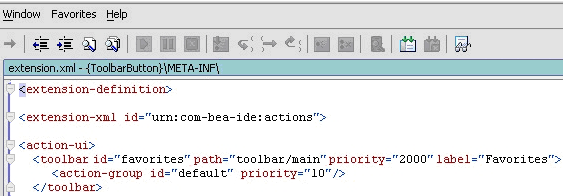
• New menu categories in the main menu must be placed between the existing "Window" and "Help" menus [see the "Favorites" menu in the screen shot below]
• New entries to the toolbar should appear at the right-most side of the toolbar [notice the icon at the right-most side of the toolbar below].
• Extension writers should not add entries to the "Help" menu
• Actions added to existing main menus/pop-up menus must appear in their own groups.
• Panels added to any of the properties settings must be given the lowest priority, so that they are listed after any of the built-in Workshop panels.
Components Look and Feel
Containers that extension writers provide [e.g. dialogs/frames/panels/panes/etcetera] should maintain the look and feel of Workshop components. GUI applications that are kicked off as separate processes need not maintain this look and feel.
Icons
A number of plug-in points to Workshop have icons associated with them. Here we list the places where those icons are required:
• Each new project type has an icon associated with it.
• Each new file type that the vendor provides has an icon associated with it.
Localization
All localizable strings in the extension.xml file [i.e. label, tooltip, etcetera] must be escaped. That is, a typical action should be declared in the following manner:
<action class="workshop.sourceeditor.ui.action.FindInFilesAction$Popup"
label="%strings.workshop.sourceeditor.extension.actionFindInFilesPopup%" >
Instead of:
<action class="workshop.sourceeditor.ui.action.FindInFilesAction$Popup" label="F&ind in Files...@ctrl+shift+F">
Keyboard Customization
Extension writers providing keyboard shortcuts for their actions must ensure against collisions with existing shortcuts.
Dialogs
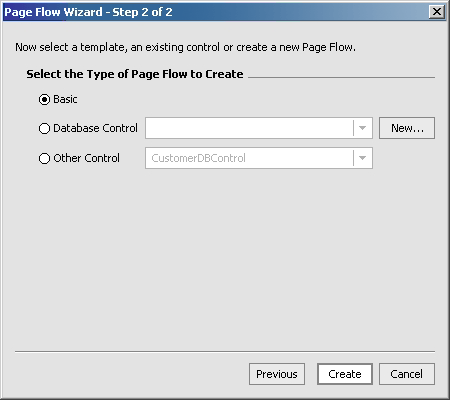
Extensions that provide dialogs for user interaction must follow the following specifications for layout, spacing, and placement of the various elements.
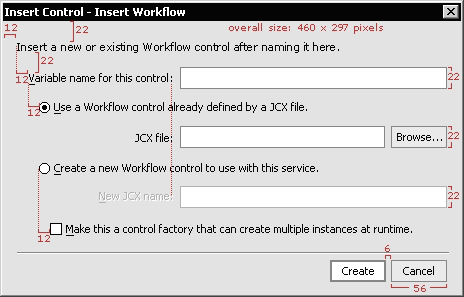
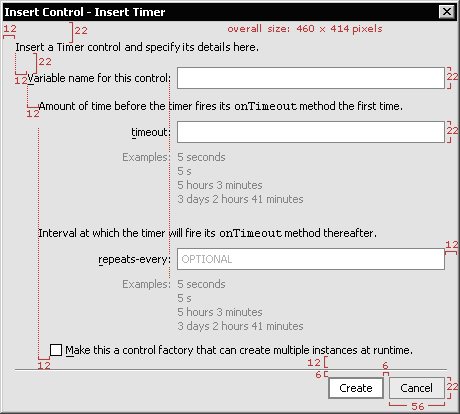
• Typical dialog size should be approximately 460 x 450 pixels. When less information is present, width remains 460.
• Overall size should not ever exceed 600 x 600 pixels.
• Dialog size should be determined by necessary text and controls, but kept to a minimum for readability and ease of use.
• Make dialogs that may grow or have large scrollable regions resizable.
User Interface Guidelines
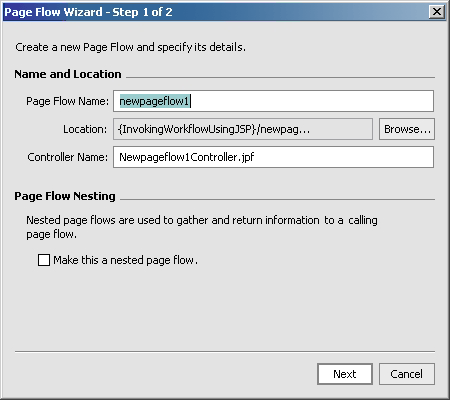
• The dialog's title/purpose should be stated in the titlebar with no icon. Multi-page dialogs shall display place after the title, like so: "Dialog title - Step 1 of 3".
• There should be an opening 1-2 line sentence description on each page of the dialog. When tabs are present, this sentence should appear inside the tabbed area for each tab/screen. For examples, use gray #808080. If a field is optional, label it as such inside the control until user action is initiated.
Multi-Step Dialog Guidelines
• It is preferred not to use labels for Steps on a single page. When step-by-step user input is required, disable controls first then enable them consecutively as user input is received.
• Always show fields as completely as possible, as disabled or read-only. Disabling/enabling gives the user an expectation and establishes a predictable interface.
• Do not hide/show controls, as this may be jarring for the user experience. One exception includes hiding the previous button on the first screen of a multi-page dialog. Next button changes to Finish on the last page.
• Cancel is always on the far right.
• If fields are dependant on the input from other fields to display correctly, display a default scenario first then make changes as necessary.
Summary
If you follow the guidelines set forth in this validation specification, your WebLogic Workshop Extensions should be ready for validation testing by ComponentSource. To avoid unnecessary and potentially costly re-testing, it is important for you to ensure that you have followed all required steps in preparing your control for testing.
|