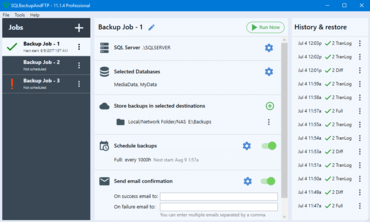
New Look and Feel - The main window is now divided into three sections: job list on the left, job execution history with restore on the right and job settings in the center.
New backup Destinations - Allows sending backups to Local or Network Folder, FTP server, Amazon S3, Dropbox, Google Drive, Microsoft OneDrive and Azure Storage.
Backup Schedule
New “Run between” option allows you to specify a period of time when the database(s) will be backed up. This is useful if you want to create frequent backups, but only during, say, working hours in your company.
Moved “Auto delete old Diff & Tran Log backups after a Full or Diff backup” option from the advanced backup schedule to destination settings window.
Shared Temporary Folder - A temporary folder is a place where backups are created before they are sent to the destination. It is now shared among all the backup jobs on this computer. This releases you from keeping the temporary folder path updated in all backup jobs in case it has changed. Note that this setting is applied to all your jobs.
Custom Scripts - You can now specify a Windows batch file (*.cmd and *.bat) to be executed before or after the SQL backups. In the previous versions, only T-SQL scripts were accepted.
New Backup Options
Place backups for each database into its own subfolder – puts backups into subfolders named according to backed up databases instead of storing all backups in the root of the destination
Backup one DB, send, repeat – sends each backup to the destination before starting the next database backup; useful if you have large databases
Ignore offline databases – will not backup databases with offline status.
Web Log - Now you can see the backup history on the Web, through your account on SQLBackupAndFTP.com. Useful when you need to monitor backup results on multiple SQL servers remotely (Requires an active Updates, Web Log and Support Subscription).
Import your legacy *.jobx files - When you migrate from the previous version of SqlBackupAndFtp, there is no need to create backup jobs anew. Just go to Tools > Import and get your job settings imported.