











공식 공급 업체
200 이상의 소프트웨어 개발처와 판매 계약을 맺은 공인 디스트리뷰터로서 합법적인 라이선스를 제공합니다.
모든 브랜드 보기.
ComponentOne Studio WinForms by MESCIUS is a comprehensive toolkit offering over 120 advanced UI components to streamline Windows Forms application development. It empowers you to build visually appealing and feature-rich applications with functionalities like data visualization through charts and reports, intuitive data editing with performant grids, and modern UI elements including ribbons and docking for a user-friendly experience.
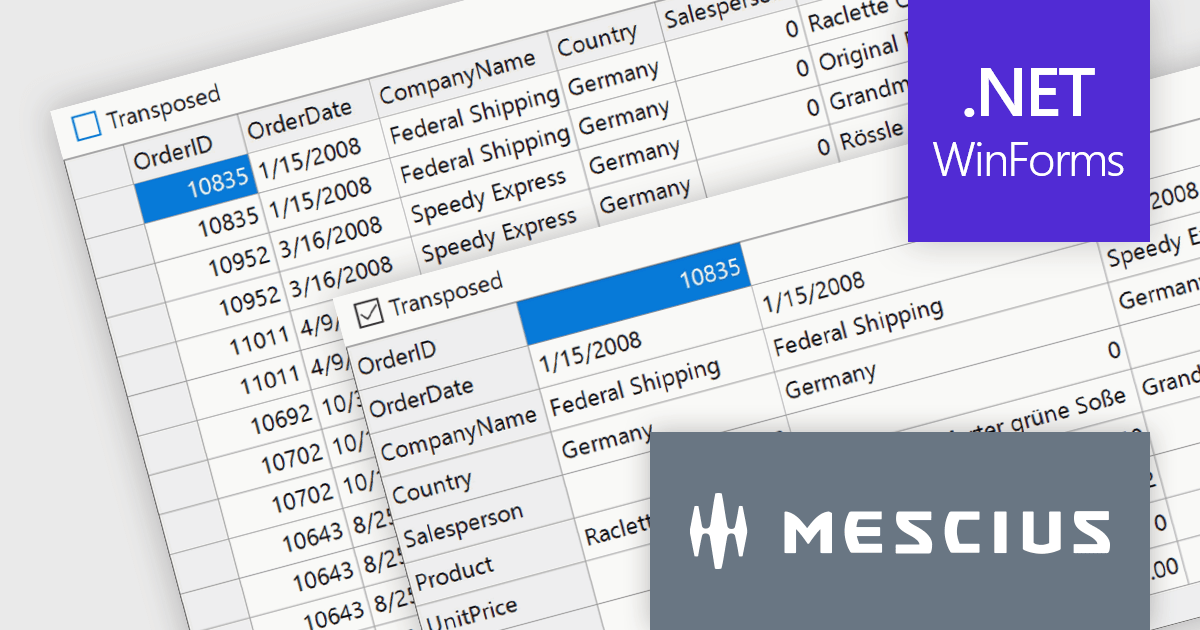
The ComponentOne Studio WinForms 2024 v1 update introduces a new Transposed datagrid view for FlexGrid, enhancing its data presentation capabilities. This feature allows you to display data with rows as columns and columns as rows, providing an alternative view for scenarios where you have many columns or want to prioritize specific data points. This can improve data readability and analysis, especially for wide datasets or when focusing on specific attributes across multiple records.
To see a full list of what's new in 2024 v1, see our release notes.
ComponentOne Studio WinForms is licensed per developer on a perpetual basis and includes a 12 month subscription. See our ComponentOne Studio WinForms licensing page for full details.
Learn more on our ComponentOne Studio WinForms product page.
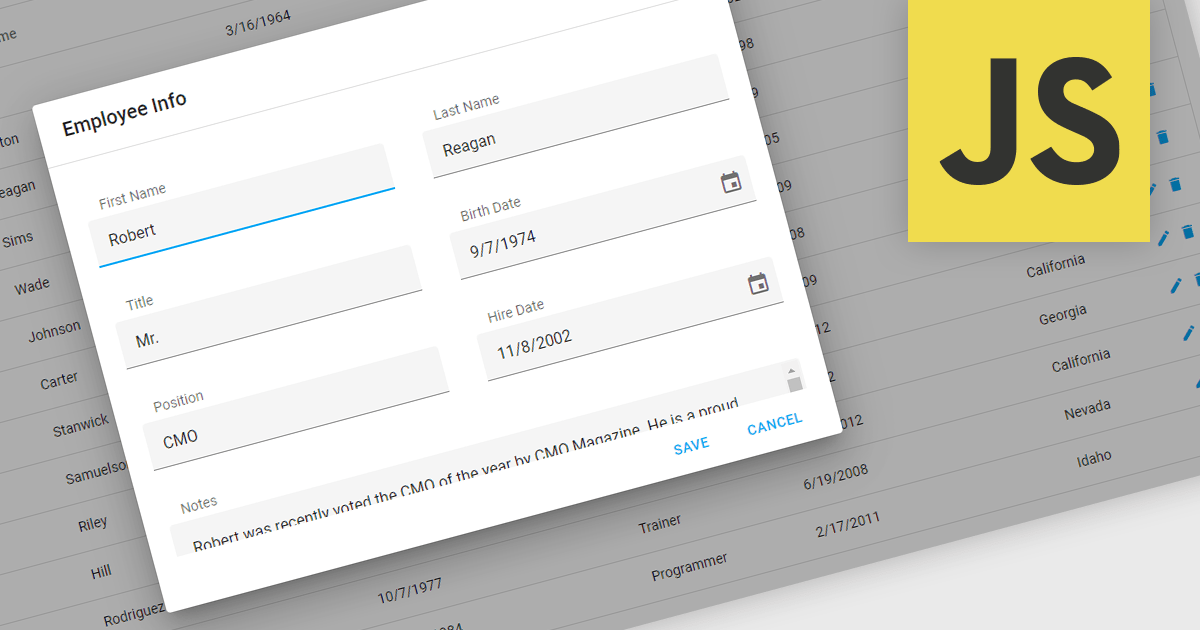
Popup Editors are a common user interface paradigm for editing data within JavaScript grid components. They provide a modal window that appears on top of the grid, containing dedicated input fields for modifying a specific cell or row. This approach enhances data manipulation by offering a focused editing environment with ample space for complex editors or detailed information, improving usability and reducing the risk of errors during data entry.
Many JavaScript grid controls offer popup editors including:
For an in-depth analysis of features and price, visit our comparison of JavaScript Grid Controls.
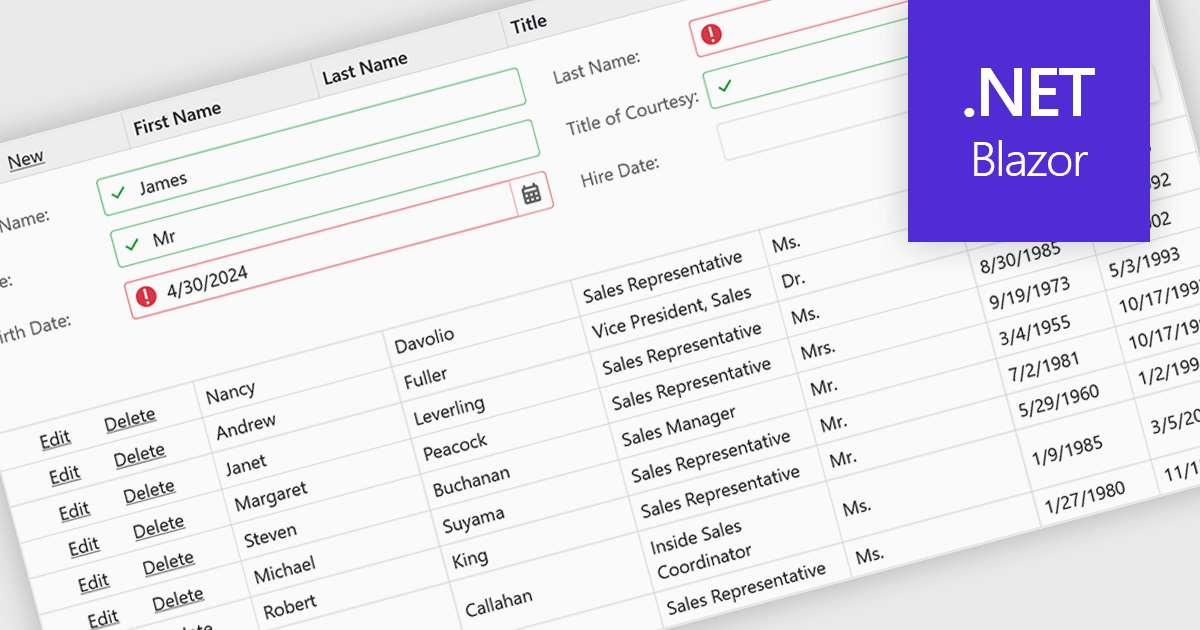
Data validation ensures the accuracy and integrity of information entered by users. It involves implementing rules to verify data against specific criteria, such as data type, format, or range. This helps prevent errors during data entry, improves data consistency, and safeguards against invalid information skewing analysis or downstream processes. Data validation is crucial in various scenarios, including managing financial records, maintaining customer databases, and ensuring data quality for scientific research.
Several Blazor grid controls offer data validation support including:
For an in-depth analysis of features and price, visit our Blazor Grid controls comparison.
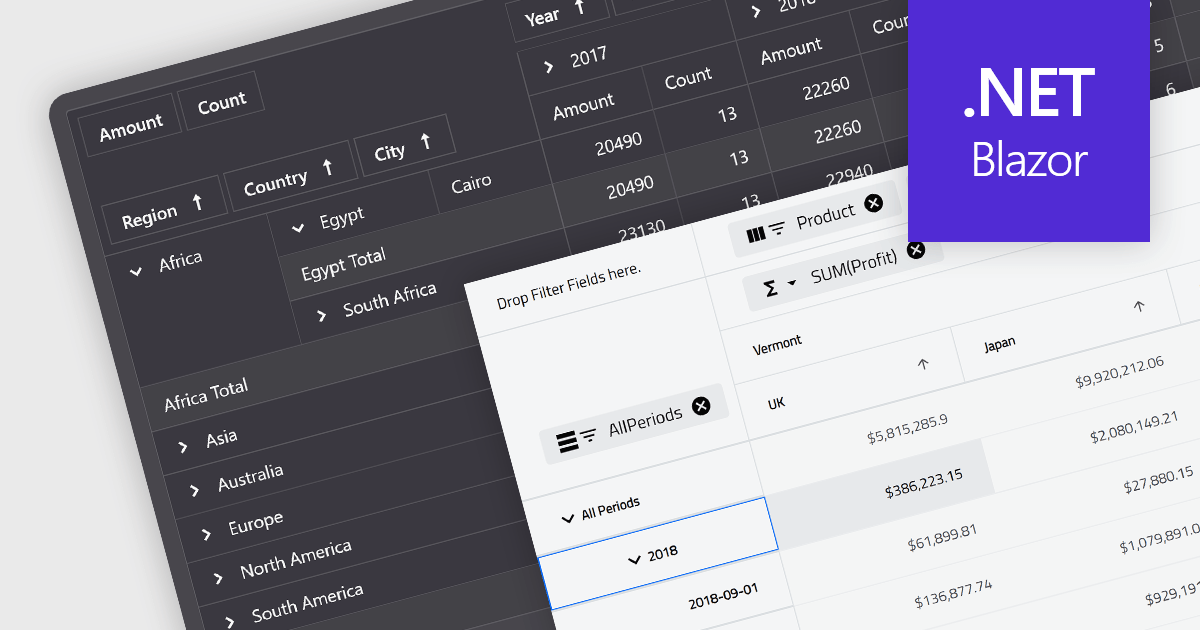
A pivot grid is a powerful data analysis tool that allows you to dynamically summarize and reorganize large datasets. By dragging and dropping fields, you can quickly create a new table that groups and calculates values based on different categories, revealing trends and patterns within your data. This interactive functionality makes pivot grids ideal for gaining insights and informing data-driven decisions. Common use cases include financial analysis, marketing campaign evaluation, and sales performance exploration.
Several Blazor UI suites feature a pivot grid control including:
For an in-depth analysis of features and price, visit our Blazor UI suites comparison.
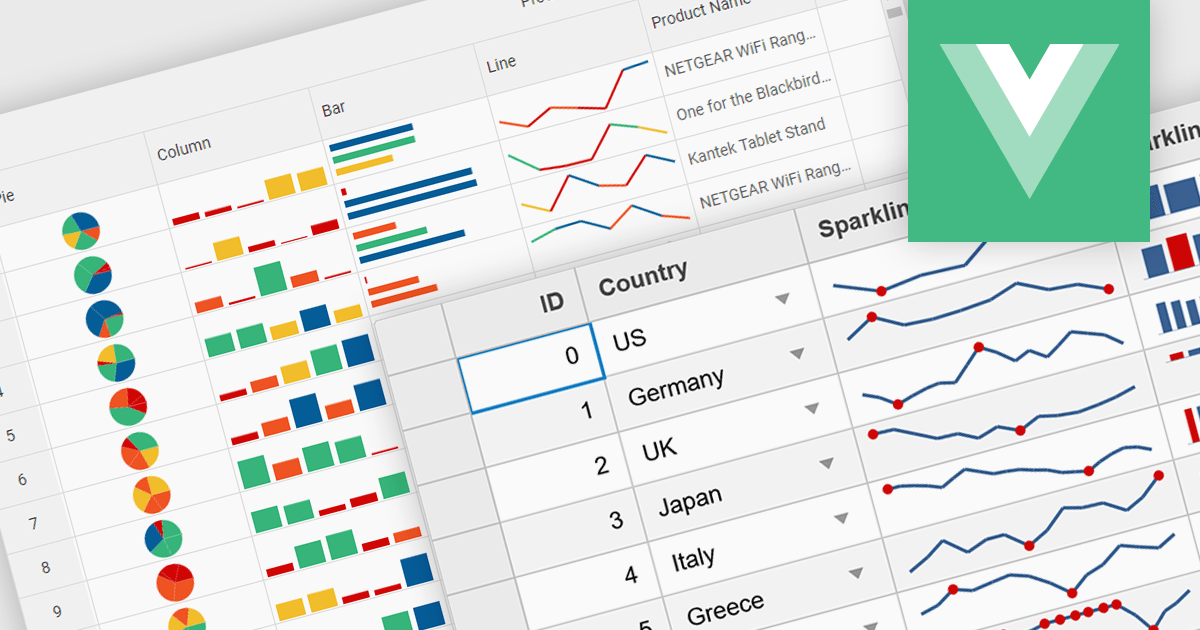
Sparklines are miniature charts embedded directly within grid cells, providing a quick visual summary of data trends within a larger dataset. These tiny line graphs, often lacking axes or detailed labels, condense information into a highly space-efficient format, allowing viewers to grasp patterns and fluctuations at a glance across multiple rows and columns of a grid.
Several Vue.js grid controls offer support for sparklines including:
For an in-depth analysis of features and price, visit our Vue.js Grid controls comparison.
전화 : 00798 14 800 6332
팩스 : +1 770 250 6199


